The UGC Scaling Problem Every Community Administrator Faces
You built the community. You wrote the first hundred posts. You responded to every comment, welcomed every new member, and created content on a schedule that would exhaust a small editorial team. And yet, when you look at your BuddyPress activity feed, most of the content still comes from you and a handful of moderators.
This is the user-generated content scaling problem, and it is the single biggest bottleneck for growing online communities. No matter how dedicated you are, one person or a small admin team cannot produce enough content to make a community feel alive for hundreds or thousands of members.
The math is straightforward. A community with 500 members needs constant fresh content to keep the activity feed interesting. If only the admin and two moderators are posting, that is three people responsible for all the content that 500 members consume. The feed feels repetitive. Members see the same names over and over. They conclude that the community is a one-way broadcast channel rather than a participatory space, and they disengage.
The typical response is to encourage members to post. Send emails. Create prompts. Run contests. These tactics produce short-term spikes but rarely sustained contribution. The problem is not motivation. Most members want to participate. The problem is friction.
Posting a text update on BuddyPress requires opening the activity form, composing something worth saying, worrying about grammar and tone, and hitting submit. For many members, especially those who are not natural writers, this process is intimidating enough to prevent participation entirely. They lurk, they read, they appreciate the community, but they never contribute.
Visual content creation through stories eliminates most of this friction. Sharing a photo or short video requires no writing skill, no careful composition, and no public commitment to a permanent post. And because stories disappear after 24 hours, the stakes are near zero. If a story does not land perfectly, it will be gone tomorrow. Understanding how members interact with communities on mobile devices makes this visual-first approach even more relevant.
Frontend Creation Without a Learning Curve
The most important design decision in WP Stories is that content creation happens entirely on the frontend. Members never see the WordPress dashboard, never navigate admin menus, and never encounter any interface that looks like a content management system.
The creation flow works like this:
- Tap the “+” button in the stories bar or the floating action button on the activity page.
- Choose a photo or video from the device camera roll or take a new one.
- Edit if desired using the built-in editor (crop, filter, text overlay, stickers).
- Set privacy (Public, Friends Only, or a specific group).
- Tap “Share” to publish the story immediately.
The entire process takes 15-30 seconds. Compare this to the minutes it takes to compose a thoughtful text update, and you understand why stories generate more content from more members.
The frontend-first approach also matters for a technical reason. Many BuddyPress communities restrict dashboard access to administrators. Members cannot upload media through the WordPress media library or create posts through the editor. WP Stories sidesteps this entirely by using its own frontend uploader that handles file validation, resizing, and optimization without any dashboard access.
This means your members can create and publish visual content using the same capability restrictions you already have in place. No new roles to configure, no new capabilities to grant, no new security concerns about dashboard access.
The Built-In Image Editor
Raw photos from a phone camera are functional but rarely engaging. They need cropping, brightness adjustment, maybe a filter to unify the visual style. On Instagram, the built-in editor handles this. In most WordPress media uploaders, editing is nonexistent.
WP Stories includes a browser-based image editor that gives members enough creative control to make their stories visually polished without requiring external apps. The editor loads directly in the story creation overlay and includes:
Cropping and rotation. Stories display in a vertical format (9:16 ratio by default). The cropper automatically suggests the optimal crop area but lets members adjust it. Rotation handles photos taken at odd angles.
Filters. A set of preset filters (similar to Instagram’s classics) that members can apply with a single tap. Filters unify the visual style of stories across the community, making the stories bar feel cohesive even when different members have different photography skills.
Text overlay. Members can add text on top of their photos with customizable font, size, color, and position. This is essential for stories that need context: a photo of a project with a caption, an event photo with the event name, a landscape with a location tag.
Drawing tools. Simple brush and color tools for annotations, arrows, circles, and freehand drawing. These are popular for tutorial-style stories where members explain something visual.
Stickers and emoji. A library of stickers and emoji that members can drag onto their stories. This adds personality and fun without requiring any artistic skill.
The editor runs entirely in the browser using Canvas API and does not require any server-side processing for editing. The final edited image is what gets uploaded to WordPress, which means no extra server load during the editing process. Only the final result hits your server, already cropped and optimized.
For administrators who want to control the creative tools available, each editor feature can be individually enabled or disabled in the WP Stories settings. If your community has a professional tone and stickers feel inappropriate, disable them. If your community is casual and creative, enable everything and let members express themselves.
Moderation and Privacy Controls
User-generated content always raises moderation concerns. The more content members create, the more potential there is for inappropriate material. WP Stories addresses this with a layered moderation system.
Pre-Publication Controls
- New member approval queue: Require stories from members who joined within the last X days to be approved by a moderator before they appear in the stories bar. This prevents spam accounts from polluting the stories experience while established members post freely.
- File type restrictions: Limit uploads to specific image formats (JPEG, PNG, WebP) and optionally short video formats (MP4). Block executable files, SVGs, and other potentially dangerous formats.
- File size limits: Set maximum upload sizes to prevent excessively large files from consuming storage. The built-in optimizer automatically compresses images before upload, but a hard limit provides an additional safeguard.
- Content rate limiting: Set a maximum number of stories per member per day (default: 10). This prevents any single member from flooding the stories bar.
Post-Publication Controls
- Member reporting: Any member can report a story with a single tap from the story viewer. Reports include a reason category (inappropriate, spam, harassment, other) and an optional description.
- Auto-hide thresholds: Stories that receive X or more reports within Y hours are automatically hidden pending moderator review. This prevents offensive content from remaining visible while moderators are offline.
- Moderator dashboard: A dedicated moderation screen shows all reported stories with their report reasons, the reporting members, and one-click actions to approve, hide, or delete the story and optionally warn or suspend the creator.
- Content expiry as a safety net: Because stories expire after 24 hours by default, even if a moderator misses something problematic, the content disappears on its own. This is a meaningful advantage over permanent posts that can sit unmoderated indefinitely.
Privacy Architecture
Privacy controls in WP Stories go beyond simple public/private toggles:
- Public stories are visible to all logged-in community members.
- Friends Only stories are visible only to confirmed BuddyPress friends.
- Group stories are visible only to members of the BuddyPress group where the story was posted.
- Only Me stories are visible only to the creator, useful for testing or saving content for later.
These privacy levels are enforced at the API level, not through CSS hiding. A non-friend cannot see a “Friends Only” story even by directly accessing the story URL. The server returns a 403 response, and the story content is never transmitted to unauthorized viewers.
Shortcodes and Widgets for Displaying UGC
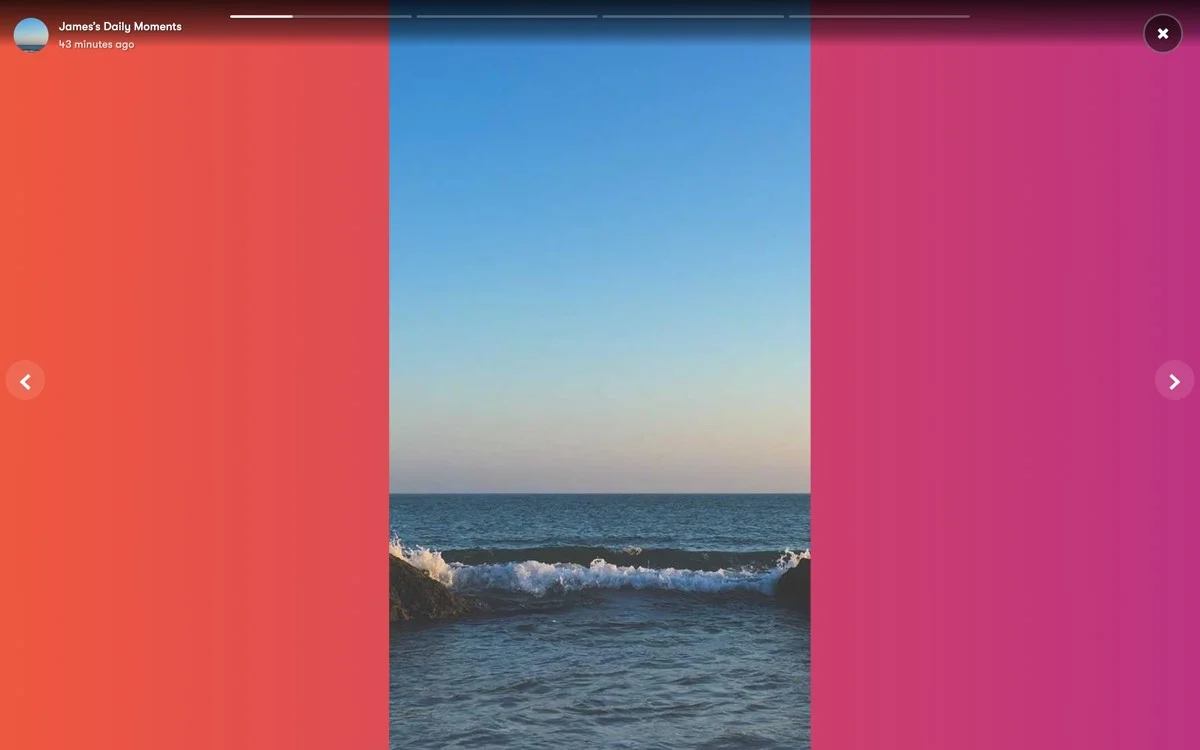
Stories do not have to live only on the activity page. WP Stories provides shortcodes and widgets that let you showcase user-generated story content across your entire site.
Shortcodes
The primary shortcode is flexible enough to handle most display needs:
[wp_stories]This renders the standard stories bar with default settings. For more control:
[wp_stories count="8" style="grid" group_id="12" show_add="true"]Available shortcode parameters include:
- count: Number of stories to display (default: 10).
- style: Display style: “bar” (horizontal scrollable), “grid” (multi-row grid), “carousel” (auto-rotating).
- group_id: Show stories only from a specific BuddyPress group.
- user_id: Show stories only from a specific member.
- show_add: Show or hide the “Add Story” button (default: true).
- privacy: Filter by privacy level (public, friends, all).
Widgets
WP Stories includes widgets for sidebars and widget areas:
- Stories Bar Widget: A vertical list of story avatars with names, suitable for narrow sidebars.
- Latest Stories Widget: A compact grid of the most recent story thumbnails with a “View All” link.
- Story Creators Widget: A list of the most active story creators, gamifying contribution.
Gutenberg Blocks
For sites using the block editor, WP Stories provides Gutenberg blocks that offer the same functionality as shortcodes but with a visual editing experience. The Stories Bar block can be added to any page or post with drag-and-drop, and its settings are configurable through the block sidebar.
Strategic Placement Ideas
Smart placement of stories across your site maximizes UGC visibility and encourages more creation:
- Homepage: Place a stories bar on your homepage to give visitors an immediate sense of community activity. This is especially powerful for converting visitors into registered members.
- Group pages: Show group-specific stories on each group’s activity page. This encourages group members to share content relevant to the group’s topic.
- Member directory: Add a stories bar to the top of the member directory to showcase active members.
- Event pages: If your community runs events, a stories shortcode filtered to event-related content creates a live visual feed of the event.
- Onboarding pages: Show stories on the registration confirmation page to demonstrate the kind of content members create. This sets expectations and encourages new members to post their first story immediately.
You can also combine stories with gamification features like badges and leaderboards to reward the most active content creators and drive more UGC.
Reducing Admin Workload Through Member Content
The ultimate goal of enabling UGC is to shift the content creation burden from administrators to members. When this shift happens successfully, the community becomes self-sustaining. Here is how WP Stories enables this transition.
Phase 1: Admin Seeding (Weeks 1-2)
In the first two weeks after enabling stories, administrators and moderators should post 2-3 stories per day to seed the feature. This accomplishes two things: it populates the stories bar so it does not look empty, and it models the kind of content members should create. Post behind-the-scenes content, community highlights, event announcements, or fun moments. Members will mirror what they see.
Phase 2: Early Adopter Growth (Weeks 3-4)
As members discover stories, early adopters will start creating their own. At this stage, actively encourage story creation through:
- Featuring member stories in weekly community roundup emails.
- Commenting on member stories with genuine reactions.
- Highlighting prolific story creators in community announcements.
- Running a “Story of the Week” feature that spotlights the best member-created story.
Phase 3: Self-Sustaining Content (Month 2+)
By the second month, enough members are creating stories that the admin can reduce their own posting cadence. The stories bar stays populated with member content even without admin contributions. At this point, the admin’s role shifts from content creator to community curator: moderating stories, highlighting great content, and ensuring the feature runs smoothly.
The Content Multiplication Effect
A single member story generates more community value than a single admin post. Here is why:
- Member stories are authentic. They show real experiences, real moments, real perspectives. This authenticity resonates more than polished admin content.
- Member stories demonstrate community participation to other members. When Sarah sees that Mike, Tom, and Lisa are all posting stories, she is more likely to post one herself. Admin stories do not create this peer effect.
- Member stories diversify the content. Instead of one admin’s perspective, the community gets dozens of unique viewpoints. This variety keeps the stories bar interesting and unpredictable, driving repeat visits.
- Member stories scale without admin effort. Once the habit is established, 20 members posting one story each per day generates 20 pieces of fresh content with zero admin effort.
The transition from admin-dependent content to member-generated content is the single most important milestone in a community’s growth. WP Stories accelerates this transition by providing the creation tools, distribution channel, and social incentives that make UGC natural and rewarding.
Setup Guide: Enabling UGC with WP Stories
Follow these steps to configure WP Stories specifically for maximizing user-generated content.
Step 1: Install and Activate
Download WP Stories from WBComDesigns and install it through your WordPress dashboard (Plugins > Add New > Upload Plugin). Activate the plugin.
Step 2: Optimize Creation Settings
Navigate to WP Stories > Settings > Creation and configure for maximum member participation:
- Enable all editor tools: Filters, text overlay, cropping, stickers, and drawing. Give members every tool to express themselves.
- Set generous file size limits: 10MB for images, 50MB for video. Members should not encounter upload errors.
- Enable camera access: Allow the story creator to access the device camera directly for instant capture and share.
- Enable multi-slide stories: Let members post stories with multiple slides (images) in a single story. This encourages more complete storytelling.
Step 3: Configure Creation Entry Points
- Enable the “+” button in the stories bar.
- Enable the floating action button on the activity page.
- Add a “Create Story” link to the BuddyPress profile navigation.
- Enable story creation prompts for members who have not posted in the past week.
Step 4: Set Up Privacy Defaults for UGC Comfort
- Set the default privacy to “Public” for open communities or “Friends Only” for close-knit communities.
- Enable the privacy selector in the creation flow so members can always override the default.
- Display a “Who can see this” label clearly in the creation interface to reduce privacy anxiety.
Step 5: Configure Moderation for UGC Safety
- Enable member reporting with a one-tap report button.
- Set auto-hide threshold to 3 reports within 6 hours.
- Enable admin email notifications for reported stories.
- Enable new member approval queue for accounts less than 7 days old.
Step 6: Place Stories Across Your Site
- Add the
[wp_stories]shortcode to your homepage. - Enable the stories bar on the activity page (default placement).
- Add the Stories Bar Widget to your sidebar.
- Enable stories on BuddyPress group pages.
- Enable the Stories tab on member profiles.
Step 7: Seed Content and Launch
- Post 3-5 stories from admin and moderator accounts to populate the bar.
- Create a pinned activity update announcing the stories feature.
- Send an email to members introducing visual stories with a direct link to the activity page.
- Monitor creation rates and adjust prompts and placement based on member response.
Measuring UGC Success
Track these metrics to gauge how successfully your community is generating member content:
- Creator ratio: The percentage of active members who post at least one story per week. Target: 15-25% within 3 months.
- Content diversity: The number of unique story creators per day. Higher diversity means the feature is not reliant on a few power users.
- Admin content percentage: The proportion of all stories that come from admin/moderator accounts. This should decrease over time as member content grows. Target: below 20% of total stories by month 3.
- Creation-to-view ratio: How many stories are created for every 100 story views. A healthy ratio is 5-10 stories per 100 views, meaning that viewing stories inspires creation.
- Repeat creators: Members who post stories on multiple days per week. These are your UGC champions and should be recognized.
Start Enabling Member-Created Content Today
Your community’s content should not depend on a single person’s ability to keep posting. WP Stories gives every member the tools to contribute visual content with zero learning curve, built-in creative tools, and privacy controls that make sharing comfortable.
The communities that thrive are the ones where members feel ownership. Where the content reflects diverse voices, not a single admin’s perspective. Where checking the activity feed feels like opening a window into a living, breathing community rather than reading a bulletin board.
WP Stories makes this transition possible. The creation tools are built in. The moderation system is ready. The display options are flexible. All that is left is to install it and let your members do what they have been waiting to do: contribute.
Get WP Stories for BuddyPress and turn your members from passive readers into active content creators.