Running a BuddyPress community means dealing with spam, inappropriate content, and member conflicts. Without proper moderation tools, these issues can quickly spiral out of control and drive away your best members. That’s where BuddyPress Moderation Pro comes in – a comprehensive solution that puts community safety in your hands.
I’ve been testing BuddyPress Moderation Pro (version 4.0.0) on a live community site, and in this hands-on review, I’ll walk you through every feature with real screenshots from my testing environment. Whether you’re running a small membership site or a large online community, understanding your moderation options is crucial for long-term success.
What is BuddyPress Moderation Pro?
BuddyPress Moderation Pro is a premium WordPress plugin from Wbcom Designs that adds comprehensive content moderation, user blocking, and reporting capabilities to your BuddyPress or BuddyBoss community. It enables members to flag inappropriate content, block other users, and helps administrators maintain a healthy community environment.
Unlike basic moderation plugins that only handle spam, BuddyPress Moderation Pro provides a complete moderation ecosystem. It covers activities, comments, private messages, groups, member profiles, and even avatar uploads. The plugin essentially gives you Facebook-level moderation tools for your WordPress community.
Key Features at a Glance
- Content Reporting – Members can flag activities, comments, messages, groups, and other members
- User Blocking – Members can block each other to prevent unwanted interactions
- Automatic Moderation – Set thresholds to auto-hide content after a certain number of reports
- Avatar Moderation – Review profile photos and group avatars before they go live
- Customizable Report Types – Define your own report categories for different content types
- Admin Notifications – Get email and BuddyPress notifications when content is reported
- Role-Based Permissions – Control which user roles can submit reports
- Consequence System – Define what happens when members or content get reported
Why Community Moderation Matters
Before diving into the features, let’s understand why proper moderation is essential for any online community:
- Protects Your Members – Harassment, spam, and inappropriate content can drive away your best community members. A proper moderation system shows you care about their experience.
- Reduces Admin Workload – Without automated tools, you’d need to manually monitor every post, comment, and message. That’s simply not scalable.
- Empowers Community Self-Policing – When members can report issues and block problematic users, they become partners in maintaining community standards.
- Legal Protection – Having clear moderation processes protects you from liability related to user-generated content.
- Improves Community Quality – Clean, well-moderated communities attract higher-quality members and more meaningful discussions.
BuddyPress Moderation Pro Dashboard
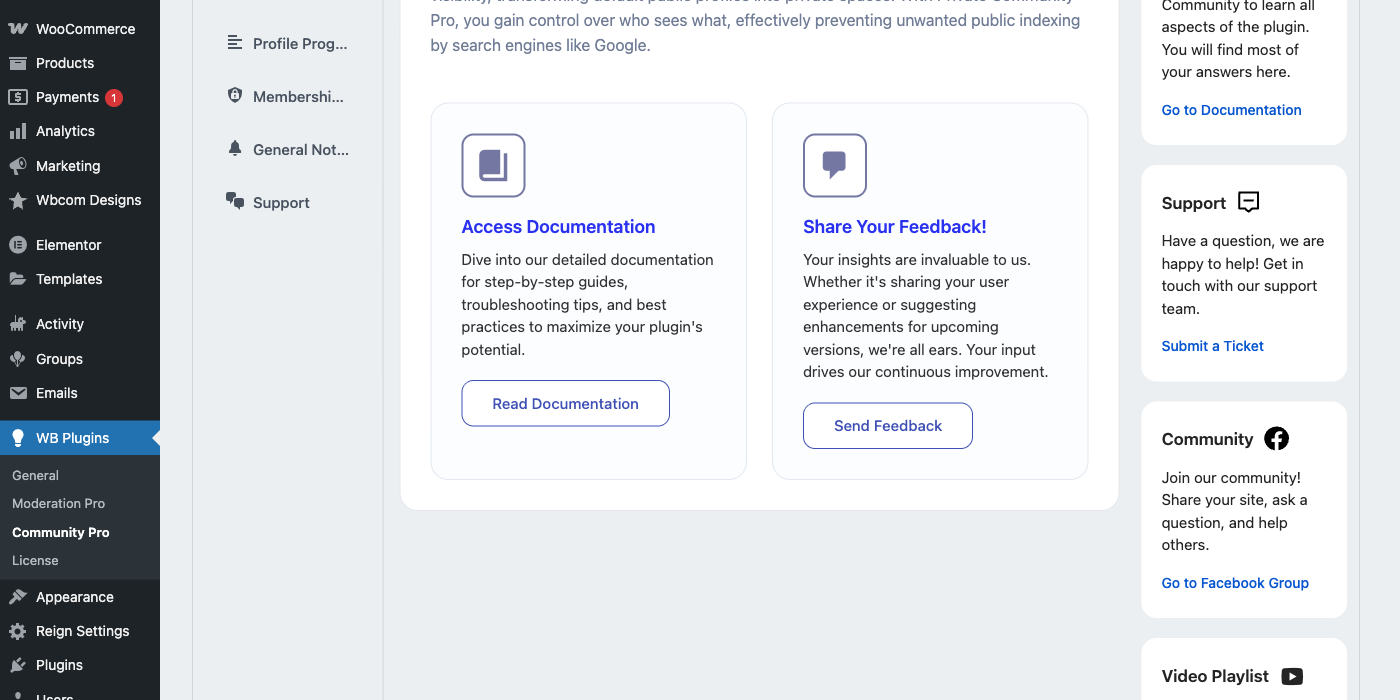
After activating the plugin, you’ll find the settings under WB Plugins → Moderation Pro in your WordPress admin. The welcome screen provides quick access to documentation, support, and all the plugin’s configuration tabs.
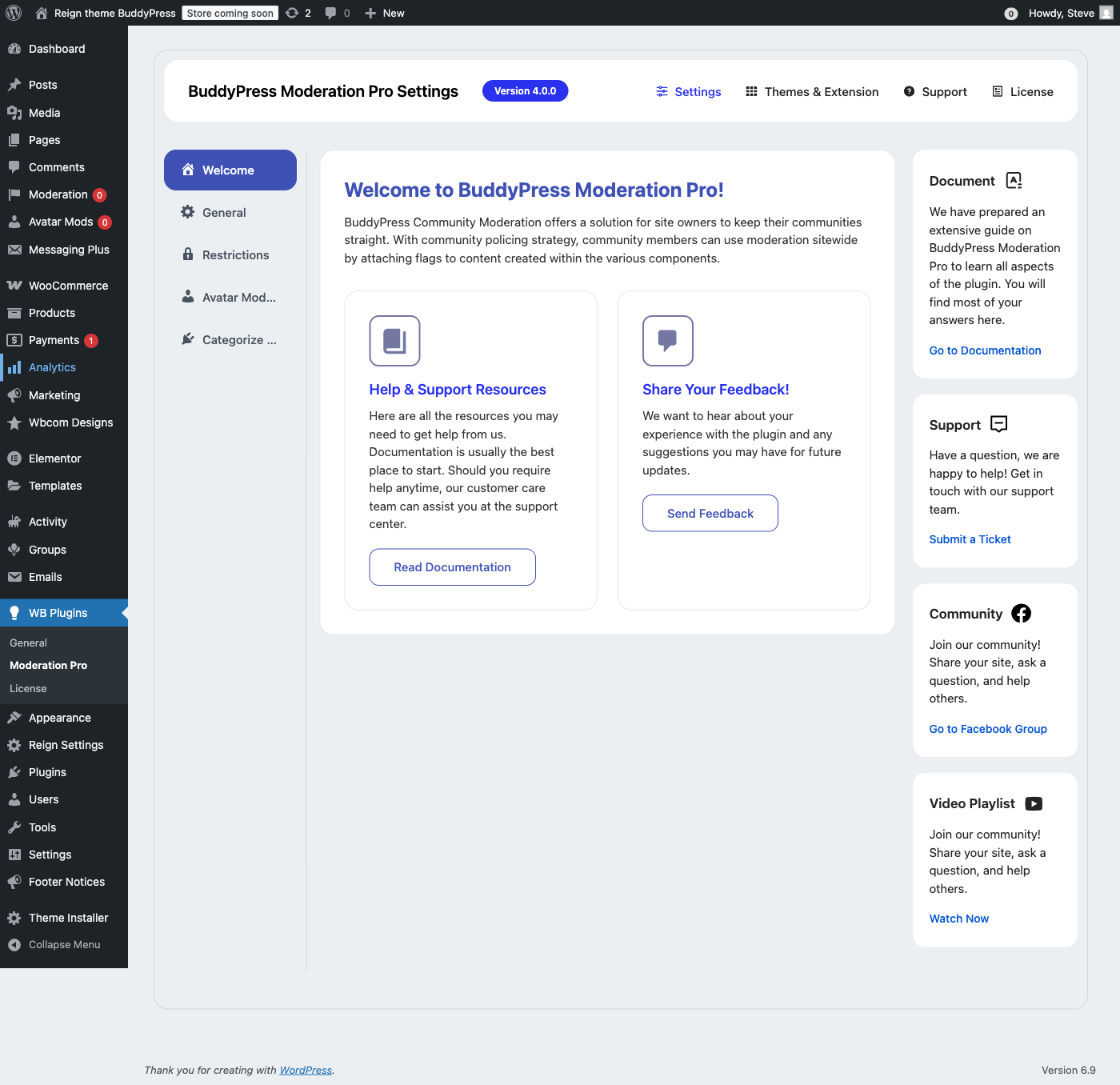
The interface is clean and well-organized with five main tabs: Welcome, General, Restrictions, Avatar Moderation, and Categorize by Report. The sidebar provides quick links to documentation, support tickets, the Facebook community, and video tutorials. This organization makes it easy to find exactly what you need without hunting through endless settings pages.
General Settings Configuration
The General Settings tab is where you configure the core moderation behavior. Here’s what you can control:
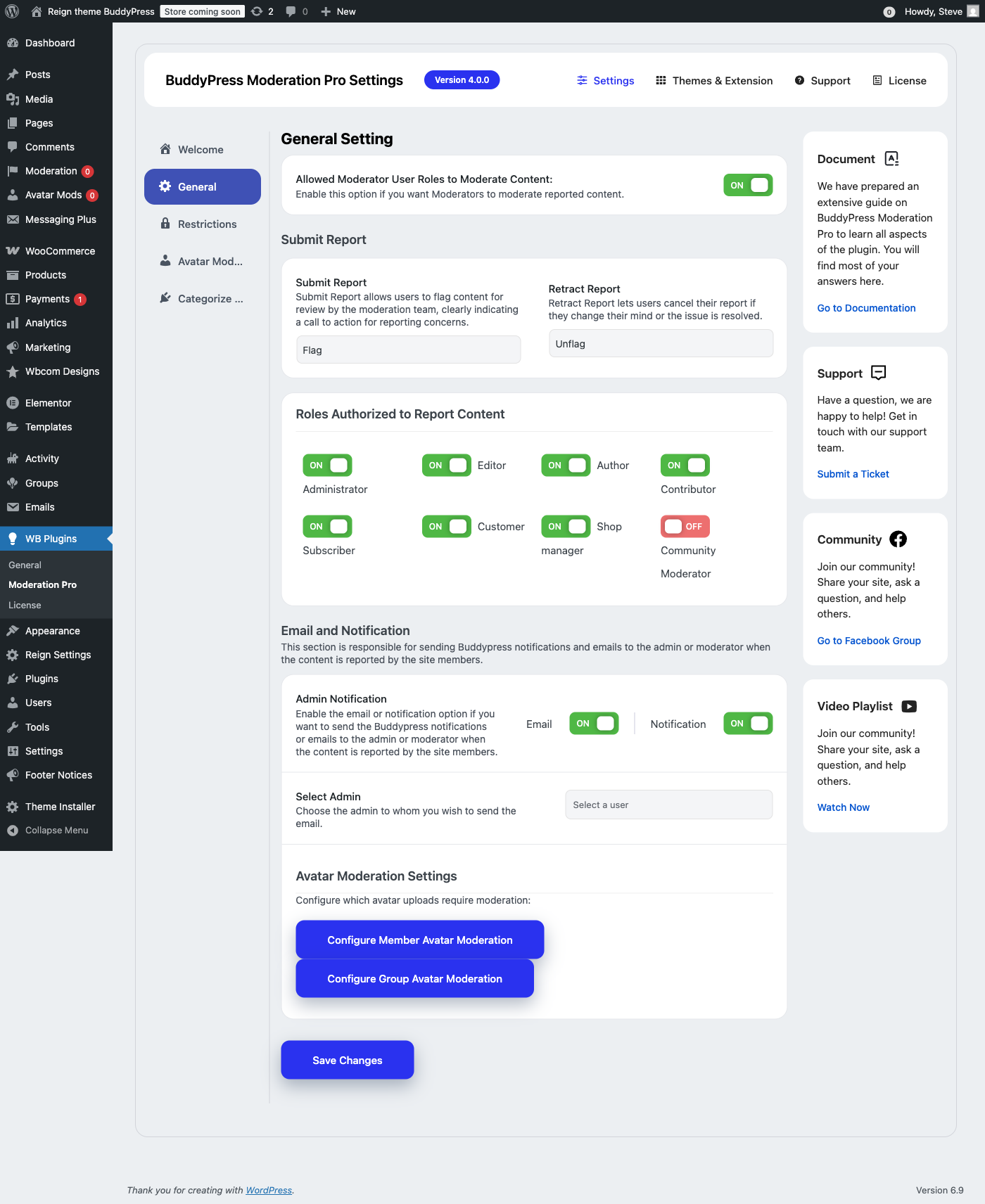
Moderator User Roles
Enable which users can moderate reported content. This is separate from who can submit reports – here you’re defining who can review and act on reports. This separation is important because you might want all members to report issues, but only trusted staff to handle the moderation queue.
Submit and Retract Reports
Customize the button labels for flagging content. You can change “Flag” to something more appropriate for your community, like “Report” or “Report Abuse”. The retract option lets users cancel their reports if they change their mind – useful when members report something in the heat of the moment and later regret it.
Roles Authorized to Report
Control which user roles can submit reports. By default, most roles are enabled, but you might want to disable reporting for certain roles. For example, you might turn off reporting for “Community Moderator” role since they handle reports rather than submit them. You can also restrict reporting to paid members only if you want to prevent abuse of the system.
Email and Notification Settings
Configure how administrators are notified when content gets reported:
- Email Notifications – Send email alerts to a specific admin user when new reports come in
- BuddyPress Notifications – Add reports to the admin’s BuddyPress notification feed for in-platform alerts
- Select Admin – Choose which administrator receives the notifications, allowing you to assign a dedicated moderator
Restrictions Settings: The Heart of Moderation
The Restrictions tab is where BuddyPress Moderation Pro really shines. This is where you configure what happens when content or members get reported. Think of it as your community’s enforcement system.
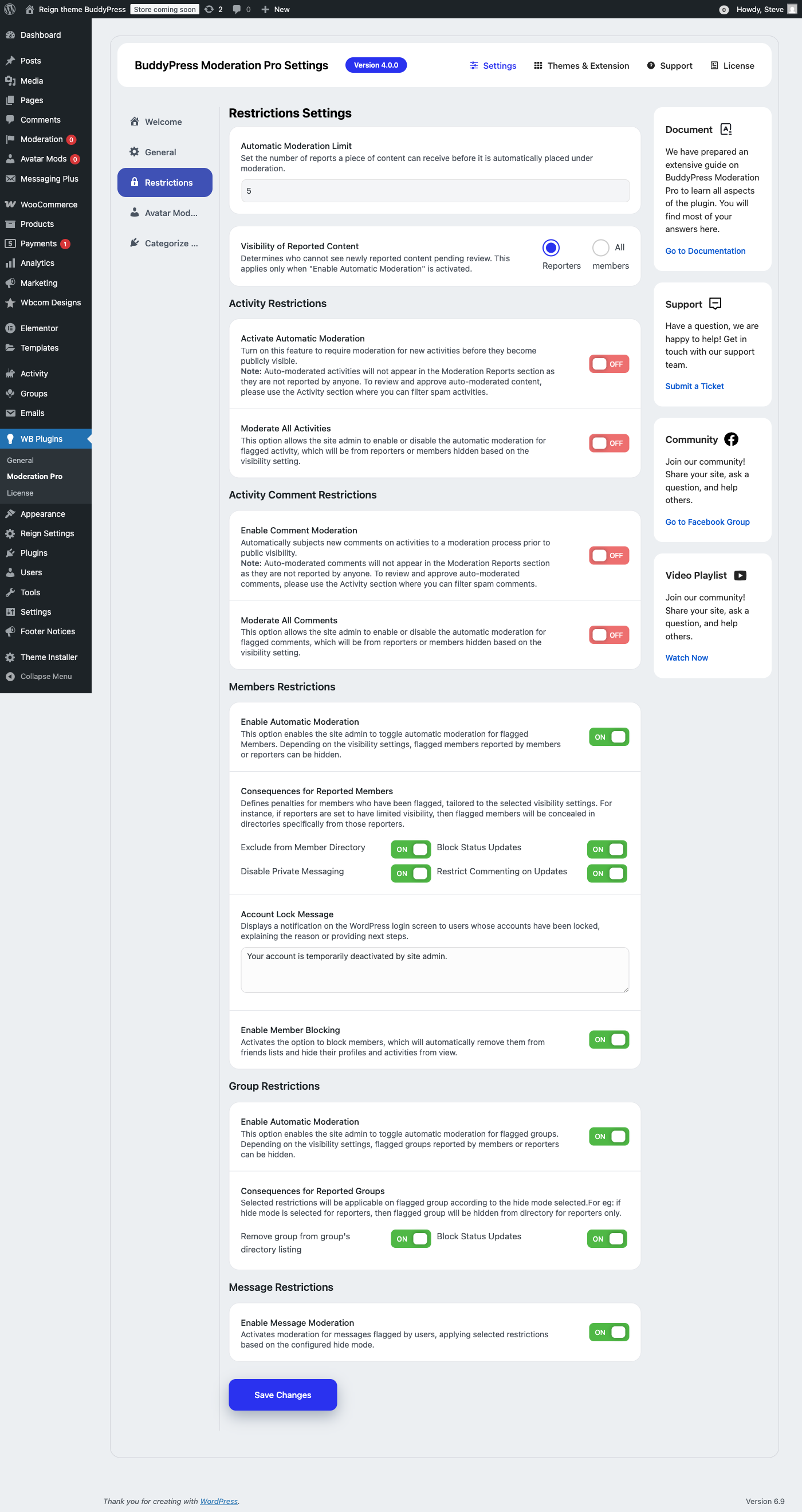
Automatic Moderation Limit
Set a threshold for how many reports trigger automatic moderation. For example, if you set this to 5, content will be automatically hidden after receiving 5 reports. This is crucial for communities where you can’t monitor 24/7. The community essentially polices itself – if enough members flag something as inappropriate, it gets hidden automatically while you review it.
Visibility of Reported Content
Choose who can’t see reported content:
- Reporters Only – Only the users who reported the content won’t see it. This is less aggressive and prevents a single report from affecting everyone.
- All Members – Hide reported content from everyone until an admin reviews it. This is more protective but may hide legitimate content.
Activity Restrictions
- Activate Automatic Moderation – Require moderation for new activities before they become publicly visible
- Moderate All Activities – Enable automatic moderation for all flagged activity content
Activity Comment Restrictions
- Enable Comment Moderation – Auto-moderate new comments before they appear publicly
- Moderate All Comments – Apply moderation rules to all flagged comments automatically
Member Restrictions
This is where you define consequences for reported members. You have granular control over what happens:
- Exclude from Member Directory – Hide reported members from the public members list
- Block Status Updates – Prevent reported members from posting new activities
- Disable Private Messaging – Block reported members from sending private messages
- Restrict Commenting on Updates – Prevent them from commenting on other members’ activities
- Account Lock Message – Customize the message shown when a suspended member tries to log in
- Enable Member Blocking – Allow members to block each other, creating personal ignore lists
Group Restrictions
- Enable Automatic Moderation – Auto-moderate groups that receive multiple reports
- Remove from Group Directory – Hide reported groups from the public directory listing
- Block Status Updates – Prevent new activity posts in reported groups
Message Restrictions
Enable moderation for private messages flagged by users. This helps combat harassment through direct messages – a common problem in online communities where bad actors try to hide their behavior from public view.
Customizable Report Categories
One of the most powerful features is the ability to define custom report types for different content. Instead of generic “Report” options, you can offer specific categories that help you understand and prioritize issues.
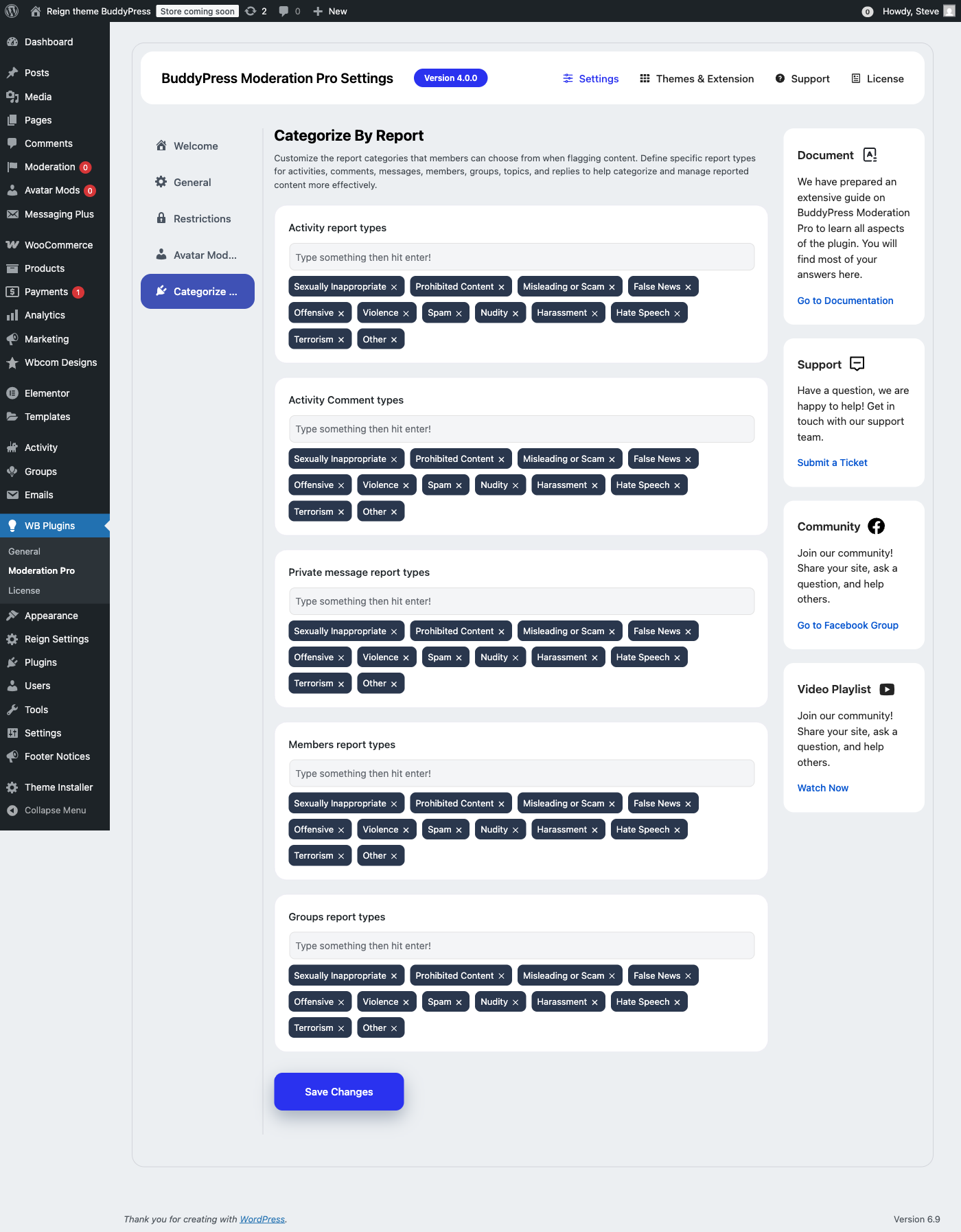
The plugin comes with sensible defaults that cover most common issues:
- Sexually Inappropriate
- Prohibited Content
- Misleading or Scam
- False News
- Offensive
- Violence
- Spam
- Nudity
- Harassment
- Hate Speech
- Terrorism
- Other
You can customize these categories for each content type separately, which is valuable because the types of issues you see in private messages might differ from what shows up in public activities:
- Activity report types – For public posts in the activity stream
- Activity Comment types – For comments on activity posts
- Private message report types – For direct messages between members
- Members report types – For reporting member profiles
- Groups report types – For reporting entire groups
Frontend Moderation Experience
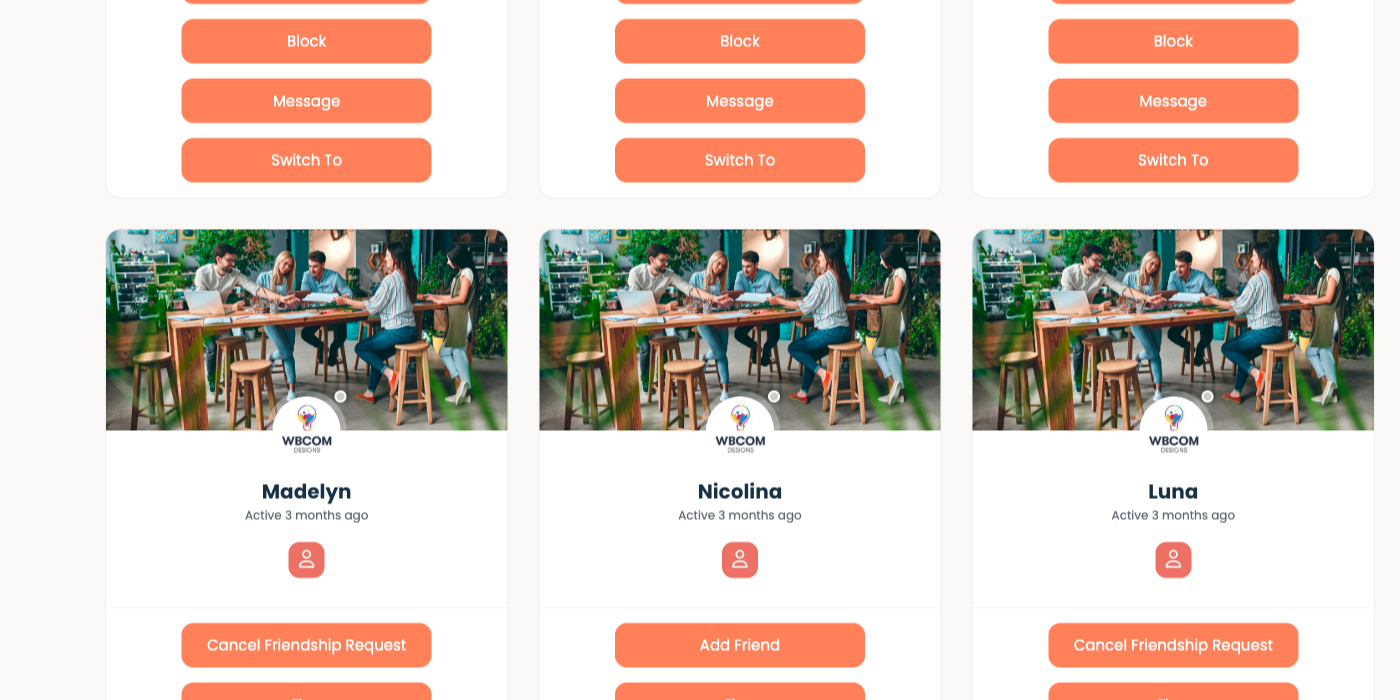
On the frontend, members see clean, unobtrusive moderation controls that don’t clutter the interface. Here’s how the member directory looks with moderation enabled:
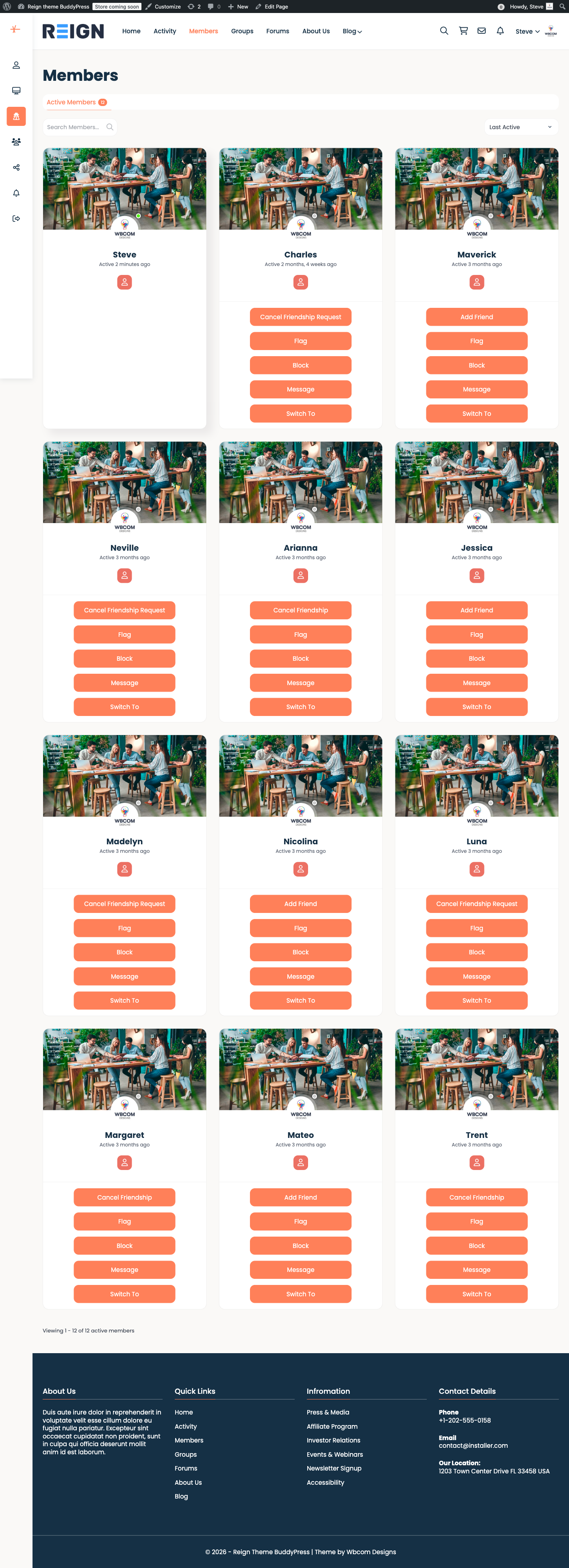
Each member card displays action buttons including:
- Flag – Report the member to administrators for review
- Block – Block the member from interacting with you personally
- Message – Send a private message (standard BuddyPress feature)
The design integrates seamlessly with the Reign theme (and other BuddyPress themes), maintaining a consistent look while adding powerful moderation capabilities. Members don’t feel like they’re using a heavily policed platform – the tools are there when needed but don’t dominate the experience.
Avatar Moderation
A unique feature of BuddyPress Moderation Pro is avatar moderation. You can require approval for:
- Member Avatars – Profile photos uploaded by members
- Group Avatars – Images uploaded for group profiles
This prevents inappropriate images from appearing on your site before you have a chance to review them. It’s essential for communities with strict content policies, educational platforms, or any site where children might be present. New uploads go into a queue where administrators can approve or reject them before they become visible.
How to Install BuddyPress Moderation Pro
Installation is straightforward:
- Purchase the plugin from Wbcom Designs
- Download the ZIP file from your account dashboard
- Upload via WordPress – Go to Plugins → Add New → Upload Plugin
- Activate the plugin and enter your license key
- Configure settings under WB Plugins → Moderation Pro
The plugin works immediately with default settings, but I recommend going through each tab to customize the behavior for your specific community needs.
BuddyPress Moderation Pro Pricing
The plugin offers three pricing tiers (annual licenses):
| License | Sites | Price |
|---|---|---|
| Single | 1 site | $49/year |
| 5-Site | 5 sites | $99/year |
| Developer | Unlimited | $129/year |
All plans come with a 30-day money-back guarantee, so you can test the plugin risk-free. The developer license is excellent value if you build community sites for clients.
Requirements
- WordPress 5.0 or higher
- BuddyPress or BuddyBoss Platform (must be installed and activated)
- PHP 7.4 or higher recommended
Note: The plugin is not compatible with Youzify due to legacy template dependencies.
Pros and Cons
Pros
- Comprehensive moderation covering all BuddyPress components
- Customizable report categories for different content types
- Automatic moderation reduces admin workload significantly
- Member blocking empowers users to handle conflicts themselves
- Avatar moderation for visual content control
- Clean, intuitive admin interface that’s easy to navigate
- Regular updates and responsive support from Wbcom Designs
- Works with both BuddyPress and BuddyBoss Platform
Cons
- Premium-only (no free version available)
- Annual subscription required for continued updates
- Not compatible with Youzify plugin
- Learning curve to configure all options optimally
Who Should Use BuddyPress Moderation Pro?
This plugin is ideal for:
- Active community sites with regular user-generated content
- Professional networks that need to maintain standards and reputation
- Educational platforms with student communities requiring safe spaces
- Membership sites where community quality impacts member retention
- Niche communities that need custom report categories
- Any BuddyPress site that’s grown beyond what one admin can monitor manually
Frequently Asked Questions
Does this work with BuddyBoss?
Yes, BuddyPress Moderation Pro is fully compatible with BuddyBoss Platform. It integrates with all BuddyBoss components just as it does with standard BuddyPress.
Can members see who reported them?
No, reports are anonymous. Reported members only know that they’ve been reported, not who filed the report. This protects reporters from retaliation.
What happens when I deactivate the plugin?
If you deactivate the plugin, all moderation features stop working, but your data remains in the database. If you reactivate later, your settings and report history will be preserved.
Can I moderate content before it’s posted?
Yes, the plugin offers pre-moderation options where new content requires approval before becoming visible. This is configurable separately for activities, comments, and other content types.
Final Verdict
BuddyPress Moderation Pro is a well-executed solution for community moderation. The automatic moderation features alone can save hours of admin time each week, and the customizable report categories help you understand what issues your community actually faces.
At $49/year for a single site, it’s reasonably priced for the value it provides. The cost is easily justified when you consider the alternative: spending your own time manually monitoring every post and message, or losing members because your community feels unsafe.
If you’re running a serious BuddyPress community and struggling with moderation, this plugin is worth every penny. The 30-day money-back guarantee means you can try it risk-free.
Rating: 4.5/5