How to Migrate from bbPress to a Modern Forum Plugin Without Losing Your Community
bbPress served you well, but it is showing its age. Here is how to migrate your forums, topics, replies, and users to a modern WordPress forum plugin without downtime or data loss.

bbPress has been the default WordPress forum solution for over a decade. It is simple, lightweight, and built by the same people who make WordPress. For a long time, it was the only real option.
But bbPress was designed in a different era. It stores everything in wp_posts and wp_postmeta, the same tables your blog posts use. That design choice made sense when forums had a few hundred topics. At 10,000 topics and beyond, it starts to crumble. Queries slow down. The admin becomes sluggish. And features that modern communities expect, voting, reputation systems, Q&A format, private messaging, require bolting on third-party add-ons that may or may not play well together.
If you are running bbPress and feeling the pain, you are not alone. We wrote an entire article on the best bbPress alternatives for 2026 based on replacing it on production communities. This guide focuses on the practical migration: how to move your data without losing your community.
What You Are Moving
A bbPress migration involves transferring several types of data:
Data Type | bbPress Storage | What Gets Migrated |
|---|---|---|
Forums |
| Become Spaces in the new plugin |
Topics |
| Become Posts/Topics |
Replies |
| Become Replies |
Users |
| No migration needed, same user accounts |
Forum metadata |
| Forum descriptions, visibility settings |
Topic metadata |
| Sticky status, topic tags, closed status |
Subscriptions |
| Who follows which topics/forums |
The good news is that because bbPress uses standard WordPress tables, the data is straightforward to access. The importer reads directly from your WordPress database, no export files needed.
Before You Start: The Pre-Migration Checklist
Do not run the migration on a live site without preparation. Here is what to do first:
1. Back Up Everything
This is not optional. Create a full backup of your WordPress database and files before you touch anything. Use your hosting provider’s backup tool, a plugin like UpdraftPlus, or a manual mysqldump.
If something goes wrong during migration, you need to be able to restore your site to its current state in minutes, not hours.
2. Test on a Staging Site First
If your hosting provider offers staging environments, use one. Clone your production site to staging, run the migration there, and verify everything looks correct before touching your live site.
Local development tools like Local by Flywheel work too. Pull a copy of your production database, run the migration locally, and inspect the results.
3. Document Your Current Setup
Before migrating, note:
- How many forums, topics, and replies you have
- Any custom bbPress template overrides in your theme
- bbPress add-ons you are using (GD bbPress Tools, bbPress Notify, etc.)
- Custom roles or capabilities you have configured
- Your current forum URL structure
This documentation helps you verify the migration was complete and plan for any features you will need to replicate in the new plugin.
4. Choose Your Destination
Where are you migrating to? The answer matters because different plugins handle imports differently.
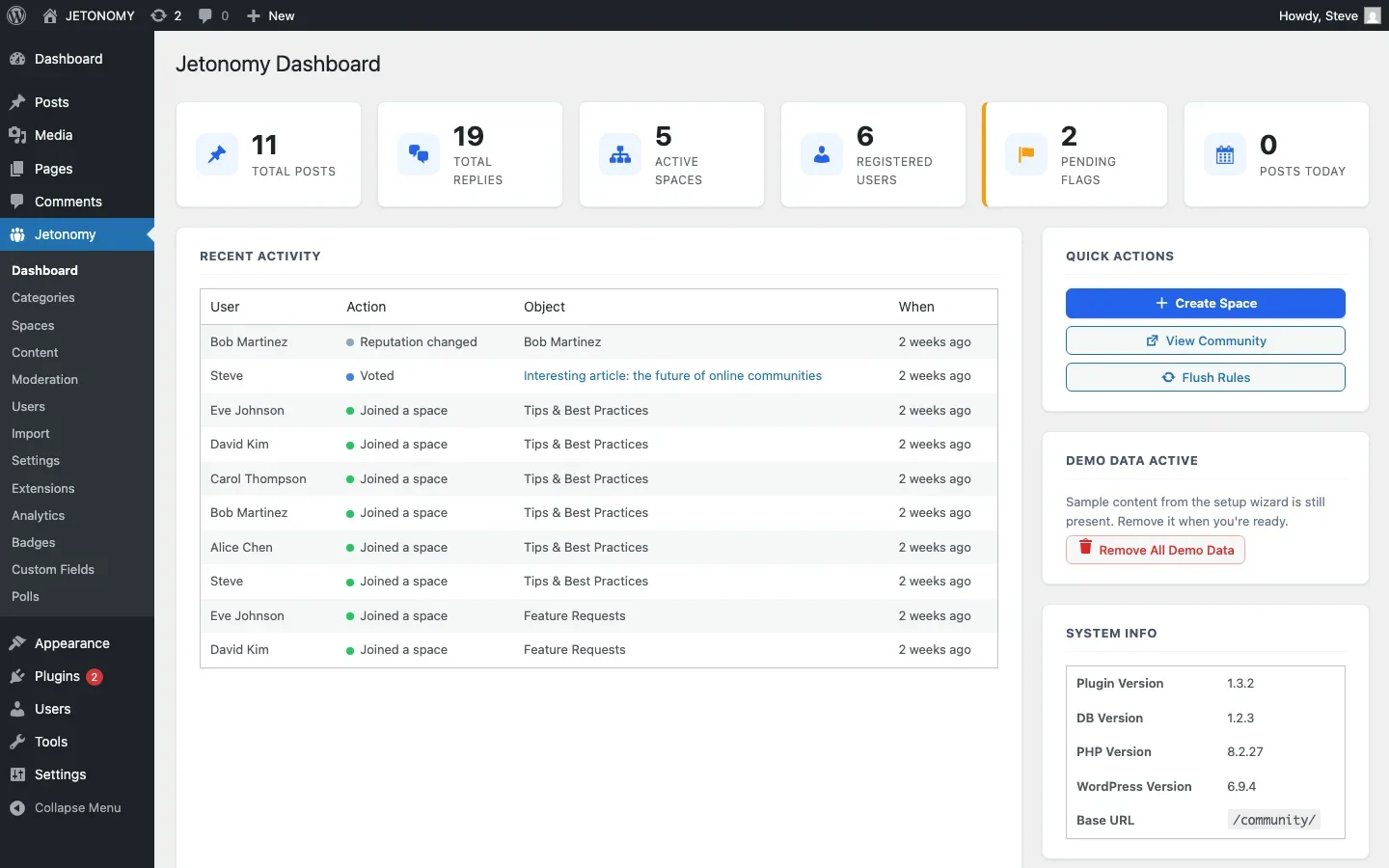
Jetonomy includes a built-in bbPress importer that runs directly from the WordPress admin. No export files, no command-line tools. It reads your bbPress data from the database and creates the corresponding records in Jetonomy’s custom tables. Forums become Spaces, topics become Posts, replies become Replies, and user associations carry over automatically.
The Migration Process
Here is the step-by-step process for migrating from bbPress to Jetonomy. If you are migrating to a different plugin, the general approach is similar but the specific steps will vary.
Step 1: Install the New Plugin
Install and activate Jetonomy alongside bbPress. Both plugins can run simultaneously, there are no conflicts because they use completely separate data storage.
Run the Jetonomy setup wizard but skip the demo data. You do not want demo content mixed in with your real migrated data.
Step 2: Run the Importer
Navigate to Jetonomy → Import in your WordPress admin. Select bbPress as the source.
The importer shows you a summary of what it found:
- Number of forums to import
- Number of topics to import
- Number of replies to import
- Estimated import time
Click Start Import. The importer runs in batches to avoid timeouts. For large communities (10,000+ topics), the process may take several minutes. A progress bar shows you exactly where it is.
Step 3: Verify the Import
After the import completes, check these things:
- Post counts match. Compare the number of topics and replies in Jetonomy with your bbPress numbers. They should be identical.
- Content is intact. Open several topics and verify that the content, formatting, and embedded media transferred correctly.
- Authors are correct. Check that posts are attributed to the right users.
- Replies are in the right topics. Open a few topics with multiple replies and verify the threading is correct.
- Spaces match forums. Each bbPress forum should have a corresponding Jetonomy space with the same name and description.
Step 4: Configure the New Forum
Now that your content is migrated, configure Jetonomy’s features:
- Set space types. Your bbPress forums all imported as Forum type. Change any that should be Q&A or Ideas to the appropriate type.
- Configure trust levels. bbPress does not have trust levels. Set up the thresholds so your existing active members start at appropriate levels based on their history.
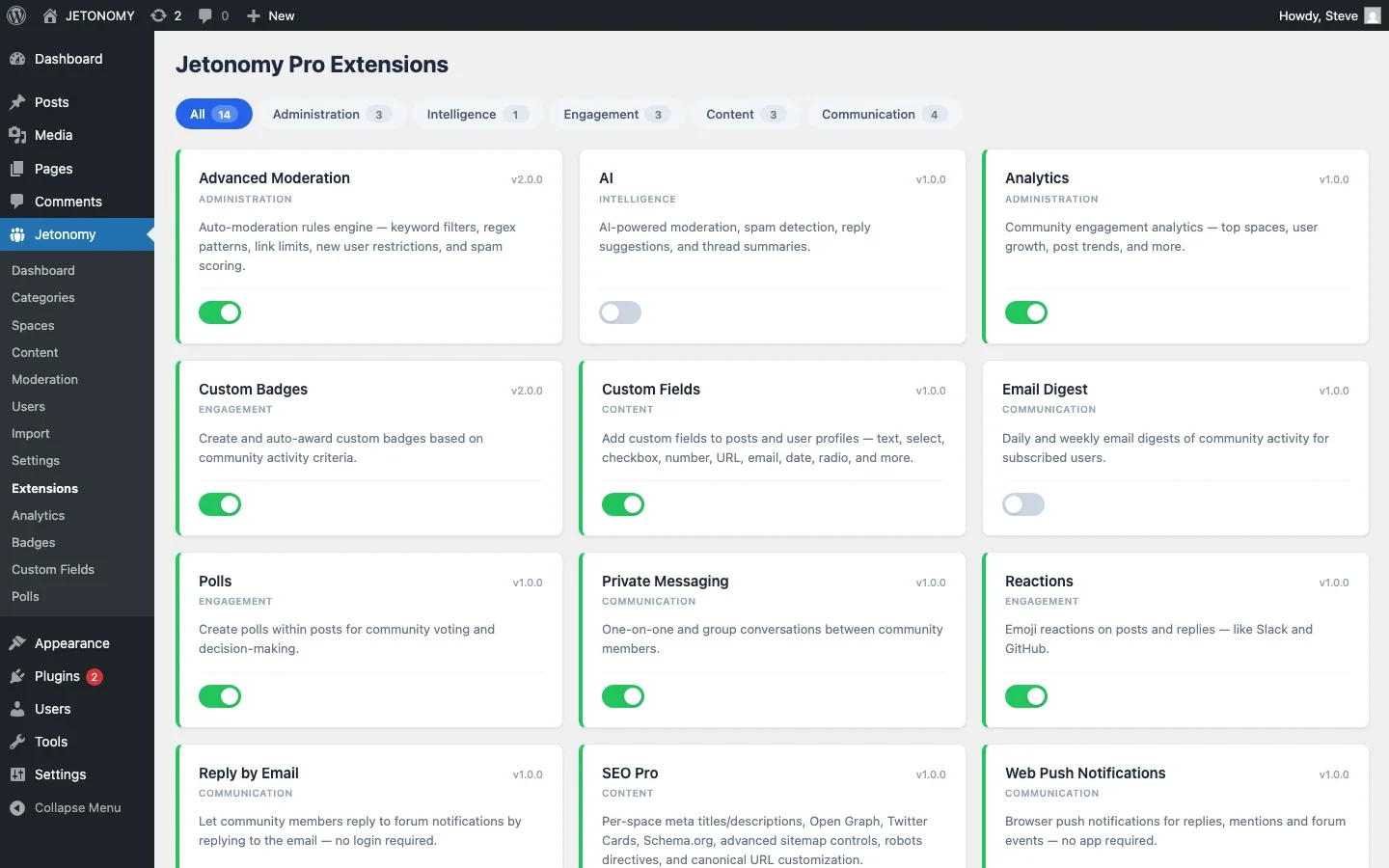
- Enable Pro extensions if you have Jetonomy Pro, analytics, reactions, private messaging, polls, and other features bbPress did not offer.
- Customize appearance. The forum inherits your theme’s styles automatically, but you may want to adjust the base URL or navigation.
Step 5: Handle URL Redirects
This is the most important post-migration step and the one most people skip. Your bbPress forum had URLs like:
/forums/general-discussion/
/topic/how-to-configure-widgets/
/reply/12345/
Your new Jetonomy forum has URLs like:
/community/s/general-discussion/
/community/s/general-discussion/t/how-to-configure-widgets/
If you do not redirect the old URLs to the new ones, you lose all your Google rankings and anyone who bookmarked or linked to a specific topic hits a 404 page.
Set up 301 redirects from the old bbPress URL patterns to the new Jetonomy patterns. You can do this with:
- A redirection plugin like Redirection or Yoast SEO Premium
- Rules in your
.htaccessfile (Apache) or nginx configuration - A custom WordPress redirect in your theme’s
functions.php
The exact redirect rules depend on your bbPress permalink structure. Test several old URLs after setting up redirects to confirm they land on the correct new pages.
Step 6: Deactivate bbPress
Once you have verified everything works and redirects are in place:
- Deactivate bbPress (do not delete it yet)
- Test the site thoroughly, all forum pages, search, navigation, redirects
- Wait a week to confirm no issues surface
- Then delete bbPress and its add-ons
Keep your backup for at least 30 days after migration, just in case.
Common Migration Issues and Fixes
Formatting Lost in Content
bbPress stores content as HTML in wp_posts.post_content. The importer transfers this HTML as-is. If your bbPress content used shortcodes from specific add-ons, those shortcodes will appear as raw text in the new forum. You may need to convert or strip them.
Embedded Media Not Showing
If your bbPress topics contain images uploaded through the WordPress media library, those images will continue to work because the URLs point to your /wp-content/uploads/ directory, which has not changed. If they used external image URLs, those will also work as long as the source is still online.
User Roles Do Not Map Cleanly
bbPress adds custom roles like “Keymaster”, “Moderator”, “Participant”, and “Spectator.” These do not exist in other forum plugins. Map them manually:
bbPress Role | Jetonomy Equivalent |
|---|---|
Keymaster | WordPress Administrator (already has full access) |
Moderator | Space Moderator (assign per space) |
Participant | Default member (Trust Level 1+) |
Spectator | Default member (Trust Level 0) |
Blocked | Banned user (use moderation tools) |
Topic Tags Not Migrated
bbPress has its own topic tag taxonomy. Check whether the importer transfers these tags. If not, you may need to recreate important tags manually in the new system.
After Migration: What to Tell Your Community
Your members will notice the change. Get ahead of it with clear communication:
- Post an announcement before migrating explaining that the forum is upgrading. Frame it positively: faster performance, better search, new features like voting and reputation.
- After migration, post a “Welcome to the New Forum” topic with a quick tour of what changed and what is new. Include screenshots.
- Be available for questions. Some members will be confused by the new interface. Respond quickly to reassure them.
- Highlight new features. Point out things they could not do before: voting on answers, earning reputation, using keyboard shortcuts, searching with instant results. Give them reasons to appreciate the upgrade.
The Performance Difference
After migrating from bbPress, most site owners notice an immediate performance improvement. The reason is architectural:
- bbPress stores forums, topics, and replies in
wp_posts(one table) with metadata inwp_postmeta(one table, key-value pairs). A single topic page might require 20+ database queries to assemble. - Jetonomy uses 24 purpose-built tables with proper indexes and denormalized counters. A topic page requires 3–4 queries. Reply counts, vote scores, and member counts are precomputed, not calculated on every page load.
The difference is especially noticeable on forums with 5,000+ topics. Pages that took 2–3 seconds to load on bbPress often load in under 500ms after migration.
Ready to Migrate?
The migration process is straightforward: install, import, verify, redirect, deactivate. Most communities complete it in under an hour, including verification.
If you have not set up Jetonomy yet, start with our step-by-step WordPress forum setup guide. It covers installation, configuration, and the setup wizard.
And if you want to understand the full landscape of what is available beyond bbPress, our bbPress alternatives guide compares the top options side by side.
Your community built something valuable in bbPress. A modern forum plugin lets that content live on a faster, more capable platform, without starting over.
Testing the Migration Before Committing Your Whole Community
Beyond the staging-site advice above, consider running the new forum in parallel with bbPress for a short window rather than switching all at once. Import a copy of your data, invite a handful of trusted members to try the new forum privately, and collect feedback on navigation and search before you redirect the whole community. This costs a few extra days but catches template overrides, missing shortcodes, or role-mapping surprises while the stakes are still low, rather than after your entire community has bookmarked new URLs.
Where Jetonomy Pro Fits
The bbPress importer, space structure, and trust levels covered in this migration guide are all part of free Jetonomy. Jetonomy Pro becomes worth adding once you are past migration and want the features bbPress never had in the first place, private messaging, polls, reactions, and analytics. See Jetonomy Pro for the full extension list once your migrated community is stable.