Should a Business Continuity Plan Be Applied to a WordPress Site?
Generic business continuity templates come from a world of offices and paper records, not plugin conflicts and hosting failovers. Here's what actually belongs in a WordPress-specific continuity plan, including the security-incident order of operations most guides get backwards.
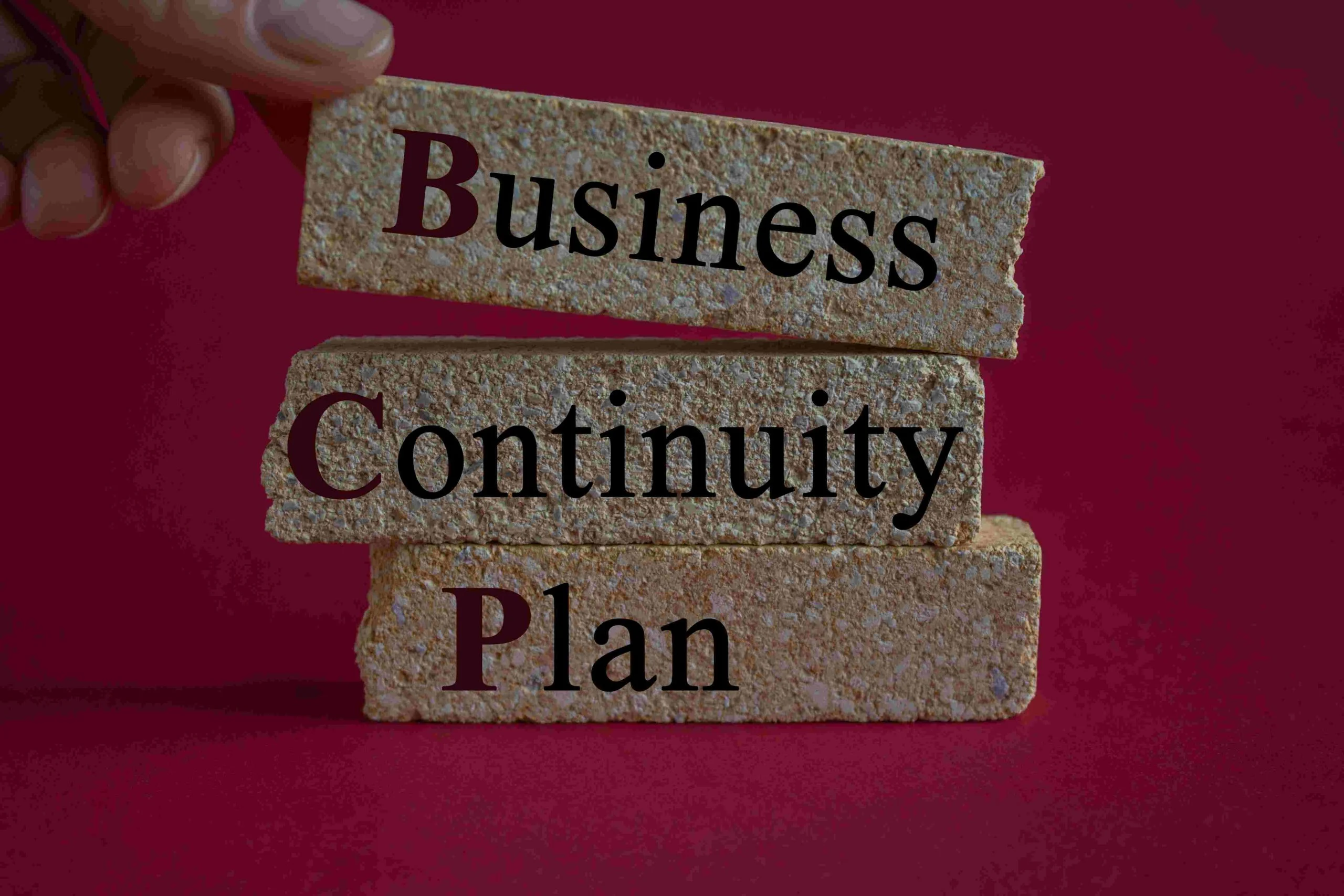
A business continuity plan for a WordPress site sounds like overkill until the day a plugin update takes the checkout page down during a launch, or a hosting outage lasts six hours instead of six minutes. At that point the question isn’t whether the site needed a recovery plan, it’s why nobody wrote one before the outage started. This covers what actually belongs in a WordPress-specific continuity plan, not the generic corporate BCP template that treats a website the same as a physical office.
Why a Generic BCP Template Doesn’t Fit a WordPress Site
Most business continuity planning material comes from a world of physical offices, phone systems, and paper records. A WordPress site fails differently: a plugin conflict after an automatic update, a database that hit its connection limit during a traffic spike, a DNS change that propagated wrong, a compromised admin password. None of these map cleanly onto “what happens if the building burns down.”
The useful version of a WordPress continuity plan is narrower and more specific than a generic template. It’s a written list of what can actually break, how you’ll know it broke, and the exact steps to get back online, using real names and real login locations instead of vague language about “restoring operations.”
Start By Naming What Actually Depends on the Site
Before writing any recovery steps, get specific about what breaks when the site goes down. A brochure site with a contact form has a very different risk profile than a WooCommerce store processing orders every few minutes, or a membership site where paying subscribers expect uninterrupted access to content they’re paying for.
List the specific functions in order of actual business impact: checkout and payment processing first if there’s a store, then user login and account access, then content delivery, then anything cosmetic. This ordering matters later when you’re triaging an actual incident and don’t have time to fix everything simultaneously, knowing which piece to restore first isn’t obvious under pressure unless it was decided calmly beforehand.
Backups Are the Foundation, But “Having Backups” Isn’t Enough
Every continuity plan starts here, and most stop here too, which is the actual problem. A backup that’s never been tested is a backup you’re assuming works, not one you know works.
Automated daily backups through a plugin like UpdraftPlus, or a host’s built-in backup system, cover the routine case. The gap most sites have isn’t the backup schedule, it’s never actually running a restore until the day they desperately need one to work. Schedule an actual test restore, to a staging environment or a local copy, at least twice a year. Confirm the restored site loads correctly and the database connects, then check that no critical content is missing. A backup file that exists but fails during restore is worse than no backup at all in one specific way: it creates false confidence that gets discovered at the worst possible moment.
Store backups somewhere other than the same server the site runs on. A server-level failure that takes down the site can just as easily take down a backup stored in the same location, which defeats the entire purpose. Google Drive, Dropbox, or a dedicated cloud storage bucket separate from the hosting account are the standard options most backup plugins already support.
Writing the Actual Recovery Steps
This is the part most BCP templates skip entirely, and it’s the part that actually saves time during a real incident. Vague language like “restore from backup” isn’t a recovery step, it’s a category. The real version names the specific plugin and the specific login URL, and it names the specific person who actually has access.
For a data restoration scenario: which backup plugin, where the backup files are stored, who has the login credentials to the storage location, and the actual click-by-click restore process, written out as if for someone who’s never done it before, since the person handling the emergency might genuinely be doing it for the first time under pressure.
For a server or hosting failure: does the host offer any kind of automatic failover, and if not, what’s the actual process for standing up the site on a different host quickly. This is worth a real conversation with the current hosting provider rather than an assumption, some hosts document a clear disaster recovery path, others leave you entirely on your own.
For third-party service failures: a payment gateway outage, an email delivery service down, a CDN having problems. List the specific services the site depends on and what breaks if each one goes down individually, since these are often overlooked entirely in favor of focusing only on the WordPress installation itself.
Security Incidents Need a Different Playbook Than Downtime
A hacked site and a site that’s simply down are not the same emergency, and treating them identically is a real mistake. Restoring a compromised site from a backup without first understanding how the attacker got in just reintroduces the same vulnerability, the site goes back up and gets compromised again within days or hours.
The order matters here. Take the site offline first (maintenance mode, or fully offline if the compromise looks serious) rather than leaving it live while investigating, since a live compromised site can actively be serving malware to visitors or sending spam through the server’s mail function the entire time it stays up. Identify the entry point before restoring, a security plugin’s scan log or a server-level file integrity check usually points to the specific plugin or file that was exploited. Only then restore from a backup taken before the compromise, and immediately patch or remove whatever let the attacker in, otherwise the freshly restored site is vulnerable to the exact same attack again.
Rotating every credential connected to the site, WordPress admin passwords, hosting panel access, FTP credentials, database passwords, API keys for any connected service, belongs in this process too. An attacker who had admin access may have captured more than just the ability to edit posts.
Monitoring Is What Turns a Plan Into Something That Actually Triggers
A brilliant recovery plan that nobody knows to execute because nobody noticed the site was down for six hours isn’t much of a plan. Uptime monitoring closes this gap, and it’s genuinely inexpensive to set up.
Uptime Robot and Pingdom both offer free tiers that check a site every few minutes and alert by email or text the moment it stops responding. This is the trigger mechanism for the rest of the plan, without it, “someone eventually notices” is the actual detection method most small sites are running on, which can mean hours of downtime before anyone even knows there’s a problem to fix.
Set the alert to go to more than one person if the site is genuinely business-critical. A single point of failure in who gets notified is its own small risk, worth avoiding for the same reason the site itself shouldn’t have a single point of failure.
A Real Scenario: An Automatic Plugin Update Breaks Checkout Overnight
A store owner has automatic updates enabled for all plugins, a reasonable default for keeping security patches current. Overnight, a payment gateway plugin pushes an update that changes how it initializes, and it silently conflicts with another installed plugin. Checkout breaks. Nobody notices until the first support email arrives the next morning, hours after the first failed order.
With uptime monitoring watching the checkout page specifically, not just the homepage, this gets caught within minutes instead of hours. The recovery plan’s first step for this scenario should already say exactly what to check: recently updated plugins, visible in the Plugins screen sorted by last-updated date, cross-referenced against when the failures started.
The fix here is usually rolling back the specific plugin to its previous version, not restoring the entire site from backup, which would also undo any legitimate orders or content changes made since the last backup ran. Most premium plugins keep previous version files available through their own update history or support portal specifically for this reason. This is also the strongest argument for not leaving every plugin on fully automatic updates for a revenue-critical site: staggering major plugin updates through a staging environment first, while keeping only minor security patches on auto-update, catches exactly this kind of conflict before it reaches the live store.
Who Does What, Written Down Before It’s Needed
During an actual incident is the worst possible time to figure out who has hosting access, who knows the backup plugin’s login, and who’s authorized to make an emergency decision like taking the site fully offline. Write this down in advance, plainly, with names and contact methods, not job titles alone.
For a small team, this might just be two people with a clear primary and backup contact. For anything larger, assign specific roles: who monitors and confirms an incident is real, who executes the technical recovery, who communicates with customers or stakeholders if the outage is visible externally. Overlap in these roles is fine, gaps are the actual risk, a step nobody was assigned defaults to nobody doing it until someone happens to notice it’s missing.
Testing the Plan, Not Just Writing It
A written plan that’s never been rehearsed has the same problem as an untested backup: you’re assuming it works. Running an actual drill twice a year, simulating a specific scenario and timing how long the real recovery takes using the written steps, surfaces gaps a plan on paper doesn’t reveal.
Common gaps a real drill uncovers: a backup restore step that references a plugin no longer installed, a listed contact who’s changed roles or left the company, a credential that was rotated for security reasons and never updated in the plan’s documentation. None of these show up until someone actually tries to follow the steps under something resembling real conditions.
Choosing Hosting With Continuity in Mind
The hosting provider itself is part of the continuity plan, whether or not it’s treated that way. A host with automatic daily backups and documented uptime guarantees, backed by a real support team reachable during an outage, reduces how much of the recovery burden falls entirely on internal steps.
Check the host’s own service level agreement for what it actually promises during an outage, not just what it advertises. A hosting plan advertising “99.9% uptime” without any real recourse if that promise is missed is a marketing number, not a continuity guarantee. This is worth reviewing during the planning process itself, not discovering for the first time while the site is actually down and support is slow to respond.
Ask directly what the SLA credits actually amount to in practice, most hosts offer a partial refund of that month’s hosting fee for missed uptime targets, which is a modest gesture rather than real compensation for lost revenue during a store outage. Treat the SLA as a rough signal of how seriously the host takes reliability, not as an insurance policy that makes downtime financially painless.
Documenting Access Without Creating a New Security Risk
A recovery plan needs credentials to be useful, hosting logins, the backup service’s account details, DNS registrar access, but writing all of this into a plain shared document creates exactly the kind of single point of compromise a continuity plan is supposed to guard against.
A password manager built for team use, one that supports shared vaults with individual access logging, is the right home for this information rather than a spreadsheet or a note in a shared drive. The plan document itself can then reference “credentials are in the shared vault, ask X or Y for access” rather than containing the actual passwords, which keeps the recovery instructions readable and shareable without also being a target worth stealing on its own.
Review who has access to that vault periodically, the same way you’d review who has admin access to the WordPress site itself. A former employee or contractor who still has credentials sitting in an old document is a real, if quiet, gap that a security incident review often turns up after the fact.
What Changes for a Community or Membership Site Specifically
A site built around ongoing member interaction, forums, groups, a paid membership area, carries a different continuity risk than a static brochure site: an outage doesn’t just mean lost page views. It means active conversations and in-progress user sessions getting interrupted, plus members who were mid-payment or mid-signup left in an uncertain state.
The recovery plan for this kind of site should specifically address what happens to a user who was logged in and active the moment the outage started. Does their session survive a restore, do pending payments need manual reconciliation afterward, is there a way to communicate directly with logged-in members through email or a status page rather than leaving them guessing why the site suddenly stopped responding. These are questions worth answering in the plan itself rather than improvising an answer while members are actively asking what happened.
Common Mistakes Worth Naming Directly
Treating “we have backups” as equivalent to “we have a tested recovery process,” when the two are genuinely different levels of preparedness.
Restoring a hacked site from backup without identifying the entry point first, which just resets the clock until the same vulnerability gets exploited again.
Writing recovery steps vague enough that they don’t actually help someone unfamiliar with the site execute them under pressure.
Skipping uptime monitoring entirely and relying on customer complaints as the detection method for downtime.
FAQ
How often should a WordPress continuity plan be updated?
Review it whenever a major plugin, host, or team member changes, and do a full review at least twice a year regardless, since credentials and contacts drift out of date faster than most people expect.
Does a small personal blog really need this level of planning?
A scaled-down version, yes. Reliable backups and one written page of “if this breaks, do this” covers most of the real risk for a low-stakes site without needing the full incident-response structure a revenue-generating store would require.
What’s the single highest-impact step for a site with limited time to prepare?
Test an actual backup restore once. It’s the single check that turns “we probably have backups” into a confirmed, known-working recovery path, and it takes an afternoon rather than weeks of planning.
Should the continuity plan itself be stored on the WordPress site?
No, store it somewhere accessible even if the site is completely down, a shared document, a password manager’s secure notes, anything that doesn’t depend on the very system the plan exists to recover.
Is it worth paying for a managed hosting plan specifically for the continuity benefits?
For a site where downtime has real financial or reputational cost, often yes. Managed hosts that bundle automatic backups and staging environments, with faster support response on top, shift meaningful recovery burden away from internal steps. The tradeoff is a higher monthly cost and less low-level server control than self-managed hosting.
Where This Leaves You
A generic corporate BCP template doesn’t fit a WordPress site’s actual failure modes. Build the plan around what genuinely breaks: plugin conflicts, hosting failures, compromised credentials, third-party service outages.
Test the backup restore for real, not just the backup schedule. Write recovery steps specific enough that someone unfamiliar with the site could follow them during an actual incident.
None of this prevents every outage. It’s the difference between a six-hour scramble with no clear plan and a thirty-minute recovery because someone already wrote down exactly what to do.