
Online courses have a completion problem. Industry averages hover between 5–15% for self-paced courses. Students sign up enthusiastically, watch the first few lessons, and then drop off. They get stuck, lose motivation, or simply forget to come back.
Discussion forums are one of the most effective tools for improving completion rates. Students who can ask questions about specific lessons, share their progress with peers, and get feedback from instructors stay engaged longer and complete more of the course.
If you run LearnDash, adding a discussion forum to each course is straightforward. Here is how to set it up so that forums are gated by enrollment, organized by course, and managed by instructors.
Why Course Forums Improve Completion Rates
The research is clear: social learning dramatically improves outcomes.
- Peer support reduces isolation. Self-paced online learning is inherently lonely. A forum gives students a cohort of peers going through the same material. “I am also stuck on Module 3” is more motivating than any notification email.
- Questions fill knowledge gaps. Every course has spots where the instruction is unclear or incomplete. Forum Q&A catches these gaps in real time. The instructor sees the questions and can clarify the content for future students.
- Accountability through visibility. When students post their progress in a forum (“Just finished Module 5!”), they create a public commitment. Other students see it, offer congratulations, and feel motivated to keep up.
- Instructor accessibility. Students who can ask the instructor a question directly are far more likely to push through a difficult section than students who can only re-watch a video.
The Integration: LearnDash + Jetonomy
Jetonomy Pro includes a LearnDash adapter that connects forum access to course enrollment. The integration handles three things automatically:
1. Automatic Space Creation
When you publish a new course in LearnDash, the adapter can automatically create a corresponding discussion space in Jetonomy. The space is named after the course and categorized under a “Courses” category. The course author is assigned as the space admin.
2. Enrollment-Based Access
When a student enrolls in a course, they are automatically added to that course’s forum space. When they unenroll (or their access expires), they are removed. No manual management needed.
This means:
- Only enrolled students can see and participate in course forums
- Students cannot access forums for courses they have not purchased
- Expired enrollments automatically lose forum access
3. Instructor Assignment
The LearnDash course author (or instructor) is automatically assigned as the space moderator. They can manage topics, pin announcements, and moderate discussions without needing WordPress admin access.
Setting It Up
Step 1: Install Both Plugins
Install and activate Jetonomy (free) and Jetonomy Pro. If you have not set up Jetonomy yet, follow our WordPress forum setup guide.
Step 2: Enable the LearnDash Adapter
Go to Jetonomy → Settings → Integrations and enable the LearnDash adapter. The adapter detects LearnDash automatically if it is installed and activated.
Step 3: Create a “Courses” Category
In Jetonomy → Categories, create a category called “Courses” or “Course Discussions.” All auto-created course spaces will be organized under this category.
Step 4: Map Existing Courses
For courses that already exist, go to Jetonomy → Spaces and create a space for each course manually. Set the join policy to Invite Only and map it to the corresponding LearnDash course. Existing enrolled students will be added automatically.
Step 5: Configure Space Settings
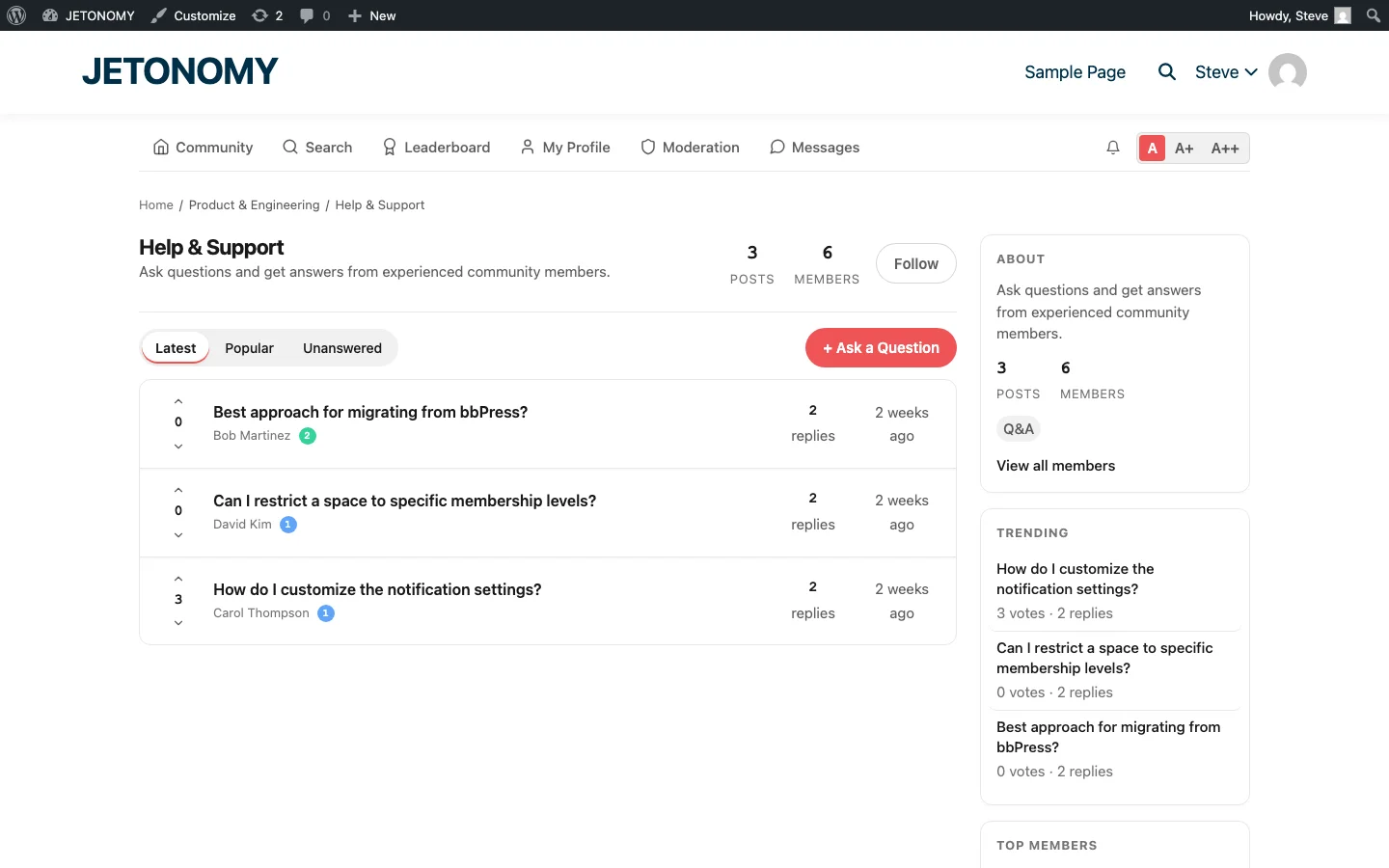
For course discussion spaces, we recommend:
| Setting | Value | Why |
|---|---|---|
| Space type | Q&A | Students ask questions, get answers with voting |
| Join policy | Invite Only | Enrollment-gated access |
| Visibility | Hidden from non-members | Non-enrolled students do not see it |
| Who can create topics | All members | Students need to ask questions freely |
Structuring Course Discussions
For larger courses, a single discussion space can become overwhelming. Consider structuring discussions to match your course modules:
Option A: One Space Per Course (Simple)
Best for short courses (under 10 modules). All discussions happen in one space. Use tags for module-specific questions: “Module 1”, “Module 2”, etc.
Option B: One Space Per Module (Detailed)
Best for comprehensive courses (10+ modules). Create sub-spaces for each major module:
- Python 101 / Getting Started
- Python 101 / Variables and Data Types
- Python 101 / Functions and Loops
- Python 101 / Final Project
This keeps discussions focused and makes it easier for students to find existing answers related to the lesson they are working on.
Instructor Engagement Strategies
The instructor’s participation in the forum is the single biggest factor in student engagement. Here are best practices:
Respond Within 24 Hours
Student questions about course material are time-sensitive. A question that sits unanswered for 3 days is a student who moves on to something else. Set a 24-hour response target for all course forum questions.
Pin Key Resources
Pin a “Welcome” topic at the top of each course space with:
- How to use the forum
- Where to find course materials
- How to ask good questions
- Office hours schedule (if applicable)
Create Module Discussion Prompts
Do not wait for students to start discussions. Create prompts: “Module 3 Discussion: What was the trickiest concept? Share your approach.” These prompts lower the barrier to participation and create activity that attracts more participation.
Accept Peer Answers
When a student answers another student’s question correctly, accept their answer and publicly thank them. This builds a culture of peer learning and reduces the instructor’s workload. See our guide on enabling community-powered support for more on this approach.
Combining Forums with Gamification
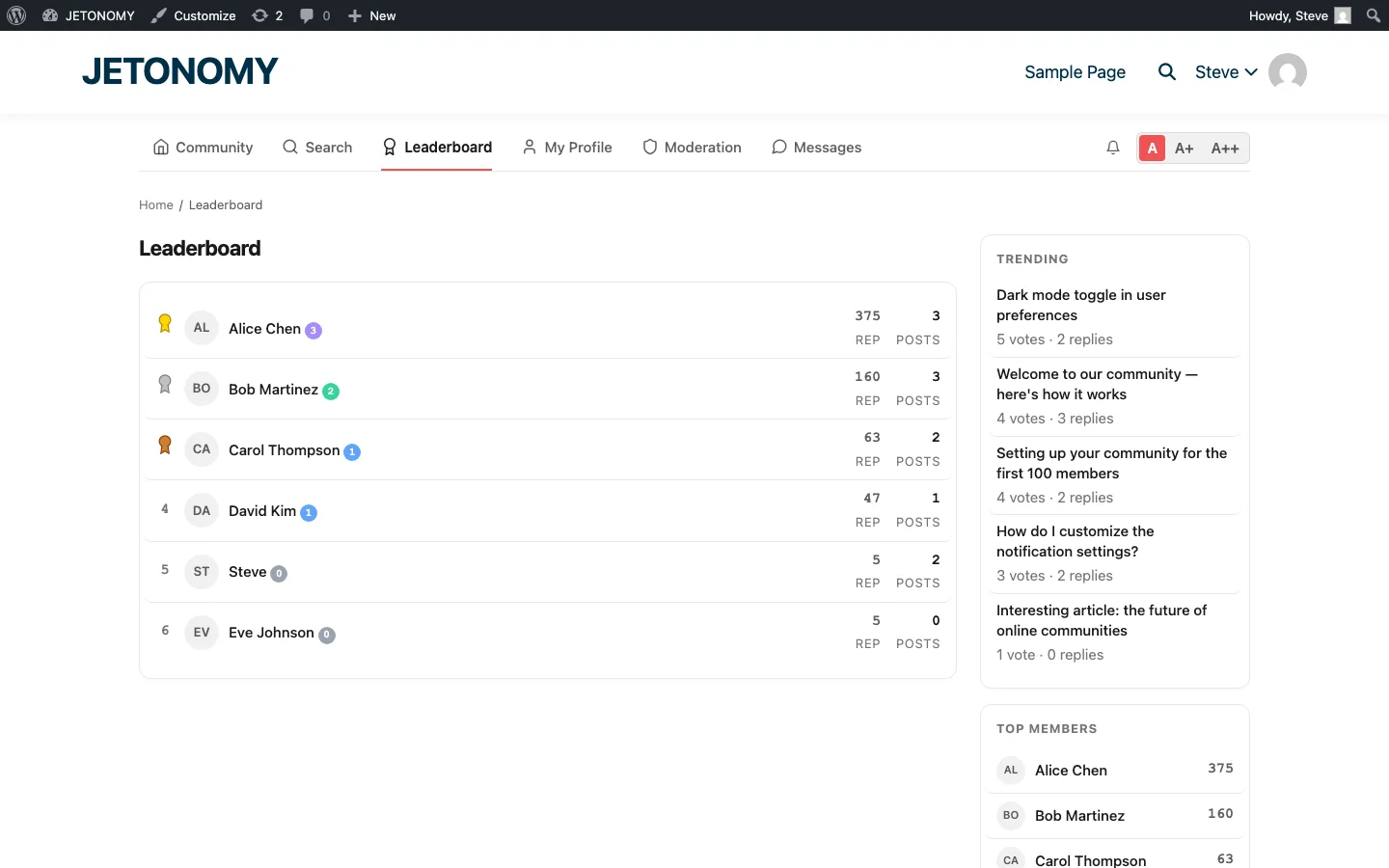
Course forums become even more effective when combined with gamification:
- Completion badges for finishing course milestones (see our guide on building a course community with completion badges)
- Reputation points for helping other students with their questions
- Leaderboard showing the most helpful students in each course
- “Study Buddy” badge for students who answer 10+ peer questions
These elements turn the forum from a support tool into a motivational system. Students who earn badges and climb the leaderboard are invested in the course community, not just the course content.
Other LMS Integrations
Jetonomy Pro includes adapters for multiple LMS platforms beyond LearnDash:
| LMS | Adapter | Features |
|---|---|---|
| LearnDash | Built-in | Course + group enrollment gating, auto-space creation |
| Tutor LMS | Built-in | Course enrollment gating |
| LifterLMS | Built-in | Course + membership enrollment gating |
| Sensei LMS | Built-in | Course enrollment status gating |
| MasterStudy LMS | Built-in | Course enrollment gating |
The setup process is nearly identical for each: enable the adapter, create spaces, and map them to courses.
Getting Started
- Install Jetonomy and Jetonomy Pro alongside LearnDash
- Enable the LearnDash adapter in Settings → Integrations
- Create a “Courses” category for course discussion spaces
- Create a Q&A space for your most popular course as a pilot
- Seed with 5 discussion prompts to start conversations
- Respond to every student question within 24 hours for the first month
Start with one course. Prove the model. Then roll out to the rest of your catalog. Students who discuss learn better. Students who learn better complete more. Students who complete more recommend your courses to others. The forum is the engine that drives this flywheel.