How Much RAM You Need to Self-Host a Website?
Most self-hosted WordPress sites need 2 GB of RAM. How to size RAM from PHP workers, database and traffic, with requirements checked 21 Nov 2026.
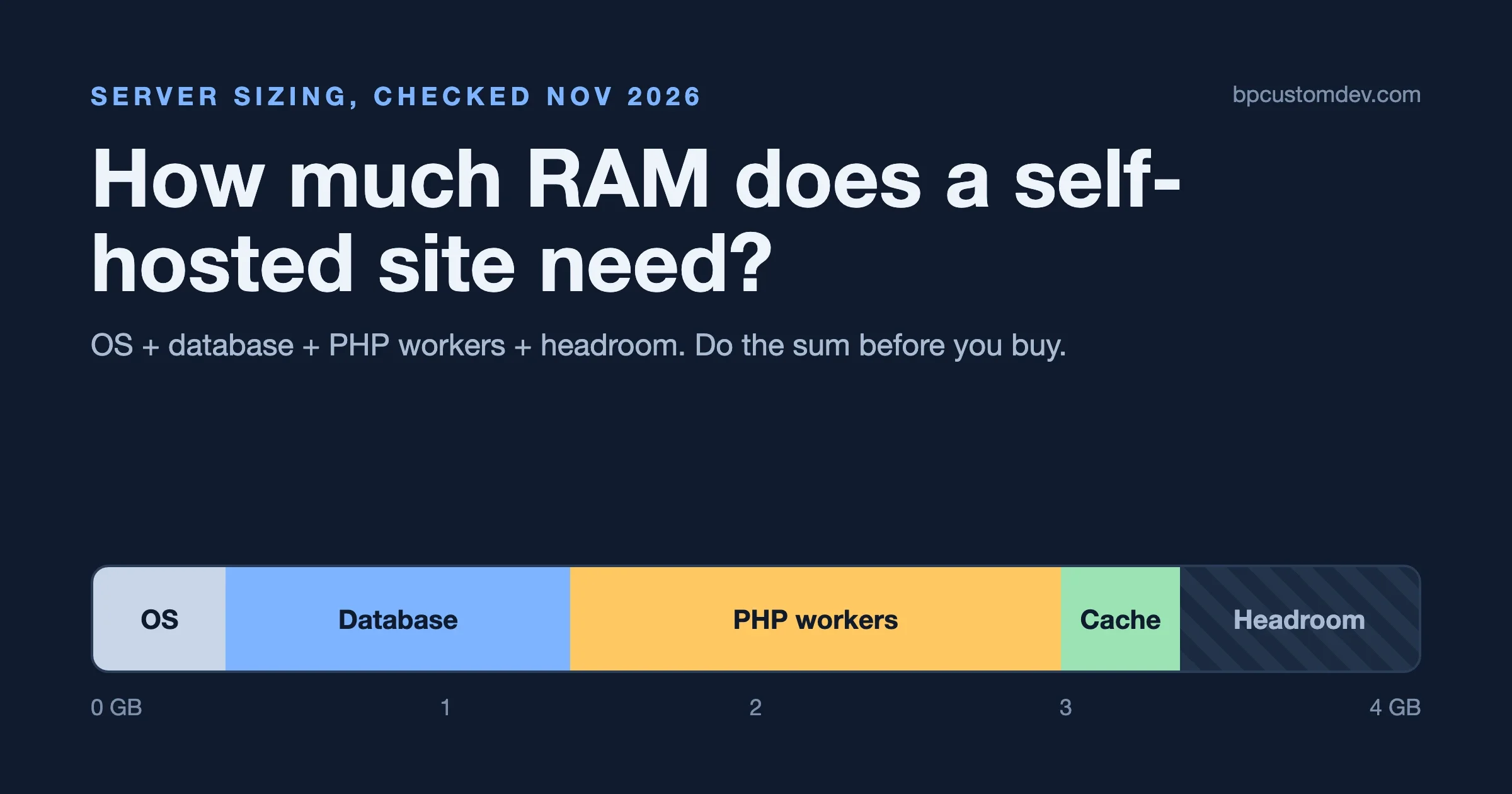
Most self-hosted WordPress sites need 2 GB of RAM in 2026. A static site can live in 512 MB, and a small, fully cached blog can survive on 1 GB with a swap file, but anything with logged-in users, a shop or a community should start at 4 GB. The exact number comes from a simple sum: what the operating system needs, plus the database, plus the number of PHP workers you run multiplied by the memory each one uses.
WordPress itself publishes no RAM figure. Its official requirements page lists software versions only, so every RAM number you read online, including ours, is somebody’s experience. We say clearly below which numbers come from official documentation and which are our team’s starting points from building and hosting WordPress and community sites. Everything was checked on 21 November 2026.
How much RAM do I need to self-host a website?
Start from the type of site, then adjust for how many people use it at the same time. The table below is our team’s starting point for a single site on its own Linux server (VPS or cloud instance) running Nginx or Apache, PHP-FPM and MariaDB or MySQL on the same machine. It is not a benchmark; it is where we begin before measuring.
Site type | Starting RAM (our experience) | What uses the memory | Comfortable for |
|---|---|---|---|
Static site (HTML, a static site generator) | 512 MB | Web server only, a few MB per worker | Portfolios, landing pages, docs |
Small WordPress blog with page caching | 1 GB plus swap | Database plus 2 to 4 PHP workers | Mostly anonymous readers, few plugins |
Business WordPress site, page builder, forms | 2 GB | More PHP workers, larger PHP processes | Typical company site, light admin use |
WooCommerce or membership site | 4 GB | Logged-in and cart pages skip the page cache | Small to medium stores, member areas |
Community site (BuddyPress, BuddyNext, forums) | 4 to 8 GB | Logged-in feeds, notifications, object cache | Active member communities |
Several WordPress sites on one server | Add 0.5 to 1 GB per busy site | Separate PHP pools and database tables | Agencies and side projects |
Two things move these numbers more than anything else: how many requests reach PHP at the same time, and how much memory each PHP request uses on your particular stack of theme and plugins. Both can be measured in minutes, and we show how further down.
What actually uses RAM on a web server?
A WordPress server runs four kinds of programs, and each one takes a slice of memory. When people say a site “needs more RAM”, one of these four is almost always the reason.
- The operating system. A minimal Linux server with SSH, a firewall and a few system services uses a few hundred MB before any site loads. Monitoring agents and control panels add more.
- The web server. Nginx is light, usually tens of MB in total. Apache with the prefork module and mod_php embeds PHP into every Apache process, which is why Apache setups run out of memory faster under load.
- PHP workers. Each PHP-FPM child handles one request at a time and keeps its memory between requests. On a WordPress site with a page builder and a dozen plugins, each one often settles somewhere between 60 and 150 MB in our experience. Ten workers can mean a gigabyte or more.
- The database. MariaDB and MySQL keep table data and indexes in the InnoDB buffer pool. The more of your data fits there, the fewer reads hit the disk.
- Extras. Redis or Memcached for object caching, cron jobs, backups that compress files, image resizing during uploads, search indexes and email queues all borrow memory for a while.
Short version: the database and the PHP workers are where the RAM goes. The rest is small and steady.
How much RAM does WordPress need?
WordPress does not publish a RAM requirement. On 21 November 2026 its requirements page recommends PHP 8.3 or newer, MariaDB 10.11 or newer or MySQL 8.4 or newer, and HTTPS support. It still runs on PHP 7.4 and MySQL 5.5.5 in legacy setups, but WordPress itself warns that those versions are past end of life. The current WordPress release on that date was 7.1.5.
What WordPress does define is a per-request PHP memory limit, which is a different thing from server RAM:
- By default WordPress tries to raise PHP’s limit to 40 MB on a single site and 64 MB on multisite, according to the wp-config.php documentation. Most hosts already allow more.
- For admin screens, cron and image work, WordPress raises the limit again to
WP_MAX_MEMORY_LIMIT, which defaults to 256 MB in core (wp-includes/default-constants.php). - PHP’s own default
memory_limitis 128 MB, per the PHP manual. - WooCommerce asks for a WordPress memory limit of 256 MB or more in its server requirements, checked 21 November 2026.
A 256 MB limit does not mean each request uses 256 MB. It is a ceiling that stops one runaway request from eating the server. Most front-end requests use a fraction of it. The number that matters for sizing is the real average, which you can read off a running server.
How do I work out RAM from PHP workers?
Use this sum. It is the same one our team uses before we pick a server size for a client:
RAM needed = operating system + database buffer pool + (PHP workers × average worker size) + object cache + 20 to 25% headroom
The PHP worker count is the pm.max_children setting in your PHP-FPM pool. The PHP-FPM configuration docs explain the three process managers: static keeps a fixed number of children, dynamic scales between limits, and ondemand starts children only when requests arrive. Whatever mode you use, pm.max_children is the most workers that can exist at once, and that number times the worker size must fit in RAM.
To measure the average worker size on a running server (checked on Ubuntu 24.04 with PHP 8.3, 21 November 2026), run:
# Average and total memory of PHP-FPM workers (RSS, in MB)
ps -C php-fpm8.3 -o rss= | awk '{s+=$1; n++} END {printf "%d workers, avg %.0f MB, total %.0f MB\n", n, s/n/1024, s/1024}'

# Overall memory and swap use
free -h
Change php-fpm8.3 to the process name for your PHP version. Take the reading when the site has been busy for a while, not right after a restart, because workers grow as they serve different pages.
A worked example
Here is the sum for a 4 GB server running a WooCommerce shop. The figures are an example of the method, not measurements from your site:
Item | Memory |
|---|---|
Operating system and services | 400 MB |
MariaDB buffer pool | 1,024 MB |
Redis object cache | 256 MB |
Headroom (about 20%) | 800 MB |
Left for PHP | about 1,600 MB |
Average worker size measured | 110 MB |
Safe pm.max_children | 14 |
The matching pool setting would look like this:
; /etc/php/8.3/fpm/pool.d/www.conf
pm = dynamic
pm.max_children = 14
pm.start_servers = 4
pm.min_spare_servers = 2
pm.max_spare_servers = 6
pm.max_requests = 500
pm.max_requests restarts each worker after 500 requests, which stops slow memory growth from plugins that leak. Setting pm.max_children higher than RAM allows does not make the site faster. It makes the kernel kill something when traffic peaks, and the something is usually the database.
Is 1 GB of RAM enough for WordPress?
Yes, for a small blog whose visitors are mostly anonymous and get cached pages. No, for a shop, a membership area or anything with many logged-in users. On 1 GB, the database and three or four PHP workers already fill most of the memory, so one busy moment or a large backup can push the server into the kernel’s out-of-memory killer.
This is one of the most repeated stories on hosting forums. A DigitalOcean user running 18 WordPress domains on a 1 GB server in August 2015 found every site showing “Error establishing a database connection”; the replies told them to check the system log for the OOM killer, and upgrading to 2 GB fixed it. Another user in September 2017 with only 70 to 100 visitors a day posted the log line showing mysqld being killed for lack of memory on a 1 GB server.
If you do run on 1 GB, three habits make it work: add a swap file so short spikes do not kill MySQL, keep PHP workers to three or four, and serve cached pages straight from Nginx or a CDN so most visits never touch PHP. Other community software sets similar floors. Discourse, a forum application, lists 1 GB with swap as its minimum and 2 GB or more as recommended in its cloud install guide, checked 21 November 2026.
How much RAM does a static website need?
Very little. A static site is files on disk; Nginx or Apache reads them and sends them. There is no PHP and no database. A 512 MB server handles a large amount of static traffic, because the operating system caches the files in memory and each web server connection costs very little.
Many static sites do not need a server at all. Static hosting services and CDNs serve the files for you, and the RAM question disappears. A server of your own makes sense when you want full control or you are learning, and then the smallest size your provider sells is usually plenty.
How much RAM do WooCommerce and membership sites need?
Start at 4 GB. The reason is the page cache. A blog serves the same cached page to thousands of readers, so PHP rarely runs. A shop cannot cache the cart, checkout or account pages, and a membership site cannot cache anything a logged-in member sees. Every one of those requests runs PHP and queries the database.
Real reports back this up. A user on the DirectAdmin forum in June 2022 described a 2 GB server hosting four quiet domains plus a new WooCommerce shop that slowed down and failed a traffic-spike test. Shops also run heavier background work: order emails, stock sync, payment webhooks and scheduled sales all go through WP-Cron or Action Scheduler.
If your shop sells mainly at predictable moments, such as a weekly drop or a launch, size for that peak, not for the quiet average.
How much RAM does a community or forum site need?
Plan for 4 to 8 GB once a community is active. Community sites are the hardest WordPress sites to host, because almost every page view comes from a logged-in member: activity feeds, notifications, messages, profiles and group pages all skip the page cache. That makes PHP worker count and object caching the main levers, more than raw page views.
We covered community hosting in depth elsewhere, so we will not repeat it here. Read our BuddyPress hosting guide for PHP workers, Redis, real cron and a sizing table by community stage, how much load a BuddyPress site can handle for where the limits show up first, and our BuddyPress performance guide for the query-level fixes.
If you are choosing a stack for a new community, BuddyNext, the community platform our team builds, is one option to look at alongside BuddyPress. The RAM sum above applies to both: what changes is how many requests reach PHP and how heavy each one is, so measure your own build on staging before you pick a server.
How much memory should the database get?
Give the InnoDB buffer pool enough memory to hold your most-used data and indexes. MariaDB ships with a 128 MiB buffer pool by default, per the MariaDB InnoDB system variables page, and MySQL uses the same 128 MB default. That default is small for any real WordPress site.
The MariaDB documentation says the buffer pool can be set up to 80% of total memory on a server that runs only the database. On a single WordPress server that also runs PHP, that would starve PHP, so our team usually starts at 25 to 35% of RAM and adjusts after checking how large the data really is:
-- Total size of data and indexes per database, in MB
SELECT table_schema AS db,
       ROUND(SUM(data_length + index_length) / 1024 / 1024) AS size_mb
FROM information_schema.tables
GROUP BY table_schema
ORDER BY size_mb DESC;
If your WordPress database is 300 MB, a 512 MB buffer pool holds all of it with room to spare. If it is 6 GB because of years of logs and sessions, clean those tables first; buying RAM to cache junk is the expensive fix.
# /etc/mysql/mariadb.conf.d/50-server.cnf  (example for a 4 GB server)
[mysqld]
innodb_buffer_pool_size = 1G
max_connections = 60
Keep max_connections near your PHP worker count plus a margin for cron and admin tools. Each connection reserves its own buffers, and a few hundred idle connections are a common hidden memory cost.
Does traffic decide how much RAM I need?
Concurrency does, not daily visitors. Ten thousand visitors spread across a day, all reading cached pages, may never need more than two PHP workers. Two hundred members refreshing a feed at the same moment after an email goes out can need twenty.
A useful rule of thumb: concurrent PHP requests = requests per second reaching PHP × average response time in seconds. If 10 uncached requests arrive each second and each takes 0.4 seconds, you need about 4 workers busy on average, so plan 8 to 10 for peaks. Halve the response time with an object cache and you halve the workers, and the RAM, needed for the same traffic.
That is why caching often matters more than buying memory. A page cache keeps anonymous visits away from PHP. An object cache makes the requests that do reach PHP finish sooner.
Shared hosting, VPS or cloud: how much RAM do I actually get?
The plan name rarely tells you. Shared hosting plans usually cap memory and processes per account, and the limits are not always on the sales page. On a VPS or cloud instance the RAM is yours, but so is the job of tuning it.
Hosting type | Who controls RAM | What to ask or check |
|---|---|---|
Shared hosting | The host, per account | Per-account memory cap, number of PHP processes, PHP memory_limit |
Managed WordPress | The host, per plan | PHP workers per site, object cache included or not, overage rules |
VPS | You | Total RAM, swap allowed, whether RAM can be upgraded without a rebuild |
Cloud instance | You | Instance family, resize downtime, separate managed database option |
Dedicated server | You | Total RAM; usually far more than one WordPress site needs |
We are leaving out plan prices on purpose. Hosting vendors show region-specific prices and taxes, and they change often, so compare current plans on each vendor’s own page in your currency.
Which software versions should I plan for?
Pick supported versions from day one; an end-of-life PHP or MySQL version is a security problem no amount of RAM fixes. Checked on 21 November 2026:
Software | Status on 21 Nov 2026 | Source |
|---|---|---|
WordPress | 7.1.5 is current; recommends PHP 8.3+, MariaDB 10.11+ or MySQL 8.4+ | |
PHP 8.2 | Security fixes only, until 31 December 2026 | |
PHP 8.3 and 8.4 | Supported; 8.4 gets active support until 31 December 2026 | |
PHP 8.5 | Active support until 31 December 2027 | |
PHP 8.6 | Released 19 November 2026; give plugins time to catch up | |
MySQL 8.0 | End of life 30 April 2026 | |
MySQL 8.4 LTS | Supported until 30 April 2032 |
Newer PHP versions also tend to use memory more efficiently than old ones, so an upgrade from an end-of-life version can free RAM as well as close security holes. Test on a staging copy first.
How do I check how much RAM my site is using?
Four commands answer most questions. Checked on Ubuntu 24.04, 21 November 2026:
# Memory and swap at a glance
free -h

# Biggest memory users right now
ps aux --sort=-rss | head -n 15

# Has the kernel killed anything for lack of memory?
journalctl -k | grep -i -E "out of memory|oom-kill"

# Is PHP-FPM hitting its worker limit? (path varies by distro)
grep -i "max_children" /var/log/php8.3-fpm.log
A warning like server reached pm.max_children setting means requests queued because every worker was busy. Visitors feel that as slow pages or 502 and 504 errors. If RAM is free, raise the worker count a little. If RAM is already full, you need more memory or lighter requests.
For longer trends, a small monitoring agent such as Netdata, or your provider’s own graphs, shows memory over days. Look at the weekly peak, not the average.
Common mistakes people report
These problems come up again and again in hosting forums. We link the threads (with their dates) so you can read the full context; we checked each link on 21 November 2026.
- Too many sites on too little RAM. Eighteen WordPress installs on one 1 GB server, all down with a database error; the cause was memory, and 2 GB fixed it (DigitalOcean, Aug 2015).
- Leaving MySQL on default or oversized settings on a small server. The kernel kills
mysqldfirst because it is the largest process; replies point to MySQLTuner and to giving the database a deliberate memory budget (DigitalOcean, Sep 2017). - Starting on 512 MB with a heavy plugin stack. The advice in this thread was that 512 MB may work without WooCommerce or a page builder, but 1 GB is the safer start (DigitalOcean, Apr 2021).
- Blaming RAM when the cause is an attack. Repeated database crashes turned out to be a brute-force attack on
xmlrpc.php, which spawned PHP processes until memory ran out (DigitalOcean, Aug 2014). Block or rate-limitxmlrpc.phpif you do not use it. - Putting a new shop on a server already carrying other sites. A 2 GB server with four domains slowed sharply once WooCommerce went live and failed a spike test (DirectAdmin forum, Jun 2022).
- Raising the PHP memory limit to fix a server that is out of RAM. A higher
memory_limitlets each worker use more memory, which makes a full server fill sooner. Fix the worker count and the server size instead.
When should I add more RAM?
Upgrade when you see one of these, after you have ruled out caching and a misbehaving plugin:
- Swap is in use most of the day, not just during backups.
- The kernel log shows OOM kills, even occasional ones.
- PHP-FPM logs
pm.max_childrenwarnings and there is no free RAM to raise it. - The database is larger than its buffer pool and disk reads climb during busy hours.
- You are adding a shop, a member area, a forum or another site to the same server.
If none of these apply, a slow site is more likely to be a slow query, a heavy plugin or missing caching. More RAM will not change that.
Frequently asked questions
Is 2 GB of RAM enough for WordPress?
For most single business sites, yes, with page caching and sensible PHP worker limits. It gets tight with WooCommerce, a membership plugin or several sites on the same server.
Does more RAM make WordPress faster?
Only up to the point where nothing is waiting for memory. Once the database fits in its buffer pool and PHP has enough workers, extra RAM sits unused. Speed then comes from caching, fewer plugins and faster queries.
Can swap replace RAM?
No. Swap is a safety net that stops the kernel killing processes during short spikes. A server that lives in swap is slow, because disk is far slower than memory.
How much RAM does each WordPress site add on a shared server?
In our experience, a quiet site adds little beyond its share of the database, while a busy one needs its own PHP workers. Budget 0.5 to 1 GB per busy site and measure.
What is the difference between WP_MEMORY_LIMIT and server RAM?
WP_MEMORY_LIMIT is the most memory one PHP request may use. Server RAM is what all requests, the database and the operating system share. A 256 MB limit on a 1 GB server is fine as long as only a few requests run at once.
Where our team fits
Our team builds and tunes WordPress community, membership and course sites, and sizing the server is part of every project. If you want a second opinion on your setup before you buy a bigger plan, contact us with your current server size, PHP worker settings and what the site does. For community platforms, our BuddyPress setup guide is a good next read.