Do you want to give your community members the ability to add hashtags, just like Facebook, on their BuddyPress powered social network? Hashtags are a proven tool for driving traffic and engagement on any social network, and they make it much easier to categorize what members have published.
So how do you get this feature onto a BuddyPress site? Here’s how to add hashtags to your BuddyPress website.
Importance Of Using Hashtags On Your BuddyPress Website
Hashtags are genuinely useful for social media marketing, whether you’re promoting a new product or service or just want your content to travel further inside the community. Here are a few reasons hashtags matter for your social networking website.
1. Improve Content Reach
Hashtags expand the reach of your site’s content because any word preceded by a hashtag becomes a searchable link. Other members can use it to find related content, which naturally promotes what you’ve published.
2. Grow Your Brand
If you’re starting a new business or community website, hashtags help people find you. When visitors search for a hashtag you’ve used, your community shows up in the results.
3. Improve Your SEO
Hashtags raise awareness of your content beyond the members who’ve already joined, which adds value to your site’s SEO and can drive meaningful traffic.
4. Stay Updated
Hashtags also help members keep up with trends inside your community. They can follow specific hashtags and see posts tied to them.
How To Bump Recent Activities On BuddyPress Website?
Integrating Hashtags On Your BuddyPress Website
Now let’s set up hashtags on your BuddyPress website. First, install and activate the BuddyPress Hashtags plugin, a premium add-on that lets you attach hashtags to any BuddyPress activity or bbPress topic. These hashtags turn into links that double as search filters by topic.
To install the plugin, follow this guide: How to install the plugin.
Once the plugin is active, configure its General Settings under Dashboard > WB plugins > Hashtags. The main settings are:
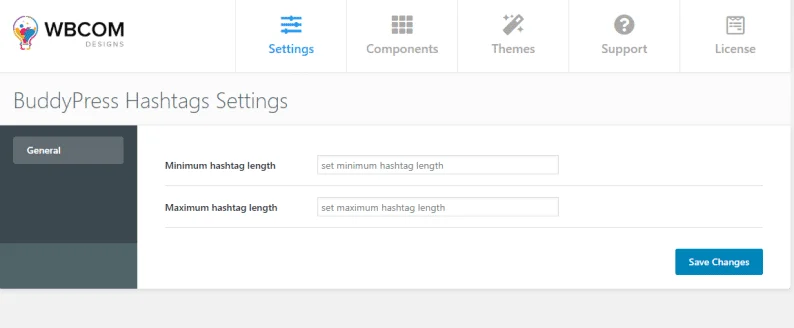
- Minimum hashtag length, which sets the shortest allowed hashtag
- Maximum hashtag length, which sets the longest allowed hashtag
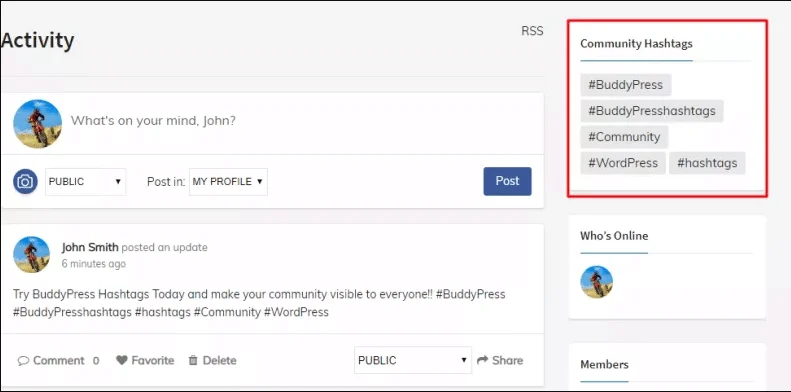
The plugin also lets you show the most-used community hashtags in the sidebar through a widget. Go to Dashboard > Appearance > Widgets > BuddyPress/bbPress Hashtag and add the widget wherever you’d like. You can rename the widget title, cap how many hashtags it displays, and sort them by name or by size.
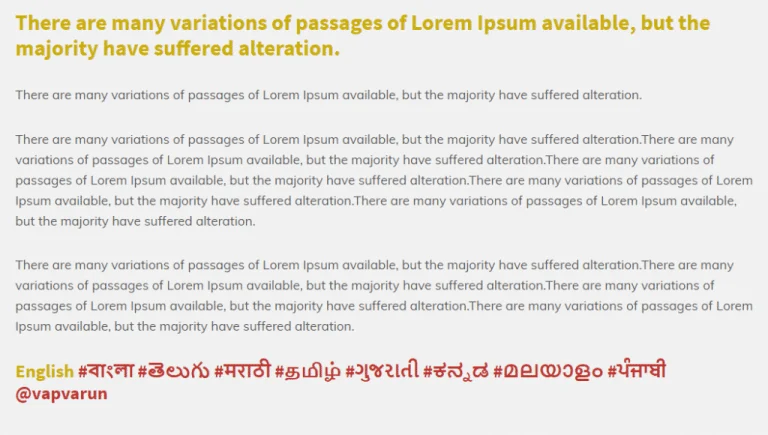
The plugin supports multi-language hashtags too, so members can tag content in their native language. See it in action here:
We hope this gets you started with hashtags on your BuddyPress website. If you have any suggestions, let us know in the comments below.
Interesting Read: How To Add Member Reviews Feature On Your BuddyPress Website?