How to Use Auto-Moderation to Keep Your Support Forum Clean
Manual moderation does not scale. Auto-moderation rules catch spam, inappropriate content, and abusive behavior before they reach your community. Here is how to configure keyword filters, rate limits, and user score gates.

When your forum has 50 members, moderation is easy. You read every post, catch the occasional spam, and handle the rare conflict personally. When your forum has 500 members posting 30 topics per day, manual moderation becomes a full-time job.
Auto-moderation bridges this gap. It is a set of rules that automatically detect and handle problematic content before it reaches your community. Not a replacement for human moderators, a force multiplier that lets them focus on judgment calls instead of catching obvious spam.
The Three Layers of Auto-Moderation
Effective auto-moderation works in three layers, each catching different types of problems:
Layer 1: Prevention (Trust Levels)
The best moderation happens before problematic content is posted. Trust levels prevent problems by limiting what new users can do:
- New accounts (Level 0) are rate-limited: they can post a limited number of topics and replies per day
- Image uploads require Level 1 (prevents new accounts from posting spam images)
- Private messaging requires Level 1 (prevents spam DMs)
- Editing and flagging require Level 2 (earned through genuine participation)
A spammer who creates a new account cannot flood your forum because the rate limits kick in after a few posts. By the time they could post freely, they have either been caught or have actually become a legitimate contributor.
Layer 2: Detection (Content Filters)
Content filters scan every post and reply before it goes live, checking for patterns that indicate spam, abuse, or policy violations.
Keyword Filters
The most basic but still essential filter. Create lists of words and phrases that trigger moderation actions:
Filter Type | Action | Example Keywords |
|---|---|---|
Block list | Prevent posting entirely | Slurs, extreme profanity, known scam phrases |
Flag list | Post goes live but flagged for review | Competitor mentions, mild profanity, promotional language |
Watch list | Notification to moderators | Pricing discussions, legal terms, account deletion requests |
Start with a short block list for the obvious stuff (slurs, scam phrases). Add to the flag list based on real problems you encounter. Avoid over-filtering, false positives frustrate legitimate users more than the occasional spam annoys moderators.
Link Filters
Spam often contains links to external sites. Configure link rules:
- New users (Level 0) cannot post links at all
- Level 1 users can post up to 2 links per post
- Specific domains can be blocked (known spam domains)
- Posts with more than 3 links are auto-flagged for review
Pattern Matching
Regex-based patterns catch spam that keyword lists miss:
- Phone numbers in posts (common in contact spam)
- Cryptocurrency wallet addresses
- Repeated characters (“HELPPPP MEEEE”)
- All-caps posts exceeding a threshold
- Posts that are entirely URLs with no text
Layer 3: Response (Automated Actions)
When a filter detects a problem, it triggers an automated response:
Action | When to Use | Reversible? |
|---|---|---|
Flag for review | Uncertain content that needs human judgment | Yes, moderator approves or rejects |
Hold for approval | Content that matches suspicious patterns | Yes, published after moderator approval |
Auto-reject | Content that matches block list terms | Yes, user can edit and resubmit |
Shadow flag | Subtle spam that should be tracked | Content posts normally but is flagged silently |
Temporary mute | User exceeds rate limits or accumulates flags | Auto-expires after set duration |
Configuring Auto-Moderation in Jetonomy
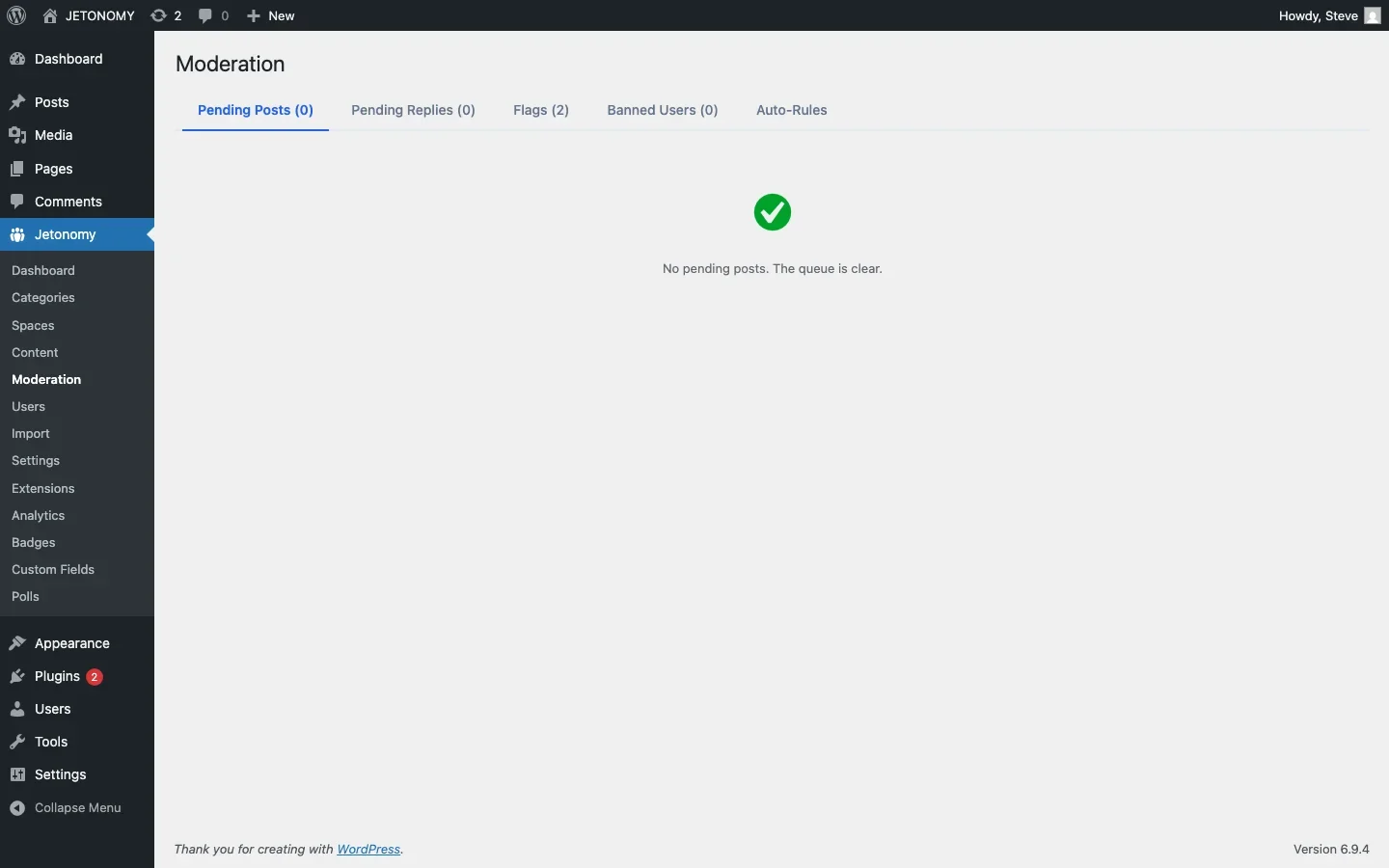
Jetonomy Pro’s Advanced Moderation extension provides the rule engine for auto-moderation. Here is how to set it up:
Step 1: Enable the Extension
Go to Jetonomy → Extensions and toggle on Advanced Moderation.
Step 2: Configure Keyword Filters
Navigate to Jetonomy → Moderation → Keyword Filters. Add your block list, flag list, and watch list keywords. Start conservative, you can always add more terms based on real incidents.
Step 3: Set Rate Limits
Configure posting limits per trust level:
Trust Level | Topics/Day | Replies/Day | Links/Post |
|---|---|---|---|
Level 0 | 3 | 10 | 0 |
Level 1 | 10 | 30 | 2 |
Level 2 | 20 | 50 | 5 |
Level 3+ | Unlimited | Unlimited | Unlimited |
Step 4: Configure User Score Gates
User score gates automatically restrict users who accumulate too many flags or negative signals:
- 3 flags in 24 hours → Posts go to moderation queue for 48 hours
- 5 flags in 7 days → Temporary mute for 24 hours
- 10 flags in 30 days → Account flagged for moderator review
These thresholds prevent persistent bad actors from overwhelming your forum while giving genuine users room for occasional missteps.
Community-Powered Moderation
Auto-moderation catches patterns. Your community catches context. The combination is powerful.
Content Flags
Every member at Trust Level 2 or above can flag content for moderator review. When a user clicks “Flag” on a post, they select a reason (spam, inappropriate, off-topic, harassment) and optionally add a note. The flagged content appears in the moderation queue.
This crowdsources moderation. Your community members are online more hours per day than your moderation team. They see problems first and flag them for review.
Flag Thresholds
Configure what happens when content receives multiple flags:
- 3 flags from different users → Content is automatically hidden pending review
- 5 flags → Author’s other recent posts are queued for review
This prevents a single overactive flagger from hiding legitimate content, while ensuring that content the community collectively identifies as problematic gets addressed quickly.
What Not to Auto-Moderate
Over-moderation is worse than under-moderation. Here are things that should stay as human judgment calls:
- Disagreements between users. Two people arguing about the best approach is not a moderation issue, it is a discussion.
- Negative product feedback. A user saying “this feature is broken” is not being abusive. They are giving you feedback. Do not filter it.
- Borderline language. Context matters. “That is stupid” directed at an idea is different from “You are stupid” directed at a person. Keyword filters cannot tell the difference. Humans can.
- First offenses. Unless the content is clearly malicious, a private message explaining the community guidelines is more effective than automated punishment.
Measuring Moderation Effectiveness
Track these metrics monthly:
Metric | Healthy Range | Warning Sign |
|---|---|---|
Auto-caught spam per week | Stable or declining | Rising = new spam patterns to address |
False positive rate | Under 5% | Over 10% = filters too aggressive |
User flags per week | Stable | Rising = community problems growing |
Moderator action time | Under 4 hours | Over 24 hours = understaffed |
Repeat offenders | Declining | Rising = enforcement too lenient |
If you are using Jetonomy Pro, the analytics dashboard includes moderation stats, flags, bans, silences, and spam caught, alongside your community health metrics.
The Moderation Escalation Path
Every moderation system needs a clear escalation path:
- Auto-moderation catches obvious patterns (spam, blocked keywords, rate limit violations)
- Community flags catch context-dependent issues (off-topic posts, borderline behavior)
- Space moderators handle their areas (closing duplicates, moving topics, warning users)
- Site admins handle serious issues (bans, account reviews, policy decisions)
This layered approach means your admins only deal with the cases that require judgment. Everything else is handled automatically or by the community.
Getting Started
Start with the minimum viable moderation setup:
- Configure trust levels with sensible rate limits (the defaults work for most communities)
- Add a short block list of obvious spam terms and slurs
- Enable community flagging for Level 2+ users
- Check the moderation queue once per day
Then iterate based on real problems. Every spam pattern you catch, add it to your filters. Every false positive, loosen the filter that caused it. Your auto-moderation configuration should evolve with your community.
For the broader support forum strategy, start with our WordPress forum setup guide and then read about letting your community answer questions without chaos. Auto-moderation is the safety net that makes community-powered support work at scale.
When Filters Catch a Trusted Member by Mistake
Rate limits and keyword filters are usually tuned against new-account spam, which means a Level 3 regular can still trip them in situations the defaults did not anticipate: running a live AMA and replying faster than the reply cap allows, or discussing pricing in a thread that hits your watch list. Getting flagged after months of good-faith contribution reads very differently to that member than it does to a first-time poster.
- Consider exempting Level 3+ members from rate limits entirely rather than just raising their caps, the table above already treats them as unlimited for a reason.
- When a trusted member’s content gets auto-held, prioritize their appeal ahead of the general queue, a multi-hour delay on a routine flag is a minor inconvenience for a new user and a real trust hit for a veteran.
- Track false positives specifically by trust level, not just in aggregate, a rising false-positive rate concentrated in your Level 2-3 members is a stronger signal that a filter needs loosening than the same rate spread evenly across all levels.
Where Advanced Moderation Fits in Jetonomy Pro
Trust levels and basic rate limiting are part of free Jetonomy. Keyword filters, link rules, pattern matching, and user score gates all live in the Jetonomy Pro Advanced Moderation extension described throughout this guide, it is the rule engine that turns manual moderation into something that scales past a few hundred members. Details are on the Jetonomy Pro page.