Ten years ago, cleaning up a photo meant either paying a professional retoucher or spending an evening learning layer masks and curves adjustments in Photoshop. AI-driven photo editors changed that timeline dramatically: point one at a photo and it identifies what needs fixing, uneven exposure, a distracting background, a portrait that could use gentler skin tones, and applies a correction automatically, usually adjustable afterward if the automatic pass overshoots. That doesn’t mean every AI edit looks good without a human eye checking it, but it does mean the starting point for anyone editing photos, from a small business owner prepping product shots to a parent editing a birthday party album, is dramatically closer to finished than it used to be. Below are ten tools people actually reach for, what each does differently, and who each one actually suits.

What “AI-Powered” Actually Means Here
The label gets applied loosely across this category, so it’s worth being specific about what’s actually happening. Most of these tools use models trained on large sets of professionally edited photos to recognize what a well-exposed sky, a well-lit face, or a clean background looks like, then apply adjustments that move your photo toward that pattern. That’s genuinely useful for the routine 80% of editing, correcting exposure, balancing color temperature, sharpening focus, but it’s not creative judgment. An AI tool doesn’t know that you deliberately underexposed a photo for mood, or that a slightly imperfect crop was an intentional composition choice. Treat automatic enhancement as a fast first pass you review, not a final decision.
1. Luminar AI
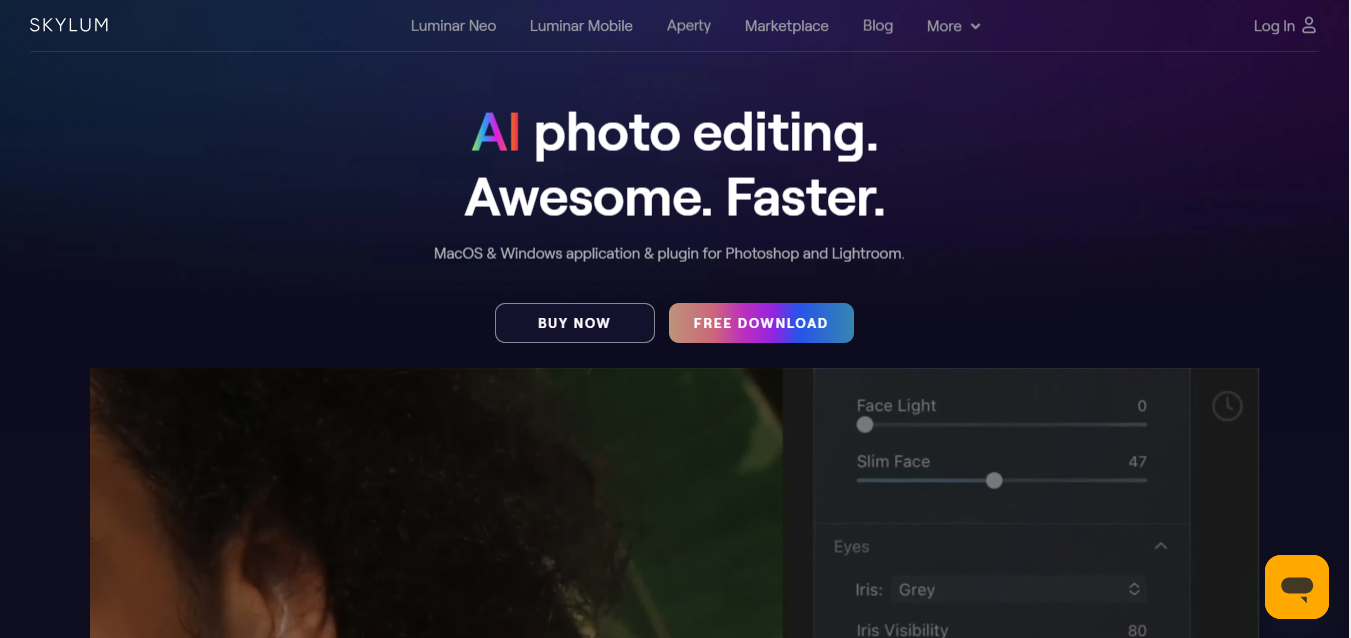
Luminar AI built its reputation on a few specific, dramatic automated fixes: replacing a flat, overcast sky with a more dramatic one, smoothing skin and brightening eyes in portraits, and rebalancing a composition’s framing. What sets it apart from a pure one-click tool is that every automatic adjustment comes with sliders you can dial back, so you’re not stuck with an all-or-nothing result. Landscape and portrait photographers who don’t want the full Lightroom learning curve tend to land here specifically because the presets get you 90% of the way with minimal manual work.
Key Features of Luminar AI:
- AI Sky Enhancer: Automatically improves dull skies for more dramatic, vibrant photos.
- AI Portrait Enhancer: Smooths skin, brightens eyes, and enhances facial features with adjustable intensity.
- AI Composition: Suggests framing and cropping adjustments for better visual balance.
2. Adobe Photoshop Elements
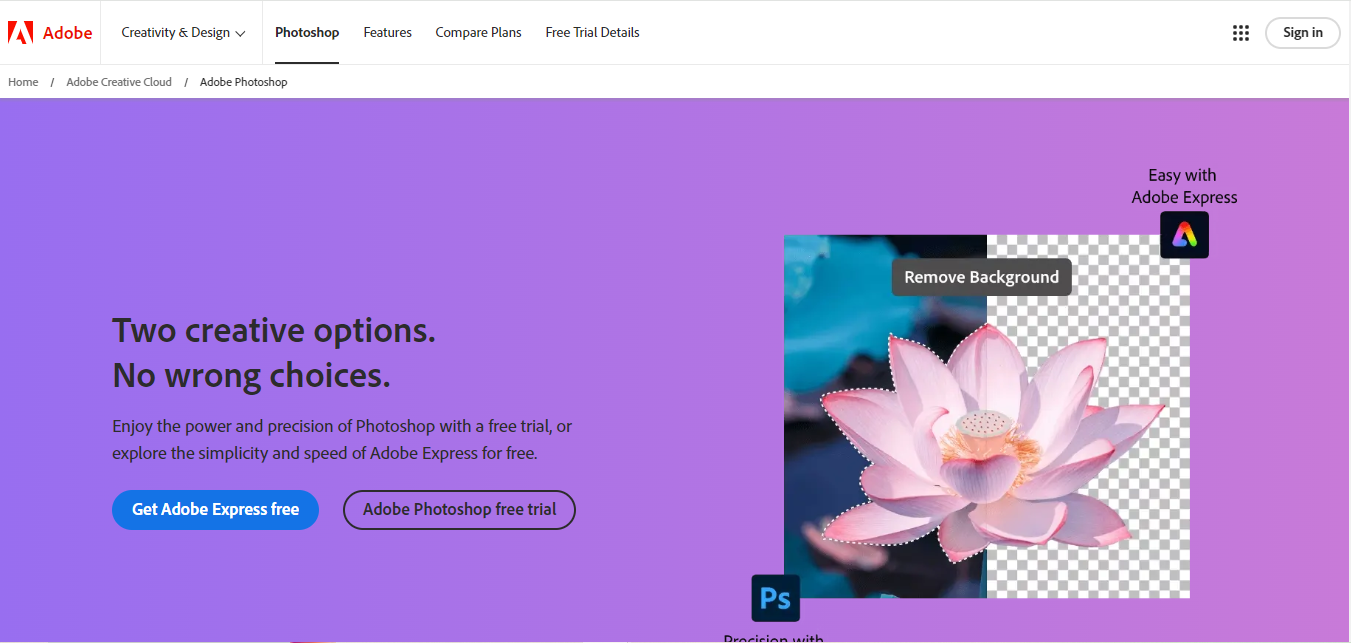
Photoshop Elements exists specifically for people who want Photoshop-adjacent power without Photoshop’s steep learning curve or subscription-only pricing model. The “Guided Edits” feature is the standout here, it walks you through multi-step edits like double exposure effects or old-photo restoration with plain-language instructions rather than assuming you already know what a layer mask does. That guidance makes it a genuinely good entry point for someone who’s outgrown a simple one-click tool but isn’t ready for full Photoshop’s blank-canvas complexity.
Key Features of Adobe Photoshop Elements:
- AI-Powered Enhancements: Automatically adjusts lighting, color balance, and sharpness.
- Guided Edits: Step-by-step instructions for complex editing tasks like restoration and compositing.
- AI Face Detection: Identifies and enhances facial features automatically in portraits.
3. Fotor
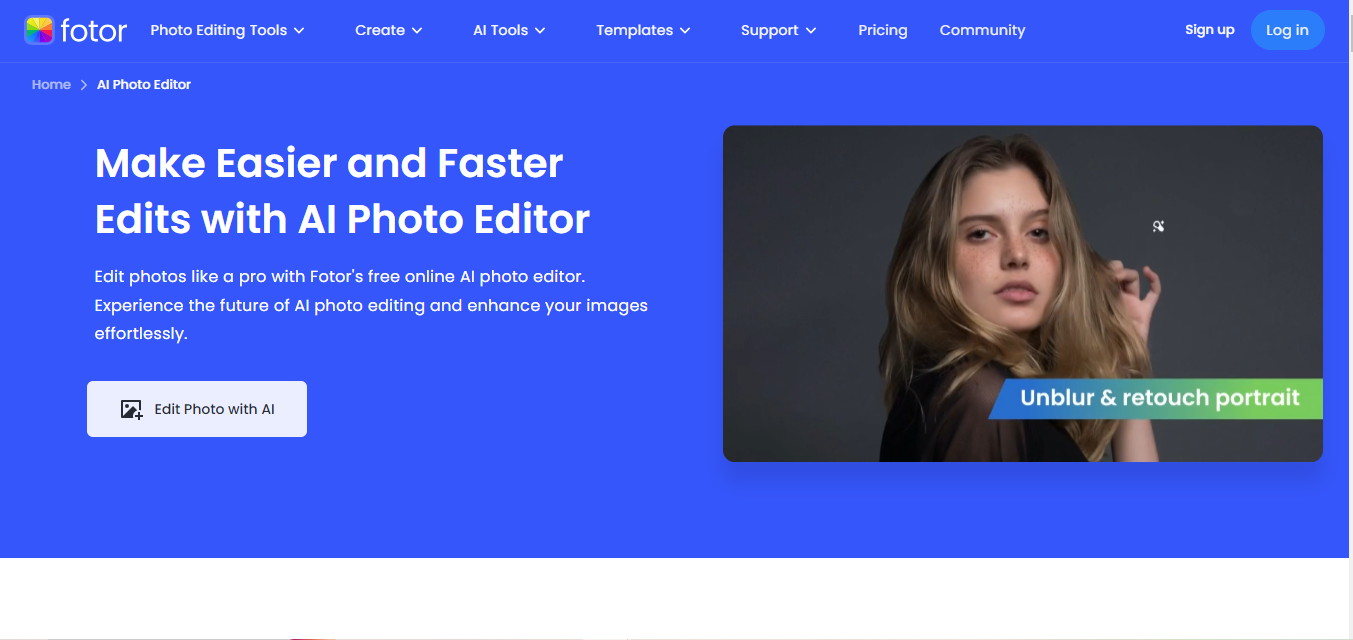
Fotor’s whole pitch is speed: upload a photo and its one-tap enhancement adjusts brightness, contrast, and sharpness in seconds without asking you to touch a single slider. For someone editing a handful of photos for social media before heading out the door, that’s exactly the right tradeoff, less precision in exchange for genuinely not having to think about it. The background remover is a solid bonus feature for product photos or simple portrait cleanup, though like most automated background tools it can struggle with fine detail like loose hair strands.
Key Features of Fotor:
- One-Tap Enhancement: Instantly improves brightness, contrast, and sharpness with a single click.
- AI Background Remover: Automatically removes backgrounds for a cleaner, more polished look.
- Variety of Filters: A wide range of style filters for a quick creative pass.
4. Canva
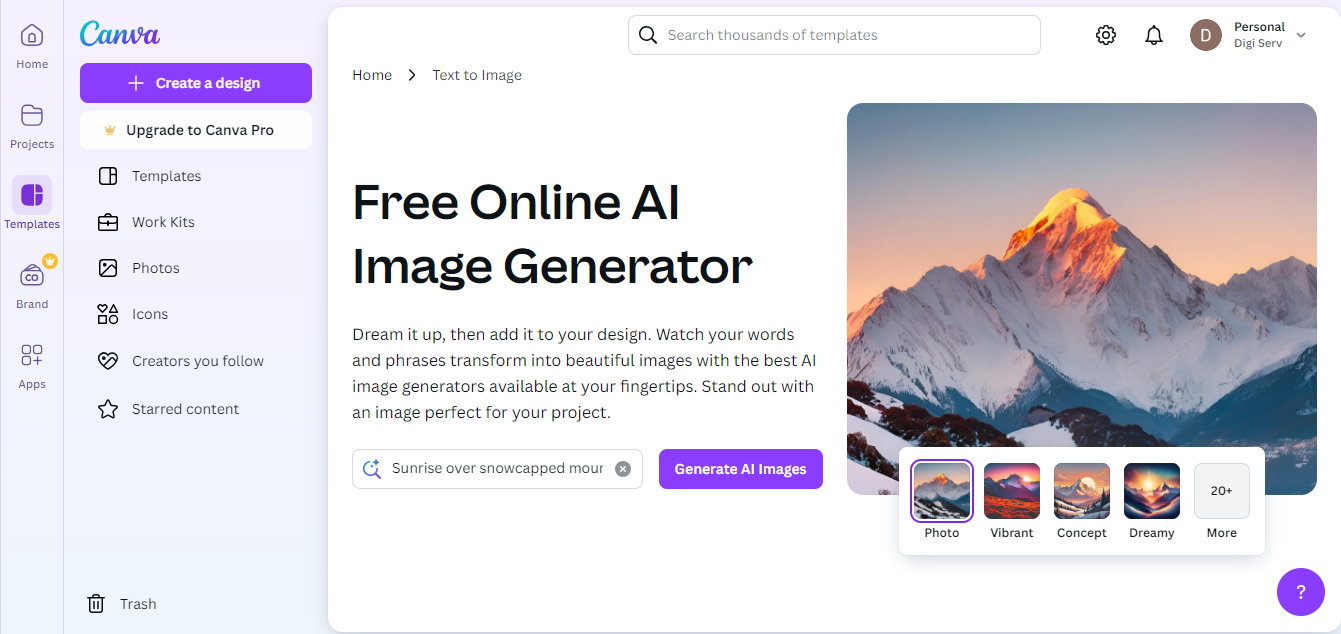
Canva is best known for design templates, not photo editing specifically, but that’s precisely why it earns a spot here for a certain kind of user: anyone who needs to edit a photo and then immediately drop it into a social graphic, flyer, or presentation without switching apps. The photo adjustment tools themselves are competent but not deep, don’t expect Luminar-level portrait retouching, the real value is the seamless handoff from “edited photo” to “finished design” in one workspace.
Key Features of Canva:
- AI Layout Suggestions: Recommends layouts that pair well with your edited photo.
- Photo Editing Tools: Adjust brightness, contrast, and saturation directly in the design canvas.
- Drag-and-Drop Interface: Combine edited photos with text and design elements in one workflow.
5. Pixlr
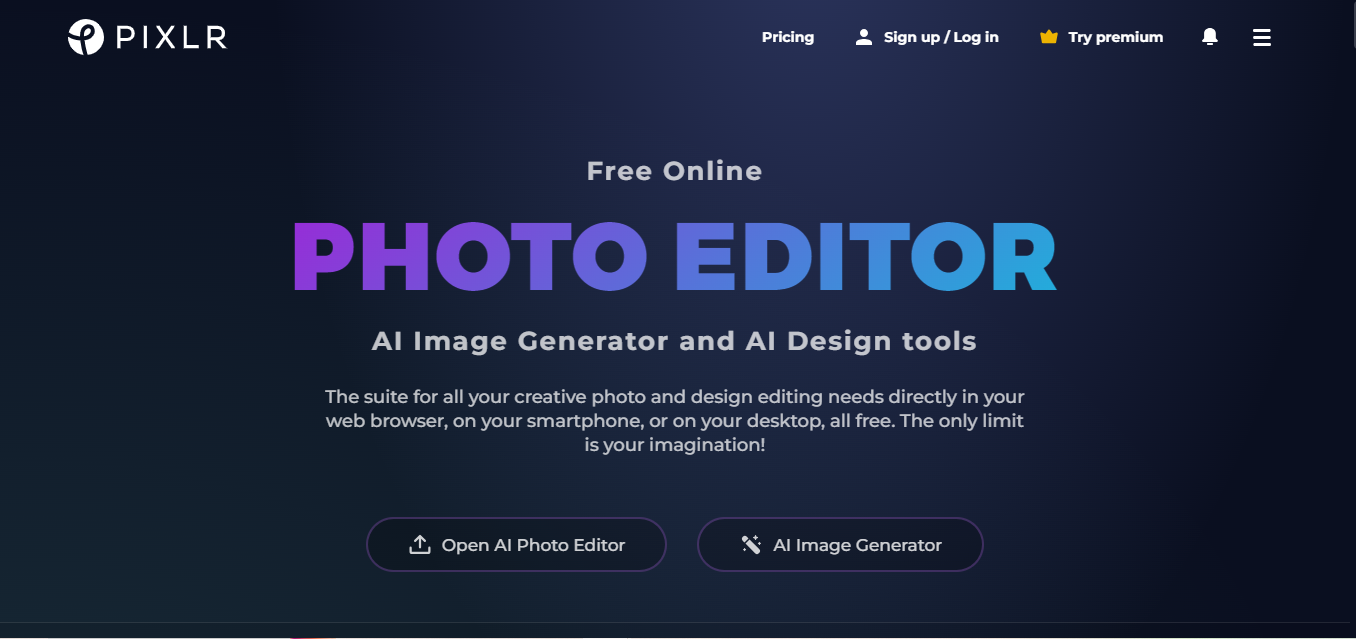
Pixlr’s advantage is that it’s fully browser-based, no software install required, and it works reasonably well on a phone browser as well as a desktop. That accessibility matters if you’re editing on a shared or work computer where you can’t install software, or if you just don’t want another app cluttering your device. The AI auto-fix and background remover cover the essentials competently, without the polish of a dedicated desktop app, but for occasional editing needs on the go, the tradeoff is worth it.
Key Features of Pixlr:
- AI Auto-Fix: Automatically adjusts color, brightness, and contrast.
- AI Background Remover: Removes backgrounds with reasonable precision on most subjects.
- Accessible from Any Device: Fully browser-based, works on desktop and mobile without an install.
6. Topaz Labs
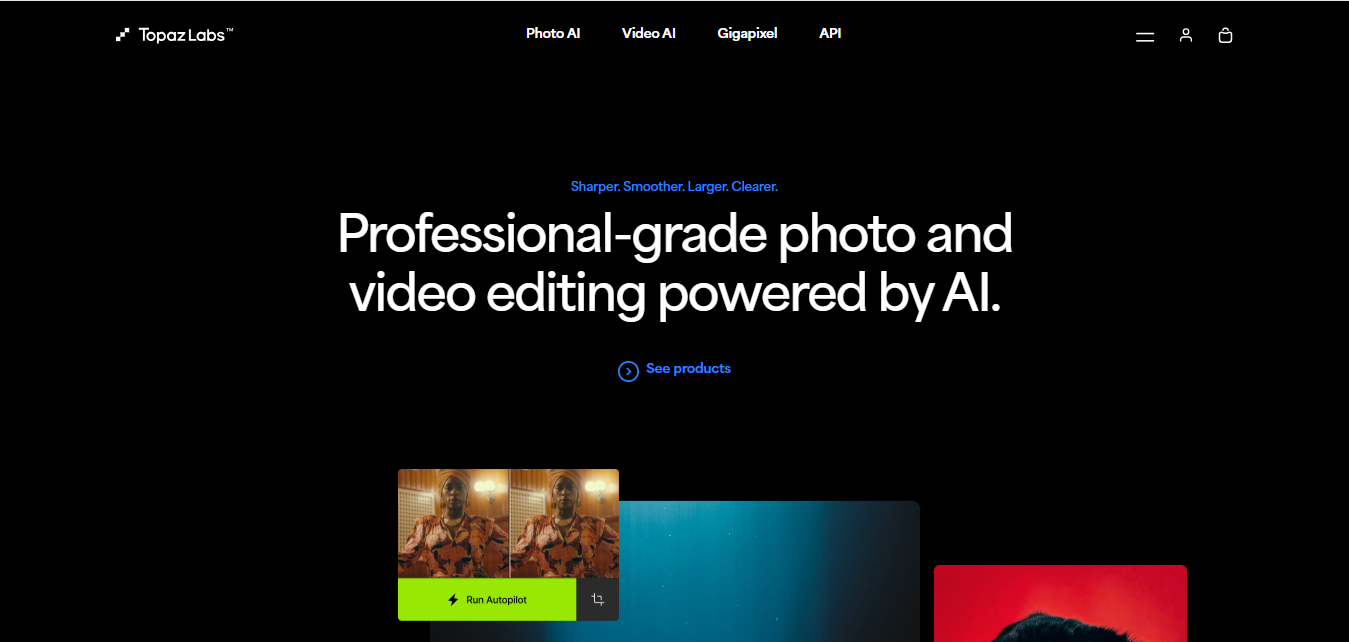
Topaz Labs solves one problem better than almost anything else on this list: taking a low-resolution or slightly blurry photo and upscaling it without the mushy, artificial look that basic image resizing produces. Photographers dealing with an old scanned print, a screenshot that needs to be printed at a larger size, or a client photo shot at lower resolution than ideal reach for this specifically for that reason. It’s a specialist tool, not an all-purpose editor, and it’s priced and positioned accordingly for people with that specific need.
Key Features of Topaz Labs:
- AI Gigapixel: Upscales images significantly while preserving detail better than standard resizing.
- AI Noise Reduction: Reduces grain and noise, especially useful for low-light photos.
- AI Sharpening: Recovers apparent sharpness in slightly blurry images.
7. PhotoWorks
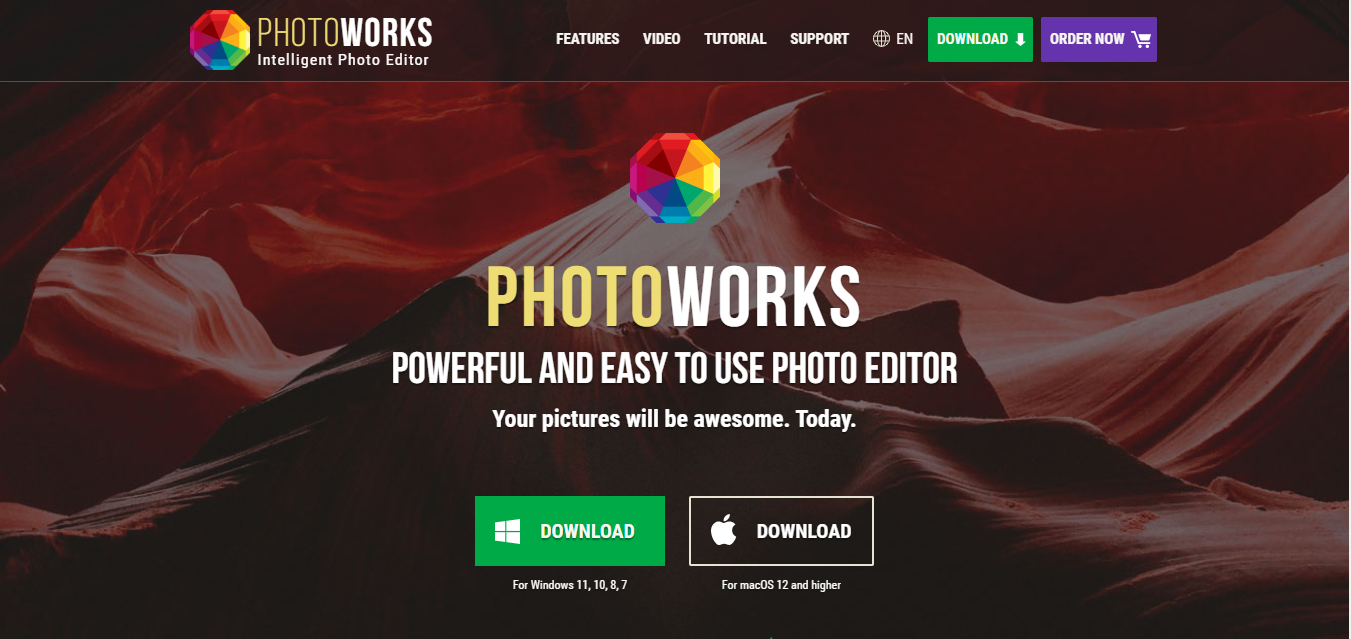
PhotoWorks sits in a useful middle ground between fully automated tools and full manual editors, one-click AI adjustments are available when you want speed, and manual sliders sit right alongside them when you want to override a specific result. Portrait retouching in particular is handled well here, with adjustable intensity that avoids the overly smoothed, plastic look that aggressive automatic retouching tools sometimes produce on skin.
Key Features of PhotoWorks:
- AI Portrait Retouching: Smooths skin and brightens eyes with adjustable intensity to avoid an artificial look.
- One-Click Enhancements: Instantly adjust brightness, contrast, and color tones.
- User-Friendly Interface: Approachable for beginners without hiding manual controls entirely.
8. BeFunky
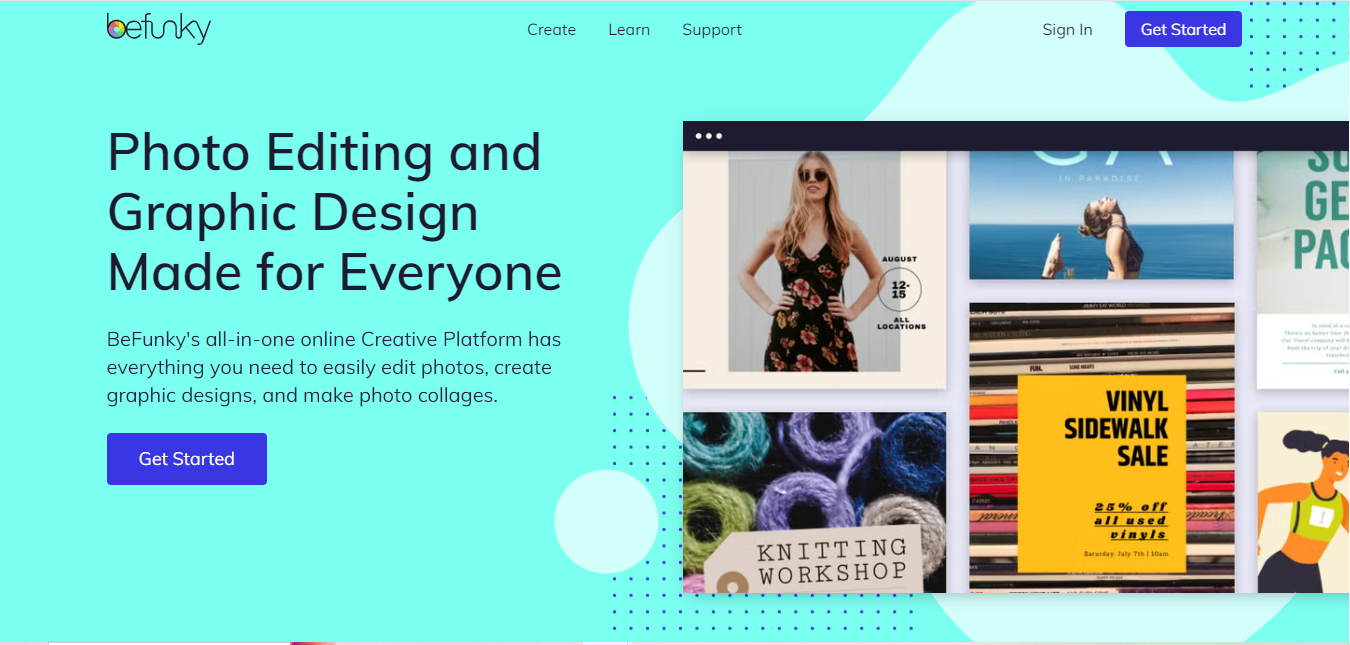
BeFunky leans into the fun, creative side of editing rather than pure technical correction, with a strong collage maker and a genuinely wide filter library that goes beyond the standard vintage-and-black-and-white options most editors offer. For casual users building a scrapbook page, a social media carousel, or just experimenting with a photo’s mood rather than fixing technical flaws, it hits a sweet spot between capability and approachability that more serious tools don’t bother with.
Key Features of BeFunky:
- AI One-Click Enhancements: Automatically adjusts photos for balanced overall quality.
- Collage Maker: Build multi-photo layouts directly from your edited images.
- Creative Filters: A wide range of artistic and stylistic filter options.
9. Photolemur

Photolemur takes the “fully automated” idea further than any other tool on this list, there’s no editing interface to speak of beyond uploading a photo and getting a finished result back. That’s either exactly what you want or a dealbreaker depending on your temperament: if you trust the algorithm and just want photos that look noticeably better without touching a slider, it delivers reliably on straightforward photos. If you have specific creative intent for an image, the lack of manual control will frustrate you fast.
Key Features of Photolemur:
- Fully Automated Enhancements: Upload a photo and get a finished result with no manual steps.
- AI Adjustments: Automatically improves lighting, sharpness, and color balance.
- Simple Interface: Built for users who specifically don’t want manual controls.
10. Remove.bg
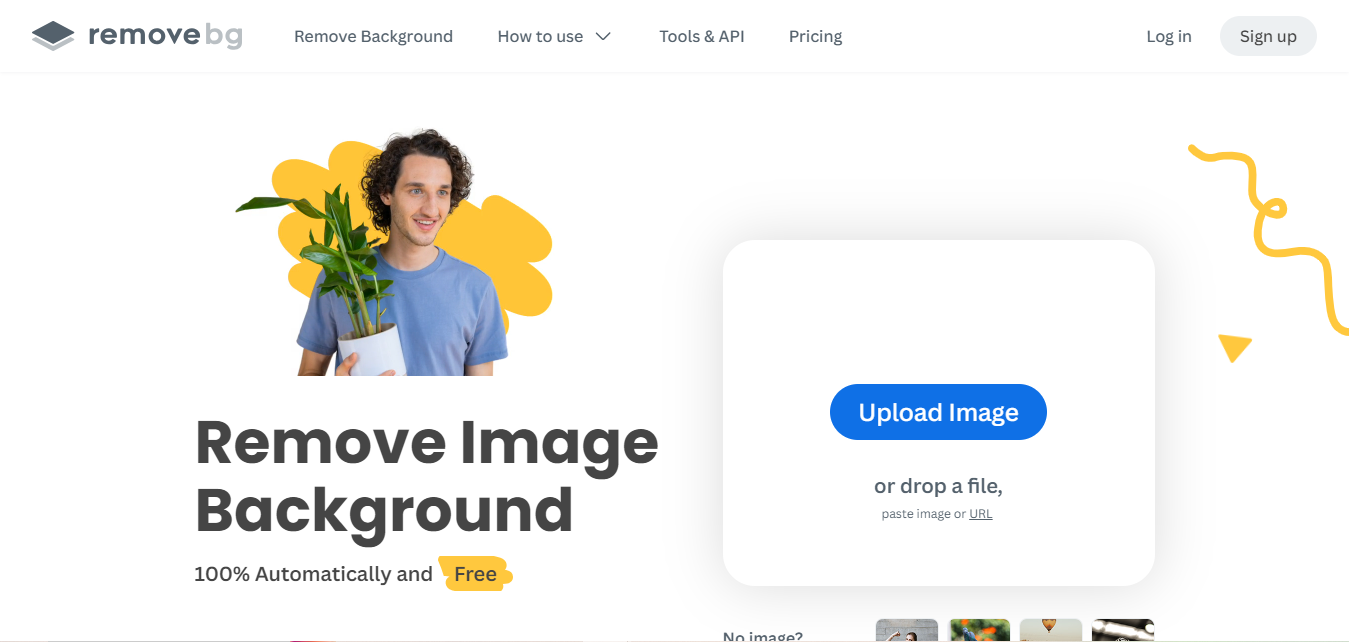
Remove.bg does one thing and does it thoroughly: background removal, including the fiddly detail that trips up more general tools, individual hair strands, semi-transparent edges, complex fabric textures. Ecommerce sellers who need consistent, clean product shots against a white or transparent background use this specifically because it handles those edge cases better than the background-remover feature bundled into broader editing tools. It’s not a general editor at all, treat it as a single-purpose utility that does its one job unusually well.
Key Features of Remove.bg:
- Instant Background Removal: Removes backgrounds in seconds with a single upload.
- Handles Complex Edges: Manages fine detail like hair and semi-transparent fabric better than most bundled tools.
- Easy to Use: Upload and download, no editing interface to learn.
Comparison table
| Name of Tool | Best For | Standout Feature | Pricing |
|---|---|---|---|
| Luminar AI | Both professionals and beginners | AI Sky and Portrait Enhancer | Starts at $79 (one-time purchase) |
| Adobe Photoshop Elements | Users wanting advanced editing without complexity | Guided Edits and AI Face Detection | $99.99 (one-time purchase) |
| Fotor | Free online users seeking quick, easy photo enhancements | One-Tap Enhancement | Free with premium options starting at $8.99/month |
| Canva | Users needing both design and photo editing tools | AI Layout Suggestions | Free with premium plans starting at $12.99/month |
| Pixlr | Users wanting a free, web-based editor | AI Auto-Fix | Free with premium options starting at $4.90/month |
| Topaz Labs | Photographers needing to upscale images | AI Gigapixel for image upscaling | Starts at $99.99 (one-time purchase) |
| PhotoWorks | Users seeking AI and manual photo editing tools | AI Portrait Retouching | Starts at $19.25 (one-time purchase) |
| BeFunky | Casual users looking for creative photo enhancements | Collage Maker and Creative Filters | Free with premium plans starting at $6.99/month |
| Photolemur | Users preferring fully automated photo enhancements | Fully Automated Enhancements | Starts at $35 (one-time purchase) |
| Remove.bg | Users needing fast and precise background removal | Instant Background Removal | Free with premium credits starting at $0.20/image |
Pricing across this category shifts often, treat the figures above as a rough starting comparison rather than current quotes, and check each tool’s own pricing page before committing to a plan.
Matching a Tool to What You’re Actually Editing
The fastest way through this list is to start from your subject matter rather than a feature checklist. Portrait-heavy work, family photos, headshots, points toward Luminar AI or PhotoWorks for their retouching controls. Product photography for an online store points toward Remove.bg for clean background removal, paired with Fotor or Pixlr for quick color correction. Restoring old or low-resolution photos points toward Topaz Labs specifically. And if you genuinely just want photos to look better without learning anything, Photolemur’s zero-interface approach is built exactly for that.
Where Automatic Editing Goes Wrong
The most common complaint about AI photo editors is over-processed skin in portraits, that smoothed, slightly plastic look that comes from pushing an automatic retouching slider too far. Every tool in this category lets you dial intensity down, and doing so on a second pass almost always looks more natural than accepting the default setting, particularly for close-up portraits where skin texture differences are most visible. The second common issue is background removal struggling with fine detail like flyaway hair or semi-transparent fabric edges, if a general editor’s background remover leaves a visible halo or missed strands, a dedicated tool like Remove.bg usually handles the same image more cleanly. The third is over-trusting automatic sky replacement or composition suggestions on images where the original framing was a deliberate creative choice, always review before accepting a suggestion rather than applying it blindly.
Frequently Asked Questions
Do I need a powerful computer to run these tools?
Browser-based options like Pixlr, Fotor, and Remove.bg run fine on almost any modern device since the processing happens on their servers. Desktop software like Topaz Labs and Luminar AI benefit from a reasonably modern computer, especially when processing large or high-resolution image batches.
Can I use more than one of these tools on the same photo?
Yes, and it’s common. A typical workflow might use Remove.bg to strip a background, then Fotor or Luminar AI for color correction, then export the finished image, moving between tools rather than expecting one app to do everything.
Will AI editing make all my photos look the same?
It can, if you always accept the default automatic settings without adjustment. The fix is treating automatic enhancement as a starting point, not a final answer, and adjusting intensity or overriding specific suggestions based on what each individual photo actually needs.
Is it safe to edit and share photos with these tools, privacy-wise?
Browser-based and cloud tools upload your photo to their servers for processing, which is standard for this category but worth knowing if you’re editing anything sensitive, personal documents, private family photos you don’t want stored anywhere. Desktop software that processes locally, like Topaz Labs, avoids that upload step entirely, which matters if privacy is a specific concern for a given photo.
Do these tools work well on old, damaged, or low-quality source photos?
Results vary a lot depending on how damaged the original is. Topaz Labs handles resolution and moderate blur well. Genuinely damaged prints, tears, heavy fading, water damage, usually still need a specialist restoration service or manual retouching in a full editor, since AI upscaling and noise reduction assume the underlying image data is mostly intact.
Batch Editing for Volume Work
If you’re editing dozens or hundreds of photos rather than a handful, one-at-a-time tools become a real bottleneck fast. This is where the distinction between a casual editor and a workflow tool matters: Adobe Photoshop Elements and Topaz Labs both support batch processing, applying the same adjustment preset across an entire folder of images in one pass, which is the only realistic approach for a wedding photographer or an ecommerce store processing an entire product catalog. Pure browser-based one-click tools like Fotor and Pixlr are built for one image at a time and get tedious fast at any real volume, worth knowing before you commit to a workflow around one of them for a large batch job.

Find the Right Tool for Your Editing Style
There’s no single best option here, only the best fit for what you’re actually trying to do. Advanced upscaling calls for Topaz Labs, casual quick edits call for Fotor or Pixlr, portrait work calls for Luminar AI or PhotoWorks, and pure background removal calls for Remove.bg over any bundled alternative. Try the free tiers of two or three that match your actual use case before committing to a paid plan, since how a tool handles your specific photos matters more than any feature list. The photo editing landscape shifts quickly, new models and features arrive every few months, so treat any single list, including this one, as a starting point for your own testing rather than a permanent ranking.
Interesting Reads:
best AI image generator for coloring pages