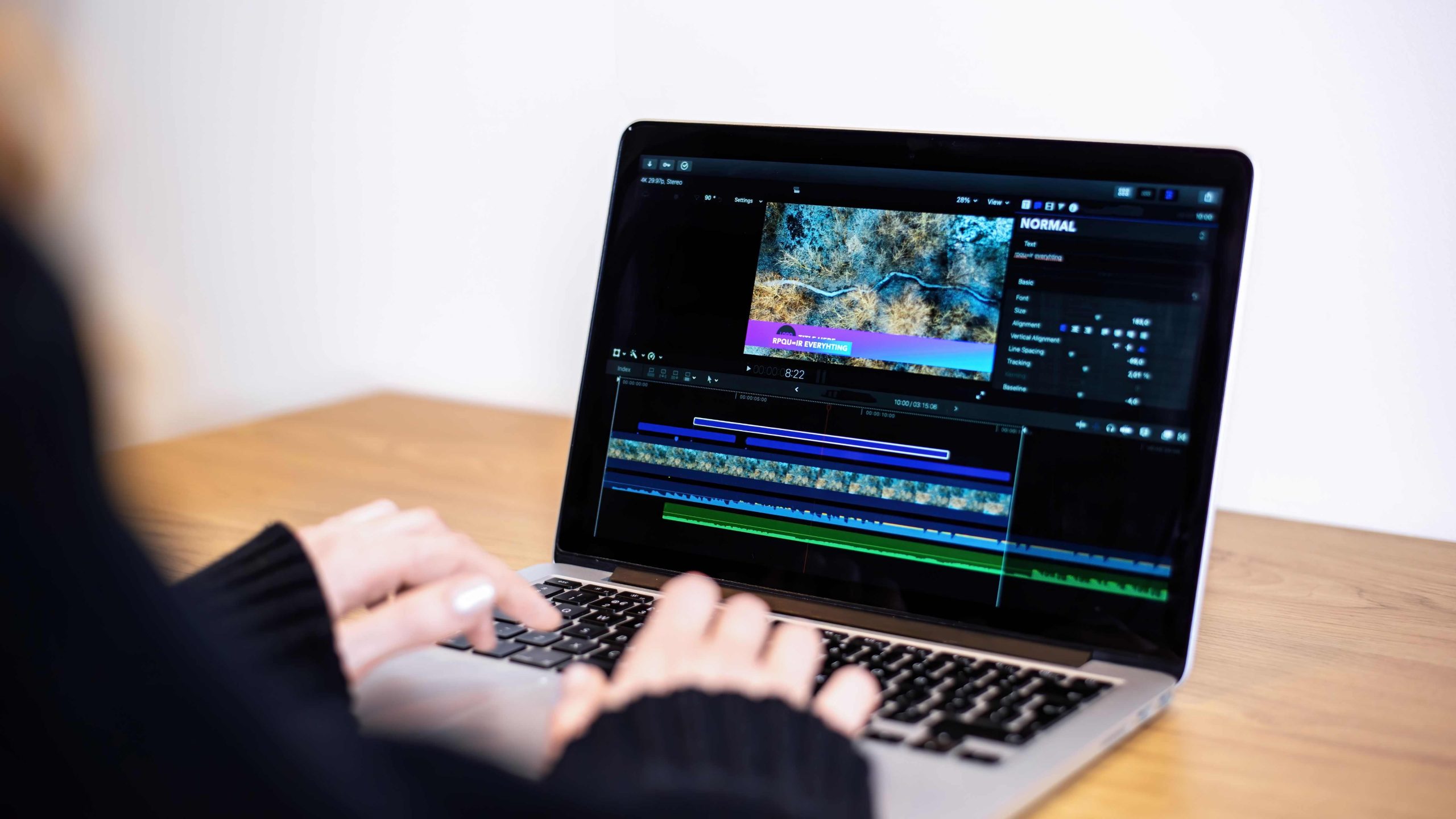
Filming good footage is only half the job on YouTube, what actually separates a channel that looks professional from one that looks like an unedited camera dump happens in post-production: pacing, transitions, color correction, sound design, all the invisible work an editor does that viewers never consciously notice but absolutely feel. Picking software that matches your skill level and budget matters more than most beginners realize, the wrong choice either buries you in complexity you don’t need yet or boxes you into limitations you’ll outgrow within a few months. Here’s a real breakdown of ten options across every price point and platform.

What Actually Determines the Right Choice
Before the list, three practical questions narrow this down faster than any feature comparison. First, what’s your computer actually capable of, professional-grade software like DaVinci Resolve wants a genuinely capable machine to run smoothly, and fighting a sluggish timeline on underpowered hardware kills the editing flow that matters for staying consistent. Second, how much time can you realistically spend learning a new tool, a steep learning curve pays off eventually but costs real weeks upfront that a simpler tool wouldn’t demand. Third, does your budget support a subscription, a one-time purchase, or does it need to be free, this alone eliminates half the list for most beginning creators.
1. Adobe Premiere Pro

Premiere Pro remains the industry-standard choice for a reason, its multi-cam editing handles multi-angle shoots cleanly, and its integration with After Effects and other Adobe tools means motion graphics and color work stay in one connected pipeline rather than exporting between disconnected apps. The learning curve is real and the subscription cost adds up over a career, but for creators planning to work with professional collaborators, editors, motion designers, colorists, industry-standard software avoids the file-compatibility headaches that come with niche tools.
- Key Features: Multi-cam editing, VR video support, deep integration with the rest of Adobe’s Creative Cloud.
- Pros: Professional-grade depth, broad feature set suited to both beginners and advanced editors.
- Cons: Steep learning curve, subscription-only pricing.
2. Final Cut Pro X
For Mac-only creators, Final Cut Pro X delivers genuinely fast performance thanks to tight optimization with Apple’s own hardware, and its magnetic timeline is a real usability improvement over the traditional track-based layout most other editors use, clips snap and reflow intelligently as you rearrange them rather than requiring manual gap management. The one-time purchase, rather than a subscription, appeals to creators who want to avoid ongoing software costs, though the upfront price is steep and it’s permanently locked to macOS.
- Key Features: Magnetic timeline, 360-degree video editing support, built-in motion graphics and effects.
- Pros: Intuitive once learned, deeply optimized for Mac hardware performance.
- Cons: Mac-only, significant one-time cost.
3. DaVinci Resolve
DaVinci Resolve’s free tier is genuinely remarkable, it includes professional-grade color grading tools that rival or beat paid competitors, alongside solid multi-track editing and audio tools, at no cost. That color grading strength specifically is why colorists across the film and video industry use Resolve regardless of what they edit in elsewhere. The tradeoff is a steeper learning curve than most consumer tools and real hardware demands, a underpowered laptop will struggle with Resolve’s more advanced features even on the free tier.
- Key Features: Advanced color correction and grading, multi-user collaboration support, integrated Fusion visual effects tools.
- Pros: Genuinely capable free version, best-in-class color grading.
- Cons: Steeper learning curve, needs a reasonably powerful computer for smooth performance.
4. iMovie
iMovie is where most Mac users make their very first cut, and it’s a legitimately good starting point precisely because it doesn’t overwhelm with options. Pre-built templates and a simple drag-and-drop interface get a first video published without a steep learning investment, though the ceiling is real, once you need multi-cam editing, advanced color work, or precise audio mixing, you’ll outgrow it. For a channel just testing whether YouTube is worth pursuing, that limitation is a feature, not a bug, it keeps the barrier to publishing low.
- Key Features: Pre-made templates for fast video assembly, simple drag-and-drop editing, built-in music and sound effects library.
- Pros: Genuinely beginner-friendly, free on Mac.
- Cons: Limited advanced features, Mac-only.
5. Filmora

Filmora occupies the middle ground between iMovie’s simplicity and Premiere Pro’s depth reasonably well, an approachable interface with genuinely useful features, split-screen layouts, built-in screen recording, that cover a lot of common YouTube video needs without a steep learning investment. The free version’s watermark is the real catch, budget for the paid tier if you’re publishing anything you intend to look professional, since a watermarked video reads as unfinished to most viewers regardless of the actual edit quality underneath.
- Key Features: Drag-and-drop interface, split-screen and screen recording tools, a large built-in library of effects and music.
- Pros: Affordable, easy to learn.
- Cons: Watermark on the free version, limited depth for advanced customization.
6. Shotcut
Shotcut covers genuinely capable ground for a completely free, open-source tool, wide format support including 4K, cross-platform availability across Windows, Mac, and Linux, and a real set of audio and video filters. The interface feels less polished than commercial alternatives, occasional layout quirks and a steeper initial orientation than Filmora or iMovie, but for creators who specifically want to avoid any subscription or license cost while still getting professional format support, it’s one of the strongest free options available.
- Key Features: Wide format support including 4K and ProRes, built-in audio filters and editing tools, cross-platform availability.
- Pros: Completely free and open-source, supports professional video formats.
- Cons: Interface can feel clunky, fewer advanced features than paid competitors.
7. VSDC Free Video Editor
VSDC packs a surprising amount of capability into a free Windows-focused tool, non-linear editing, a real set of built-in effects, and precise subpixel-level control over positioning. The interface asks more of a new user than Filmora or iMovie, expect a genuine adjustment period, but for a budget-conscious creator willing to invest the learning time, it delivers more editing depth than its price tag suggests.
- Key Features: Non-linear video editing, built-in visual and audio effects, precise subpixel accuracy for detailed positioning.
- Pros: Free with no watermark, broad file format support.
- Cons: Steeper learning curve for beginners, some advanced features locked to a paid version.
8. HitFilm Express
HitFilm Express stands out specifically for visual effects work, 2D and 3D compositing, a genuinely large library of presets and effects, that most editors in this price range simply don’t offer. Creators building content around effects-heavy formats, sci-fi shorts, action-style edits, ambitious transitions, get real value here that a straightforward cuts-and-color editor won’t provide. It does demand more from your hardware than a basic editor, and some of the more advanced effects sit behind optional paid add-ons.
- Key Features: 2D and 3D compositing tools, built-in VFX and color correction, over 400 included presets and effects.
- Pros: Free core software, genuinely strong for VFX-focused creators.
- Cons: Demands a capable computer, some features require paid add-ons.
9. OpenShot
OpenShot keeps things deliberately simple: drag-and-drop editing, a real-time preview that updates as you work, and enough capability, including basic 3D animated titles, to cover most straightforward YouTube content without unnecessary complexity. It’s a solid choice for creators who want something more capable than iMovie but aren’t ready for Shotcut or VSDC’s steeper learning curves, though it can slow down noticeably on larger, more complex projects.
- Key Features: Drag-and-drop functionality, real-time preview while editing, basic 3D animation support.
- Pros: Free and open-source, genuinely easy to pick up.
- Cons: Can slow down on large projects, limited advanced features.
10. Lightworks
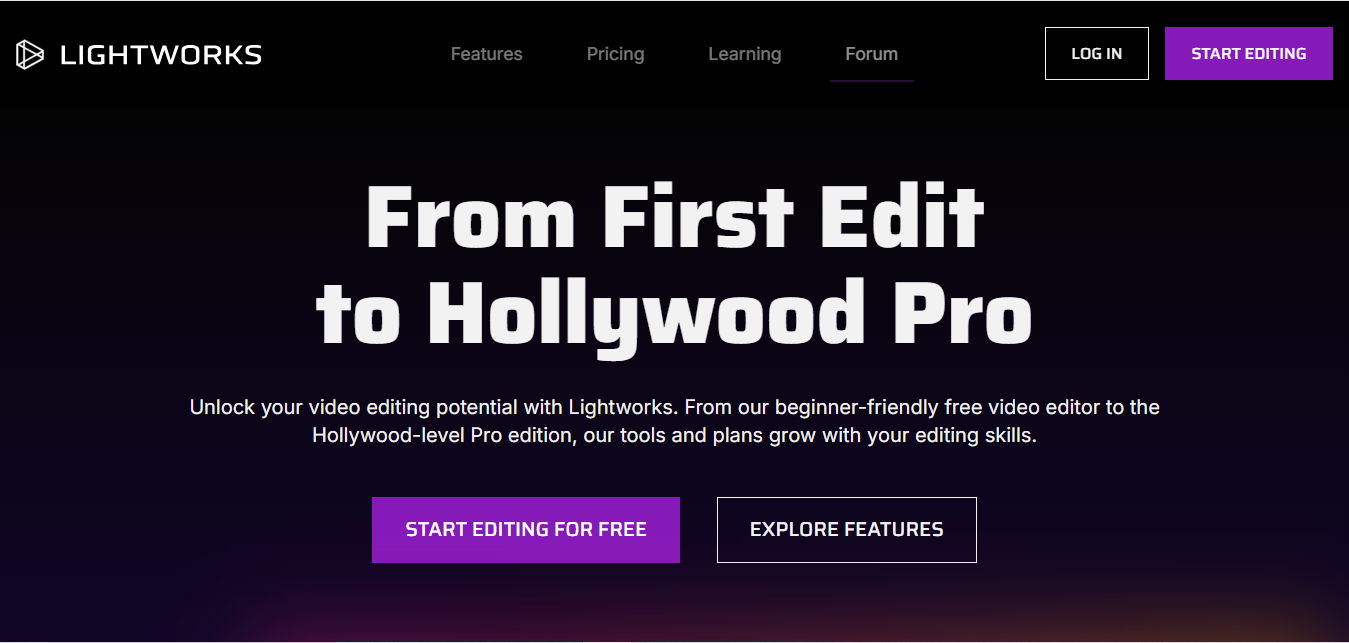
Lightworks has a genuine claim to professional pedigree, it’s been used to edit theatrical films, and that professional-grade toolset is available in a free tier that covers non-linear editing, real-time effects, and multi-cam work. The free version’s cap at 720p export is the significant limitation, fine for testing the software or lower-resolution content, but a real constraint for anyone publishing at the 1080p or higher resolution most YouTube channels expect today, and upgrading to remove that cap requires the paid tier.
- Key Features: Non-linear editing, real-time effects, multi-cam editing support.
- Pros: Professional-grade toolset, usable free version.
- Cons: Free version capped at 720p exports, steeper learning curve.
Comparison Table
| Software | Platform | Best For | Cost |
|---|---|---|---|
| Adobe Premiere Pro | Windows, Mac | Professional, collaborative workflows | Subscription |
| Final Cut Pro X | Mac only | Mac users wanting fast, optimized performance | One-time purchase |
| DaVinci Resolve | Windows, Mac, Linux | Color grading and free professional-grade editing | Free, paid Studio tier available |
| iMovie | Mac only | Absolute beginners on Mac | Free |
| Filmora | Windows, Mac | Beginner-to-intermediate creators wanting a balance of ease and features | Free with watermark, paid tier removes it |
| Shotcut | Windows, Mac, Linux | Free, format-flexible editing across platforms | Free |
| VSDC | Windows | Budget editors willing to learn a steeper interface | Free, no watermark |
| HitFilm Express | Windows, Mac | VFX and compositing-heavy content | Free core, paid add-ons |
| OpenShot | Windows, Mac, Linux | Simple, straightforward editing needs | Free |
| Lightworks | Windows, Mac, Linux | Professional toolset on a free tier | Free (720p cap), paid removes cap |
Matching Software to Your Actual Content Type
- Talking-head or vlog content: iMovie or Filmora handle straightforward cuts and basic graphics without unnecessary complexity.
- Tutorials and screen recordings: Filmora’s built-in screen recording or DaVinci Resolve’s broader toolset both cover this well.
- Cinematic or narrative content: DaVinci Resolve or Premiere Pro, for color grading depth and professional workflow support.
- Effects-heavy or sci-fi style content: HitFilm Express, purpose-built for compositing and VFX work.
- Zero-budget creators just starting out: Shotcut or OpenShot, genuinely capable free options without a watermark.
A Note on Hardware Before You Choose
Software choice interacts directly with what your computer can actually handle, and this trips up more beginners than any interface decision. DaVinci Resolve and HitFilm Express in particular want a reasonably modern processor and dedicated graphics card to edit smoothly, running them on an underpowered laptop means constant lag and render delays that will genuinely discourage you from editing regularly. If your current machine is aging or budget hardware, a lighter tool like iMovie, Filmora, or OpenShot will feel dramatically more usable day to day than a technically more powerful editor your computer can’t comfortably run.
Keeping a Consistent Style Across Videos
Once you’ve settled on software, the next real skill worth building is consistency, the same intro treatment, the same color grade or filter preset, the same font choices for text overlays, applied across every upload. Viewers subconsciously recognize a channel’s visual identity the same way they recognize a logo, and jumping between wildly different editing styles video to video makes a channel feel less established even if each individual video is well made. Most of the tools above support saving presets or templates specifically for this, worth setting up once you’ve found a look you like rather than rebuilding your style from scratch on every new upload.
Common Mistakes New YouTube Editors Make
The most frequent one is choosing software based on what a favorite creator uses rather than what actually fits your own skill level and hardware, a channel with a full-time editor and professional workstation isn’t a realistic comparison for someone editing solo on a laptop. The second is over-editing early content, heavy transitions, excessive effects, and constant zoom-punches can distract from content that would land better with simpler, cleaner cuts, particularly for talking-head or tutorial formats where clarity matters more than flash. The third is neglecting audio while obsessing over visual polish, viewers tolerate mediocre video quality far more than they tolerate bad audio, a genuinely common misallocation of editing time and attention.
Frequently Asked Questions
Do I need paid software to grow a YouTube channel?
No. DaVinci Resolve’s free tier, Shotcut, and OpenShot all support genuinely professional-quality output at zero cost. Many successful channels started and grew substantially on free tools before ever upgrading to paid software.
How important is 4K editing support if I only publish 1080p videos?
Less important than it might seem for most creators, but there’s a real benefit: editing in a higher resolution than your final export gives you room to crop, stabilize, or reframe shots without visible quality loss, a useful buffer even if your published output stays at 1080p.
Should I learn Premiere Pro even if I’m not planning to work professionally?
Only if you specifically anticipate needing to collaborate with professional editors or colorists later, or if you’re drawn to it for other reasons. For a solo creator with no near-term professional collaboration needs, a simpler or free tool that matches your current skill level is usually the more practical choice, you can always migrate later once your actual needs outgrow it.
Can I switch editing software later without losing my old project files?
Generally not directly, most editors use their own proprietary project file format that other software can’t open natively. What does transfer is your exported, finished videos, and often your raw footage if you’ve kept it organized separately. Switching software mid-channel usually means starting new edits fresh in the new tool rather than migrating old project files, which is worth factoring into how much time you invest learning any one tool’s specific project structure.
Does the software I choose affect my video’s actual quality on YouTube?
Less than export settings do. Any of the tools on this list can produce excellent-looking video if you export at the right resolution, bitrate, and frame rate for your content. Where software genuinely affects perceived quality is in what it lets you fix or enhance, color correction, stabilization, audio cleanup, capabilities that vary meaningfully between the options above.
Is it worth using two different editors for different tasks?
Some experienced creators do exactly this, a fast, simple tool for quick-turnaround content and a deeper tool for flagship videos that get more production investment. For most creators starting out, though, picking one tool and genuinely learning its full capability set is more productive than splitting attention across two unfamiliar interfaces.

Choosing the Right Tool to Boost Your YouTube Videos
The right editor is the one that matches your actual hardware, budget, and content style, not the one with the longest feature list or the biggest name recognition. Start with a free option that fits your skill level, DaVinci Resolve or Shotcut cover a lot of ground without cost, and upgrade deliberately once you’ve hit a real limitation rather than a hypothetical one. Consistency and a clear editing style built over time matter more to channel growth than any single software’s feature set. Give yourself a handful of real projects with any tool before judging it, the first video in a new editor almost always feels clumsy regardless of which software you picked, and that discomfort fades faster than most beginners expect once the interface becomes familiar.