How To Create A Customized Newsfeed Experience On Your BuddyPress Website?
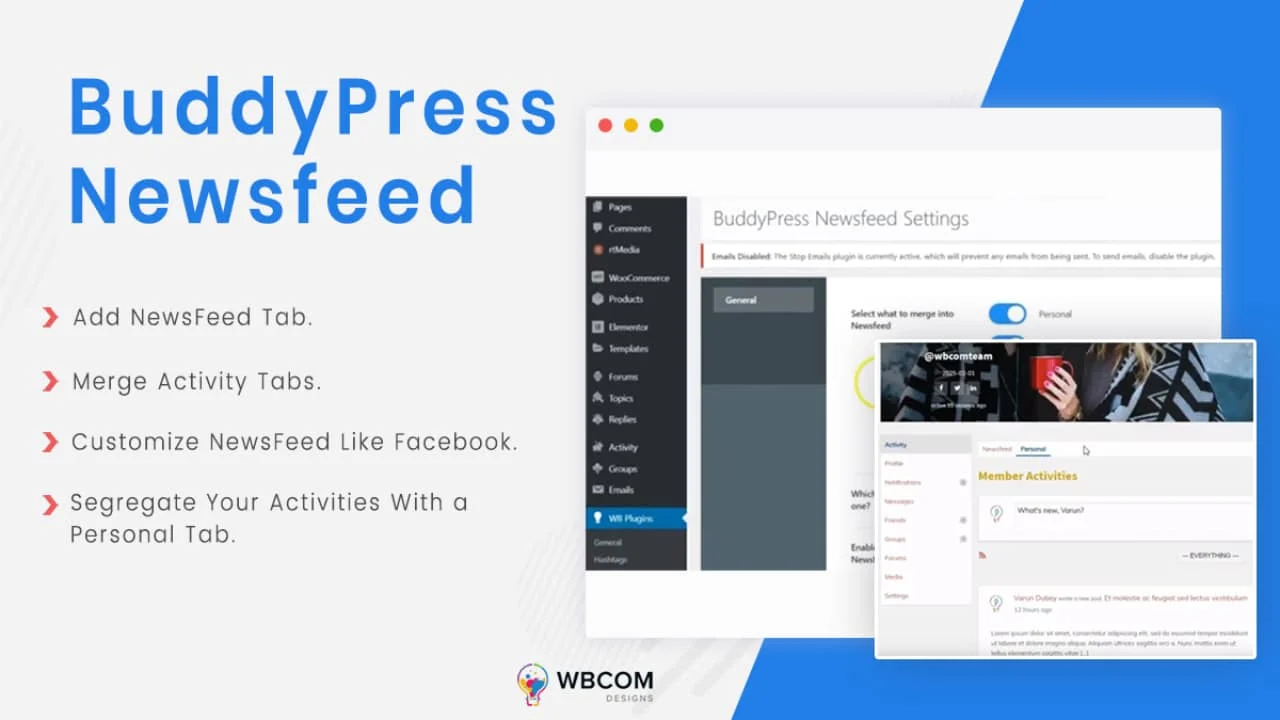
Do you want to customize your BuddyPress feed to give visitors a better browsing experience?
By default, BuddyPress keeps different activity types in separate streams, so everything happening in your community shows up under its own respective activity option. In this article, we’ll show you how to build a customized newsfeed experience on your BuddyPress website.
The Benefits Of A Newsfeed
If you’ve used Facebook, you’ve seen a newsfeed that pulls the latest updates from across the platform into one place.
A community website works the same way: your newsfeed can show everything happening around your site, like status updates, friend connections, likes, comments, group joins, and more. A customized newsfeed makes it easier for members to find activity and keeps the content feeling fresh.
Here are a few benefits of having a newsfeed in your community:
1. Fresh content
A newsfeed pulling content from multiple sources shows fresh content regularly, which helps your search engine ranking. A customized newsfeed also lets you decide what gets shown to members, and curating that mix can meaningfully help your overall SEO strategy.
2. Higher Engagement
A customized newsfeed also keeps more members engaged, since everything sits in one place. Combining activity into a single aggregate page is simply more user-friendly.
3. More Control
The core purpose of a customized newsfeed showing an aggregate of activity is to give members more freedom and control over the platform, surfacing what’s actually relevant to them.
How To Add Social Share Button In BuddyPress?
Creating A Customized Newsfeed On A BuddyPress Website
As mentioned above, BuddyPress keeps different activity types separate by default. That means activities, post updates, mentions, favorites, group activity, and more all live under their own respective tabs, which isn’t great for engagement since members have to visit each section separately.
To pull all of that into one customized newsfeed, install the BuddyPress Newsfeed plugin.
To install it, follow this step-by-step guide: how to install BuddyPress Newsfeed plugin.
Once installed, configure its backend settings under Dashboard > WB Plugins > BP Newsfeed. Here you’ll find the plugin’s general settings, including:
Selecting what to merge into the newsfeed: choose which activities you want pulled into the newsfeed.
Enable activity post from the newsfeed: lets members post directly from the newsfeed section on the front end.
Front-end View:
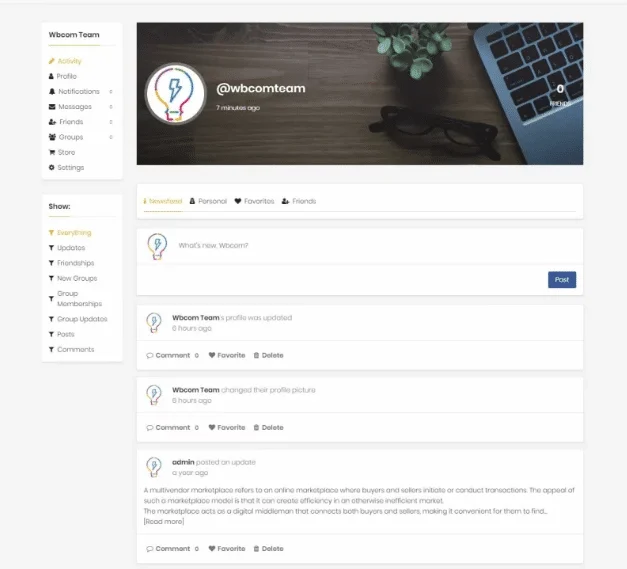
Here’s how the plugin looks on the front end. A new Newsfeed tab appears, showing all the selected activity in one place.
You can also separate your own activity from your friends’ by showing a dedicated “Personal” tab.
See the plugin live in action:
Get BuddyPress Newsfeed Today
We hope you found this article on BuddyPress Newsfeed useful. If you have any suggestions, let us know in the comments below.
Interesting Read: How To Add Polls Feature In BuddyPress Website?