Enhance Your BuddyPress Activity Feed with Visual Stories
BuddyPress activity streams are text-heavy and lack visual appeal. Learn how WP Stories adds a stories bar above your activity feed to increase daily return visits, boost engagement, and transform your community experience.
The Problem with Default BuddyPress Activity Streams
If you run a BuddyPress-powered community, you already know the activity feed is the heartbeat of your site. Members check it for updates, new friendships, group activity, and fresh content. But there is an uncomfortable truth that most community administrators eventually face: the default BuddyPress activity stream is overwhelmingly text-based.
Scroll through any standard BuddyPress activity feed and you will see a wall of text updates. “John updated his profile.” “Sarah joined the group Photography Enthusiasts.” “Mike posted an update.” Each entry follows the same monotonous pattern: a small avatar, a line of text, and a timestamp. There are no visual hooks to catch the eye, no dynamic content to hold attention, and no reason for members to linger beyond scanning the latest few entries.
This is not a criticism of BuddyPress itself. The activity component was designed as a chronological log of community actions, and it does that job well. But modern users have been trained by platforms like Instagram, Snapchat, and Facebook to expect visual-first experiences. When they land on your community and see a text-heavy feed, they instinctively feel that the platform is outdated, even if your community is thriving beneath the surface. This is especially important as mobile-friendly community platforms become the standard members expect.
The consequences are measurable. Communities with text-only feeds typically see:
- Lower average session duration (members scan and leave)
- Fewer return visits per week
- Reduced content creation from members
- Higher bounce rates on the activity page
The question is not whether your activity feed needs visual enhancement. The question is how to add visual elements without breaking the existing activity stream that your members already rely on.
How a Stories Bar Transforms the Feed Experience
The solution is a pattern that billions of users already understand: the stories bar. WP Stories for BuddyPress places a horizontal, scrollable row of circular story avatars directly above your activity feed. Members who have posted stories within the last 24 hours appear in this bar, their avatars ringed with a colored border that signals fresh content.
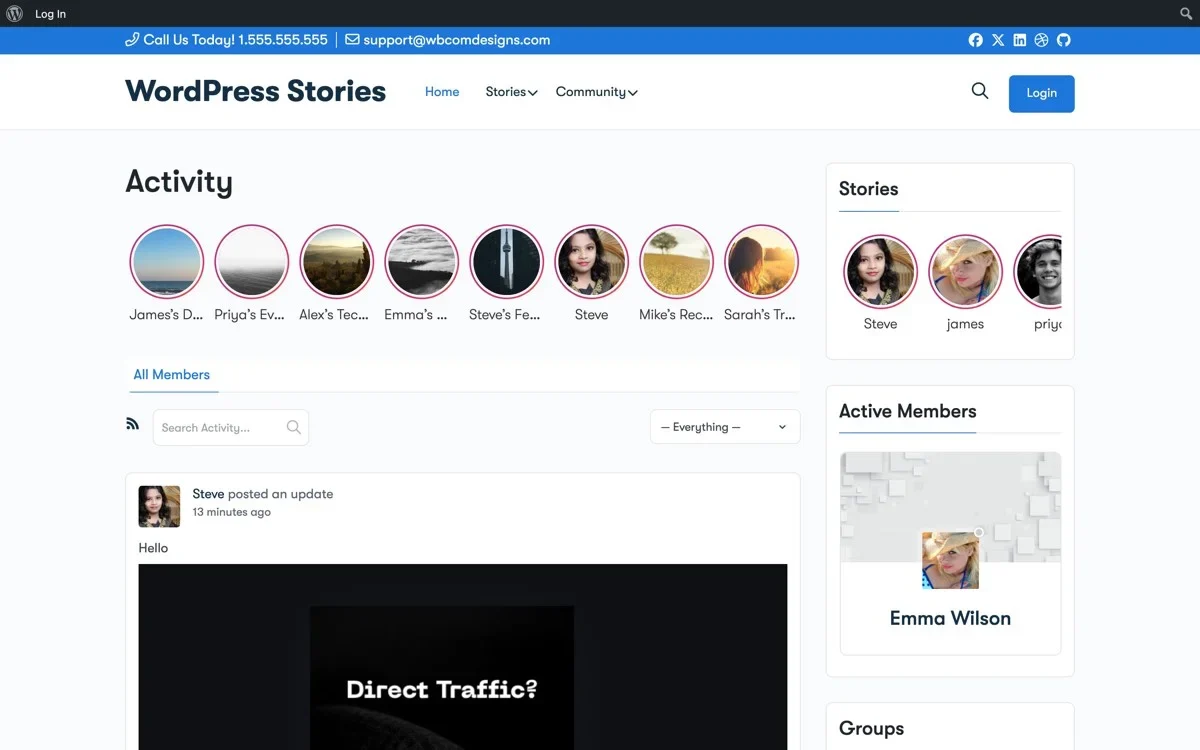
This single addition changes the dynamics of your activity page in several important ways.
Visual hierarchy shifts upward. Instead of the eye landing on the first text update, it is drawn to the colorful story avatars at the top of the page. This creates an immediate sense of activity and freshness, even before a member reads a single status update.
Members get a reason to return daily. Stories expire after 24 hours by default. This creates a natural urgency: if you do not check today, you will miss what your friends shared. This mechanic is the same one that drives daily engagement on Instagram and Snapchat, and it works equally well in niche communities.
The barrier to content creation drops dramatically. Posting a story is faster and less intimidating than writing a status update. Members who would never write a paragraph-long update will happily snap a photo and share it as a story. This means more members contributing content, which means a livelier feed for everyone.
The activity feed itself remains untouched. WP Stories does not modify or replace the existing activity stream. It adds a new layer on top. Members who prefer the traditional text feed can continue using it exactly as before, while visually-oriented members get a new way to engage.
Template Hooks for Precise Story Placement
One of the most practical aspects of WP Stories is the control it gives you over where the stories bar appears. Rather than forcing a fixed position, the plugin uses BuddyPress template hooks to let you place the stories bar exactly where it makes sense for your community.
By default, the stories bar renders above the activity feed using the bp_before_activity_loop hook. This places it directly above the activity entries, below any activity posting form. For most communities, this is the ideal position because it catches the eye right where members are already looking.
However, you have several placement options:
- Above the activity post form: Use the
bp_before_activity_post_formhook to place stories at the very top of the activity page, before anything else. - Below the activity filter bar: Use
bp_after_activity_type_tab_allto position stories between the filter tabs and the activity entries. - In the sidebar: Use the WP Stories widget to place a vertical stories list in your sidebar, freeing up the main content area.
- On any page with shortcodes: Use
[wp_stories]to render the stories bar on custom pages, landing pages, or even within BuddyPress group pages.
This flexibility matters because every community has a different layout. A community using a full-width activity page will want the stories bar spanning the full width. A community with a sidebar layout might prefer stories in the sidebar to avoid pushing the activity feed down. The plugin adapts to your theme rather than forcing you to adapt to it.
For developers building mobile-ready community features with the REST API, WP Stories also provides REST endpoints for fetching and displaying stories in custom frontends.
For developers who want even more control, WP Stories provides a PHP function:
wp_stories_render_bar( array(
    'context'  => 'activity',
    'per_page' => 10,
    'orderby'  => 'latest',
) );
This lets you render the stories bar inside custom templates with full control over the number of stories shown and the sort order.
Privacy Controls with BuddyPress Friends
Privacy is a make-or-break feature for community plugins. Members will not share personal moments if they cannot control who sees them. WP Stories integrates directly with the BuddyPress friends component to offer granular privacy controls.
When a member creates a story, they can choose from three visibility levels:
- Public: Visible to all logged-in members of the community.
- Friends Only: Visible only to confirmed BuddyPress friends.
- Only Me: Visible only to the story creator (useful for testing or saving drafts).
These privacy settings respect the existing BuddyPress friendship model. If Sarah sets her story to “Friends Only,” only members who are in her BuddyPress friends list will see her avatar in the stories bar and be able to view her story. Other members will not even know she posted one.
This integration extends to the stories bar itself. The bar dynamically filters based on the viewing member’s friendships. Member A might see eight story avatars while Member B sees twelve, depending on their respective friend connections and the privacy settings of each story creator.
For community administrators, there is also a global privacy setting that lets you set the default visibility level for all new stories. If your community is focused on close-knit relationships, you might default to “Friends Only” and let members opt into public sharing. If your community is more of an open network, defaulting to “Public” makes more sense.
Group-based privacy is another layer. When WP Stories is enabled for BuddyPress groups, stories posted within a group context are visible only to group members. This creates a natural boundary that mirrors how members already think about group content.
Tracking Views and Measuring Engagement
Adding stories to your activity feed is only valuable if you can measure the impact. WP Stories includes built-in analytics that track engagement at both the individual story level and the community level.
For individual members, each story shows a view count and a list of viewers. When a member opens their own story, they can see exactly who viewed it and when. This viewer transparency serves as social proof: knowing that people are watching encourages members to post more stories.
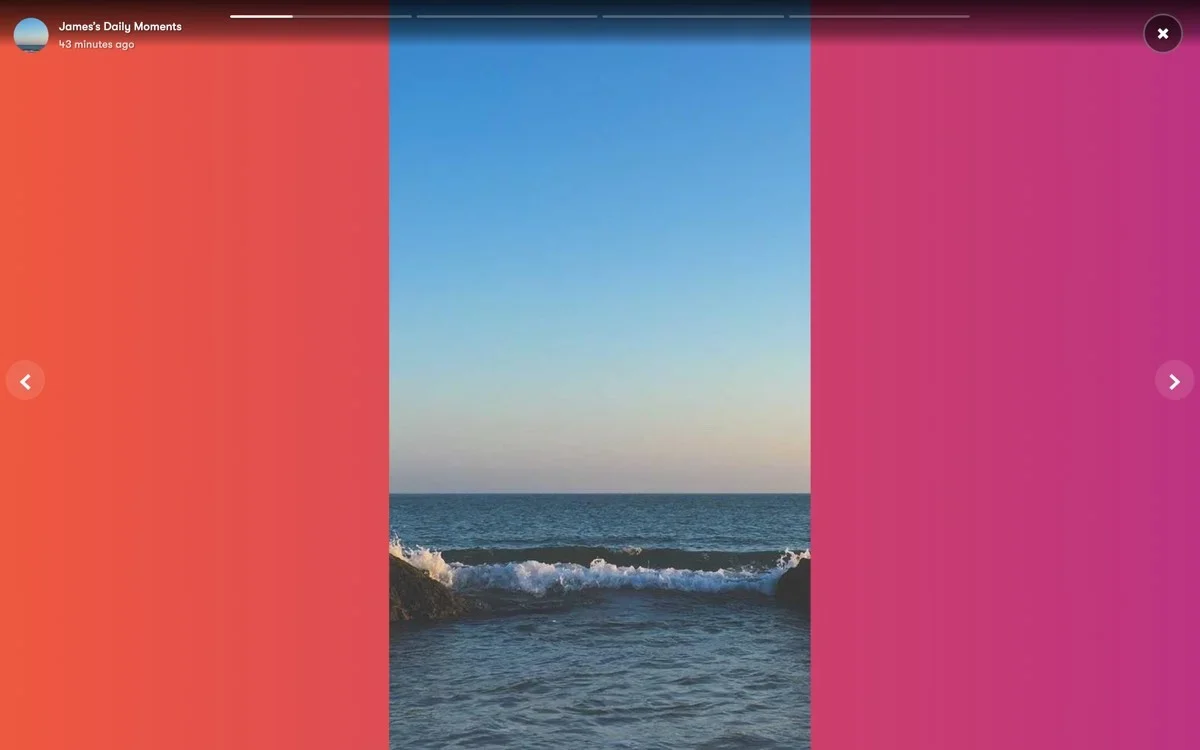
For administrators, the plugin provides community-wide metrics:
- Total stories created per day/week/month: Track whether story adoption is growing.
- Average views per story: Understand how many members are consuming story content.
- Active story creators: Identify your most engaged members.
- Peak creation times: Learn when your community is most active for story posting.
- Completion rates: See what percentage of viewers watch stories to the end.
These metrics integrate with the BuddyPress activity data you are already tracking, giving you a more complete picture of community engagement. If your activity feed previously showed 200 interactions per day and now shows 200 activity interactions plus 150 story views, you know the stories feature is adding net-new engagement rather than cannibalizing existing activity.
The viewer tracking also enables a powerful feedback loop. Members who see that their stories get 30+ views are motivated to post more. Members who see friends posting stories feel social pressure to participate. This positive cycle is what drives sustained engagement over time.
Step-by-Step Setup Guide
Getting WP Stories running on your BuddyPress site takes about fifteen minutes. Here is the complete setup process.
Step 1: Install and Activate
Download WP Stories from WBComDesigns. Upload the plugin ZIP through your WordPress dashboard under Plugins > Add New > Upload Plugin. Click Install Now, then Activate.
Step 2: Configure General Settings
Navigate to WP Stories > Settings in your WordPress admin. Set the following:
- Story Duration: How long each story slide displays (default 5 seconds). Adjust based on whether your members post text-heavy or image-only stories.
- Story Expiry: How long stories remain visible (default 24 hours). Some communities extend this to 48 or 72 hours for less active sites.
- Max File Size: Set the maximum upload size for story images and videos.
- Allowed File Types: Choose between images only, or images and short video clips.
Step 3: Enable BuddyPress Integration
Under the BuddyPress tab in WP Stories settings:
- Enable “Show stories bar on activity page” to activate the main stories bar.
- Enable “Show stories tab on member profiles” to add a Stories tab to each member’s profile.
- Enable “Allow stories in groups” if you want group-specific stories.
- Set the default privacy level for new stories.
- Choose the template hook for stories bar placement.
Step 4: Configure the Creation Experience
Under the Creation tab:
- Enable or disable the built-in image editor (cropping, filters, text overlay).
- Set the story creation button position (floating button, activity form tab, or both).
- Choose whether to allow members to add links, mentions, or hashtags to stories.
Step 5: Set Up Moderation
Under the Moderation tab:
- Enable story reporting so members can flag inappropriate content.
- Set auto-hide thresholds (e.g., auto-hide a story after 3 reports).
- Configure admin notification emails for reported stories.
- Choose whether new stories from new members require approval.
Step 6: Style the Stories Bar
Under the Appearance tab:
- Set the avatar ring color for unviewed stories (default: gradient blue-to-purple).
- Set the avatar ring color for viewed stories (default: gray).
- Adjust the avatar size (default: 64px).
- Choose between a single-row scrollable bar or a multi-row grid layout.
- Enable or disable the “Add Story” button at the beginning of the bar.
Step 7: Test and Launch
Create a test story from your own account and verify:
- The story appears in the bar above the activity feed.
- Clicking the avatar opens the story viewer.
- Privacy settings work correctly (test with a friend account and a non-friend account).
- The story expires after the configured duration.
- View tracking is recording correctly.
Once testing is complete, announce the feature to your community. A pinned activity post explaining how to create and view stories is an effective way to drive adoption in the first week.
Real-World Impact on Activity Feed Engagement
Communities that add a stories bar to their BuddyPress activity feed typically see measurable changes within the first two weeks. The most common pattern is a spike in daily active users during the first few days as members explore the new feature, followed by a sustained increase of 15-25% in daily return visits.
The reason for this sustained increase is the 24-hour expiry mechanic. Unlike activity updates that persist indefinitely, stories create a sense of urgency. Members develop a habit of checking the stories bar when they visit, similar to how they check Instagram stories. Over time, this becomes an automatic behavior tied to your community specifically.
Content creation also increases. In communities where less than 10% of members actively post updates, adding stories typically raises the percentage of content creators to 15-20%. The lower barrier to entry is the key factor: sharing a quick photo as a story requires less thought and effort than composing a written update.
The activity feed itself benefits from the halo effect. When members visit more frequently to check stories, they also scroll through the activity feed more often. This leads to more likes, comments, and replies on traditional activity updates, even though those updates themselves have not changed.
Advanced Configuration for Power Users
Beyond the basic setup, WP Stories offers several advanced features for communities that want to push engagement further.
Story Highlights: Allow members to save expired stories as permanent highlights on their profiles. This gives high-quality story content a longer shelf life and gives profile visitors a richer first impression.
Mentions in Stories: Enable @mentions within stories so members can tag friends. The mentioned member receives a notification, driving them back to the site to view the story.
Story Reactions: Beyond simple views, enable emoji reactions on stories. Members can react with a thumbs up, heart, laugh, or other emojis without leaving the story viewer. These lightweight interactions are easier than comments and generate more total engagement.
Cross-Component Stories: Enable stories on group pages, member directories, and even WooCommerce shop pages. Each context shows a different filtered set of stories relevant to that page.
REST API Access: Use the WP Stories REST API endpoints to build custom integrations, mobile app features, or external dashboards that display community stories.
Getting Started
Your BuddyPress activity feed does not have to be a wall of text. With WP Stories, you add a visual layer that drives daily engagement, lowers the barrier to content creation, and gives your community the modern social experience that members expect.
The setup takes minutes, the impact lasts for the lifetime of your community. Every day without a stories bar is a day where members visit, scan, and leave. Every day with one is a day where members visit, watch, create, and come back tomorrow.
Get WP Stories for BuddyPress and transform your activity feed from a text log into a visual social experience that keeps members coming back.