How does the User Tracking Plugin determine and Track Profile visitors?
The "Who Viewed My Profile" plugin brings LinkedIn-style profile view tracking to BuddyPress and BuddyBoss communities. Here's how it works, how to configure it without common mistakes, and why it matters most on directory-style sites.

The “Who Viewed My Profile” plugin tracks who visits a member’s profile on a BuddyPress or BuddyBoss community and shows that data back to the profile owner. Nothing in BuddyPress core does this out of the box. Once a member logs a visit, the plugin records it, counts it toward that day’s total, and rolls it into charts the profile owner can check whenever they want.

Why profile views matter on a community site
A member joins your site, fills out a profile, uploads a photo, writes a bio. Then what? On most BuddyPress installs, they have no way to know if anyone actually looked. That silence is a retention problem. People stop investing time in a profile nobody seems to notice.
Freelancer directories, alumni networks, coaching communities, dating-adjacent matchmaking sites, anywhere a profile functions like a listing, visibility data changes behavior. A freelancer who sees fifteen profile views in a week has a reason to keep their portfolio current. A member who sees zero views for a month has a reason to leave. The plugin turns an invisible signal into a visible one, and visible signals are what keep people logging back in.
Think about how LinkedIn built an entire premium tier partly around “who viewed your profile.” That single number, on its own, doesn’t do anything functional, it doesn’t message anyone, it doesn’t move any deal forward. What it does is create a reason to open the app again. BuddyPress communities run on the same psychology at a smaller scale. A member checking whether anyone looked at their profile since yesterday is a member who came back to the site.
How the tracking actually works
When a logged-in member opens someone’s profile page, the plugin fires a hook that writes a record: viewer ID, profile ID, timestamp. It does not track logged-out visitors by default, since there’s no member account to attribute the view to. Site admins can decide whether a member’s own repeat visits to their own profile get counted (most configure this off, since it would inflate numbers meaninglessly).
That raw record then feeds two things: the recent-visitors list on the profile owner’s dashboard, and the aggregated chart data pulled up under the profile’s new tab. The two views serve different purposes. The recent-visitors list answers “who, specifically, checked me out lately”, useful on a networking-focused site where a member might want to reciprocate and check that visitor’s profile back. The chart answers a different question: “is interest in me trending up or down.” Neither replaces the other.
Key features of Who Viewed My Profile
1. Detailed chart. A visual breakdown of who’s been checking a given profile, updated as new views come in.
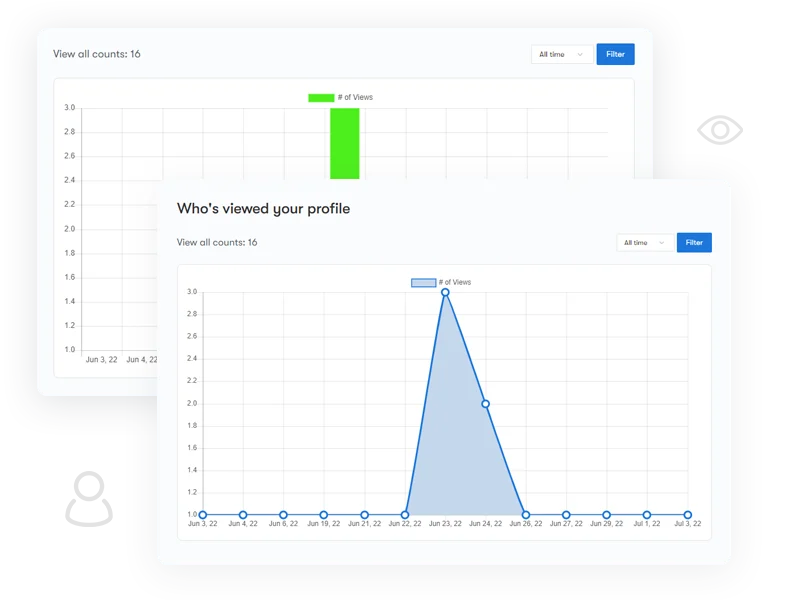
2. Recent profile visitors. A rolling list on the profile page showing who dropped by most recently.
3. Manageable settings. Every setting lives in one screen. No hunting through submenus.
4. Admin control over counting rules. The site owner decides what counts as a view, repeat visits within a session, self-views, guest views.
5. Profile view graph. A dedicated tab shows the trend over time rather than a single static number.
6. Filter by time period. Last 7 days, last 30 days, the past year, or all-time. A member can tell whether interest in their profile is picking up or fading.
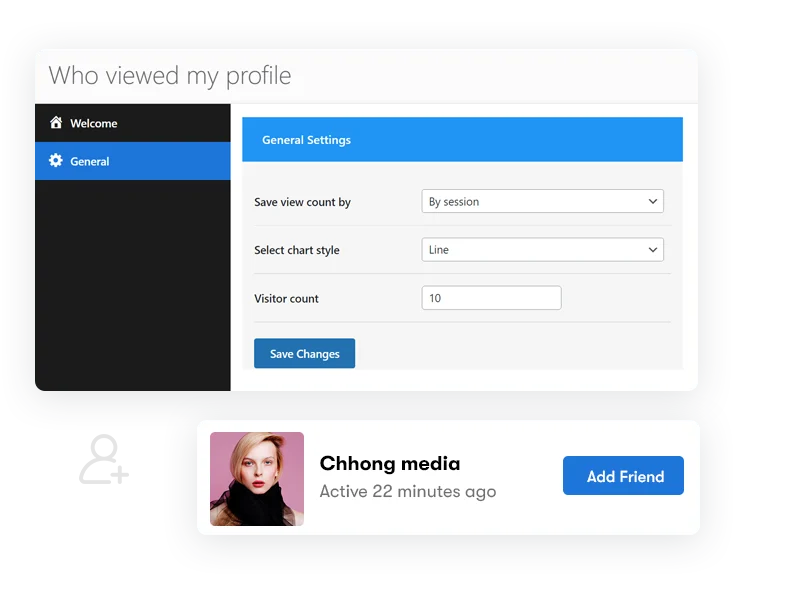
Six more settings round out the admin side: a visitor-count limit so profiles with a large following don’t render a wall of avatars, a widget for the footer or sidebar, the choice between a bar chart and a line graph, custom labeling, and role-based visibility if you only want certain member types tracked at all.
Setting it up, step by step
Installation follows the standard WordPress plugin path: upload the zip through Plugins > Add New > Upload Plugin, or drop it in over FTP if you’d rather. Activate it, and a new settings panel appears under BuddyPress > Who Viewed My Profile.
Work through the settings in this order, because later choices depend on earlier ones.
Step 1, decide what counts as a view. Go to the counting rules first. This matters, because changing them later doesn’t retroactively adjust view counts that already accumulated under the old rule. Most admins exclude self-views (a member checking their own profile shouldn’t inflate their own number) and set a cooldown so the same visitor viewing the same profile five times in ten minutes only registers once.
Step 2, choose the chart style. Bar chart or line graph. Bar charts read better for day-by-day comparisons; line graphs read better for spotting a trend over weeks. If your community skews toward casual users who won’t dig into analytics, the line graph is the friendlier default, it tells the story at a glance.
Step 3, set the visitor-count limit. This caps how many recent-visitor avatars display on a profile. On a small community, ten is plenty. On a site with a few thousand active members, cap it lower, twenty avatars in a row looks cluttered on mobile and adds nothing a chart doesn’t already say better.
Step 4, place the widget, or don’t. The footer/sidebar widget surfaces a visitor count outside the profile tab itself. Useful on member directories where you want the number visible without a click. Skip it on sites where profile browsing already gets enough attention and you’d rather keep the sidebar clean.
Step 5, decide on role-based tracking. If you only want certain member types tracked, paid members, verified professionals, vendors, restrict counting to those roles. This keeps the data meaningful instead of diluted by accounts that barely use their profiles.
No database migration, no separate config file. Most admins have it fully configured in under ten minutes, and the whole thing lives inside the normal WordPress admin, not a separate dashboard you have to remember to check.
Common configuration mistakes
The most frequent one: turning on self-view counting by accident, then wondering three weeks later why every profile shows dozens of views with almost no member-to-member interaction to match. Check this setting first if your numbers look inflated relative to actual site traffic.
The second: setting the visitor-count limit too high on a site with an active, tightly connected member base. Fifty avatars stacked under a profile header doesn’t communicate popularity, it communicates clutter, and on a phone screen it pushes the actual profile content below the fold.
The third: never revisiting the counting-period filters after launch. A community that’s six months old should probably default its chart view to “last 30 days” rather than “all time,” since all-time numbers on a young site look thin and can discourage new members rather than encourage them.
What good numbers actually look like
There’s no universal benchmark here, a ten-thousand-member directory and a three-hundred-member coaching cohort will never post the same raw counts. What matters is the shape of the trend, not the absolute number. A profile that’s flat at two or three views a week for months is a member who’s coasting. A profile that jumps from three views to twenty after the member posts a new portfolio piece is a signal the content update worked. Track the delta, not the total, and you’ll get more useful information out of the chart than staring at the current count in isolation.
What this changes for member behavior
Once view counts are visible, three things tend to happen. Members with low view counts start editing their profiles, swapping out a blank bio for something real, adding a photo where there wasn’t one. Members with high counts start posting more, since attention reinforces participation. And moderators get an early signal: a profile with an unusually high view count relative to its age is either popular for a good reason or is getting flagged by other members checking it out of suspicion. Either way, it’s worth a look.
Privacy considerations
Tracking who views what is not something to bolt on without a plan. Tell members in your site’s terms or community guidelines that profile views are logged and shown to the profile owner. Most communities that use this kind of plugin are fine with that transparency, it’s closer to LinkedIn’s “who viewed your profile” than covert surveillance, since the data flows to the person being viewed, not to advertisers. If your community serves a population where anonymity matters more than usual, consider disabling the visitor list and keeping only the aggregate count.
Rolling it out without surprising your members
If you’re adding this to a community that already has an active member base, don’t just flip it on silently. Post an announcement in your site’s activity feed or send a short email explaining that profile views are now tracked and shown to profile owners. Communities react very differently to a feature they discover on their own versus one that’s explained up front. The first path generates support tickets asking “why is this here.” The second path generates almost none.
Give it two weeks before judging whether it’s working. Early on, view counts will be low simply because most members haven’t noticed the new tab yet. The real test is whether, a month in, members start referencing their view counts in conversation, “I’ve had way more profile views since I updated my bio” is the kind of comment that tells you the feature landed.
A short note for developers
The plugin writes to its own table rather than piggybacking on `bp_activity`, which keeps the activity stream from getting cluttered with a database entry every time someone glances at a profile. If you’re building a custom profile template or a member directory widget, the view count and recent-visitor data are available through the plugin’s own functions rather than anything in BuddyPress core, check the plugin’s documentation for the exact function names before hardcoding queries against the table directly, since table structure can change between versions.
Frequently asked questions
Does it track visitors who aren’t logged in? No. The plugin attributes views to a member account, so anonymous or logged-out traffic isn’t recorded.
Will this slow down my site? The write operation on each profile view is a single lightweight database insert. On a community of a few thousand members it’s not something you’ll notice in load times.
Can a member opt out of being tracked as a viewer? That depends on your site’s configuration, some admins expose a per-member toggle, others leave tracking on for everyone to keep the data consistent.
How is this different from Google Analytics? GA4 tells you aggregate traffic to a URL. It has no concept of “which logged-in member visited which other member’s profile.” This plugin ties the view to both the viewer and the viewed, which is the whole point for a social directory.
What happens to historical data if I disable the plugin? The records stay in the database table the plugin created. Reactivating later picks up where you left off, though the display won’t show anything while it’s off.
Does the chart update in real time? No, it refreshes on page load, not via a live socket connection. A member checking their profile twice in the same minute won’t see the count change between those two loads unless a new view actually landed in between.
Can I show view counts to visitors who aren’t logged in, as a form of social proof? That’s a configuration choice some admins make deliberately, showing a public view count on a vendor or freelancer profile can function like a “trending” signal for browsers deciding who to contact. Weigh that against the privacy expectations of your specific community before turning it on.
Does a high view count mean anything for search rankings? No. This is an internal, member-facing metric. It has no connection to how the profile page performs in Google or any other search engine.
What happens if two members have identical, generic-sounding usernames, does the plugin get confused about who’s who? No. Tracking runs on internal user IDs, not display names, so lookalike usernames never cause a mixup in the underlying data.
Is there a limit to how much data the plugin stores over time? No hard limit is built in, but on a very large, very active site the view-log table will grow steadily. If you’re running hundreds of thousands of members with heavy traffic, keep an eye on database size the same way you would for any activity-logging feature, and consider whether you actually need indefinite history or whether a rolling 12-month window covers what your members care about.
Ideal for community and directory sites, and where it’s overkill
This plugin earns its keep specifically on sites where a profile functions like a listing that people browse, freelancer marketplaces, membership directories, alumni networks, professional matchmaking platforms. A vendor on a multi-vendor marketplace who can see that forty people checked their profile this week has real information to act on: update photos, adjust a bio, follow up with a lead.
If your BuddyPress site is closer to a simple discussion forum where profiles are an afterthought and the real activity happens in threads and comments, the feature will get less use. Members on a forum-style site rarely browse each other’s profiles for their own sake, they land on a profile after clicking a username in a thread, glance at it for two seconds, and leave. Tracking that kind of drive-by view doesn’t tell you much. Know your site’s actual behavior pattern before installing it; a feature nobody looks at is just another settings screen to maintain.
Alternatives if you’re not ready to install a dedicated plugin
Some admins try to approximate this with general web analytics, Google Analytics or a self-hosted alternative like Matomo. That tells you traffic volume to a profile URL, but it can’t tie a specific logged-in member to a specific view the way this plugin does, and it won’t render anything on the profile page itself for the member to see. Others try to manually track interest through BuddyPress’s built-in activity stream, watching who comments on or likes a member’s activity updates as a rough popularity proxy. That works only if the member is actively posting; a lurker with a strong profile but no activity posts gets zero signal either way. Neither workaround gives you the direct, member-facing feedback loop that a dedicated view-tracking plugin provides, which is really the whole value proposition here, the data has to reach the person it’s about, not just sit in an admin dashboard nobody opens.

Profile view counts won’t fix a community that has no activity to begin with. A plugin can’t manufacture traffic that isn’t there. What it can do, on a site that already has real activity, is take a signal that used to be invisible and put it directly in front of the person it matters to most.
That’s a narrow job. It does it well.
Install it, set the counting rules once, and let the numbers do the reminding. Check back in a month, not a day, the trend line tells you more than any single number ever will.