
Traditional knowledge bases have a fatal flaw: they are written by your team at one point in time and then slowly go stale. The product changes, the knowledge base does not. Six months later, half your articles describe features that no longer exist or workflows that have been redesigned.
A community-powered knowledge base solves this by turning your users into co-authors. They ask real questions, provide real answers, and vote on accuracy. The content stays relevant because it reflects what users actually need to know right now, not what your documentation team thought they would need six months ago.
This is the model that powers Stack Overflow, the WordPress.org support forums, and every successful open-source documentation project. You can build the same thing on your own WordPress site.
What Makes a Community Knowledge Base Different
A traditional knowledge base is a collection of articles written by your team. A community knowledge base adds three critical layers on top:
- User-generated questions. Instead of guessing what to document, you let users tell you what they need to know by asking questions.
- Community answers. Your team does not have to answer everything. Experienced users answer questions too, often with practical insights your team would not think to include.
- Voting and curation. Answers are ranked by quality, not by posting time. Outdated or incorrect answers get downvoted. The best information rises to the top automatically.
The result is a knowledge base that grows organically, stays accurate, and covers the exact topics your users care about.
Architecture: How to Structure It
The best community knowledge bases combine curated documentation with open Q&A. Here is a structure that works:
Layer 1: Curated Documentation (Forum Spaces)
Create Forum-type spaces for content your team writes and maintains:
| Space | Type | Owner | Content |
|---|---|---|---|
| Getting Started Guide | Forum | Your team | Installation, setup, first steps |
| Feature Documentation | Forum | Your team | How each feature works |
| Release Notes | Forum | Your team | What changed in each version |
| Video Tutorials | Forum | Your team | Embedded video walkthroughs |
These spaces are staff-moderated. Only your team creates new topics. Users can reply with questions or corrections, but the structure stays organized.
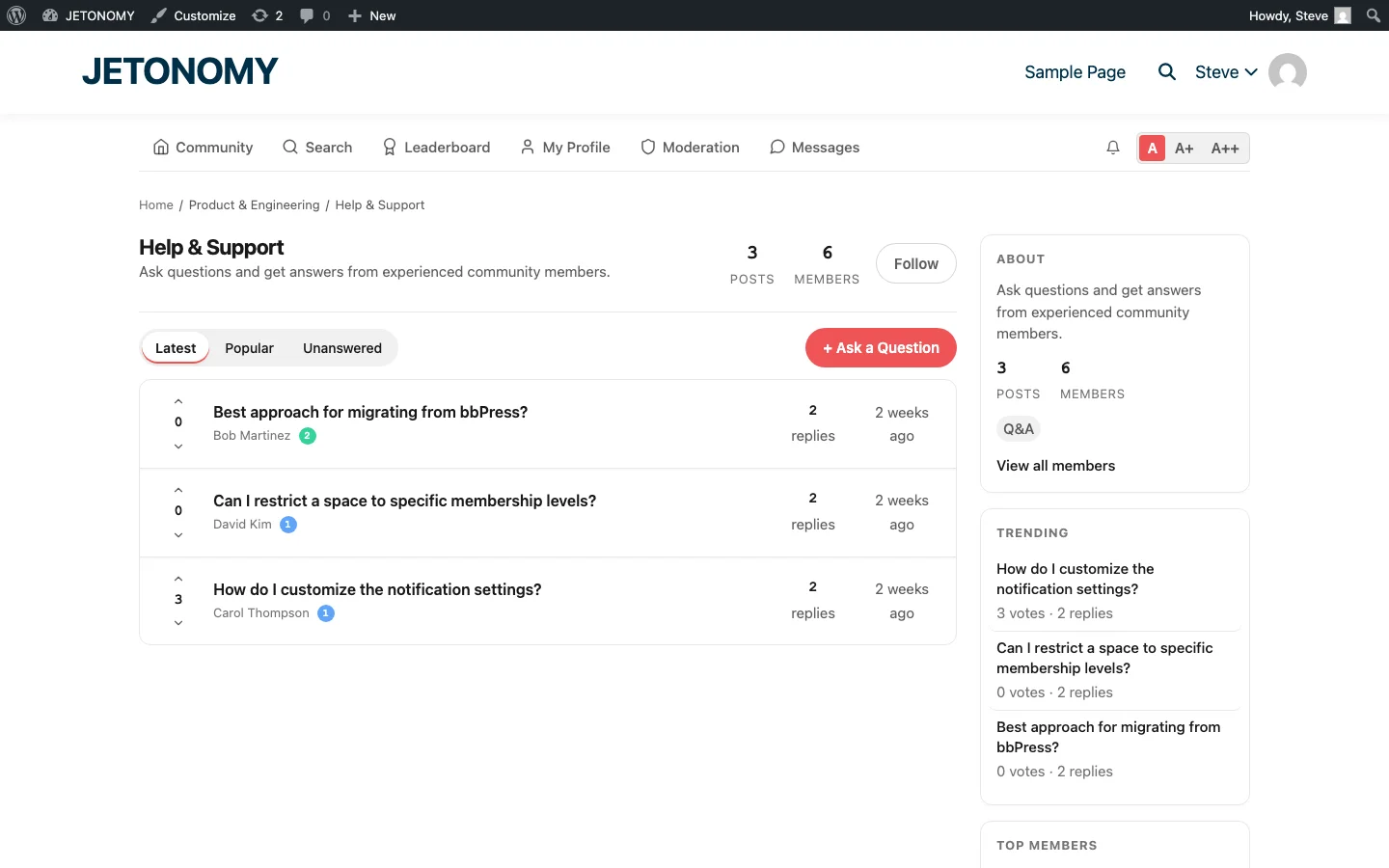
Layer 2: Community Q&A (Q&A Spaces)
Create Q&A-type spaces where users ask and answer questions:
| Space | Type | Owner | Content |
|---|---|---|---|
| General Q&A | Q&A | Community | Questions about using the product |
| Troubleshooting | Q&A | Community | Error messages and bug workarounds |
| Integrations | Q&A | Community | Connecting with other tools |
| Tips & Tricks | Q&A | Community | Advanced usage and shortcuts |
These spaces are open. Anyone can ask questions. Anyone can answer. Voting determines which answers are most helpful. Accepted answers mark questions as resolved.
Layer 3: Feature Requests (Ideas Space)
Add an Ideas-type space where users can request features and vote on priorities. This is not strictly a knowledge base, but it captures product feedback that would otherwise get lost in support tickets.
The Self-Service Funnel
A community knowledge base only works if users can find answers before asking new questions. Build a self-service funnel with these elements:
Search First
Full-text search across all spaces is essential. When a user lands on your knowledge base, the first thing they should see is a prominent search bar. Jetonomy’s search indexes topic titles, post content, and reply content, so users find answers whether they match the question title or the accepted answer text.
The keyboard shortcut / opens search from anywhere in the forum. Results appear as the user types, showing matching topics across all spaces.
Similar Topics on New Question
When a user starts typing a new question, show related existing topics in real time. This is the most effective duplicate prevention tool available. Users who see their question already answered click through instead of posting a duplicate.
Tags for Browsing
Not everyone searches. Some users prefer to browse by category. Tags like “installation”, “configuration”, “performance”, “security” let users find related content without knowing the exact search terms.
Keeping Content Accurate
The biggest fear about community-generated content is accuracy. What if someone posts a wrong answer? What if outdated information stays up?
Here is how to maintain quality:
Voting Handles Most Quality Issues
When an answer is wrong, the community downvotes it. When a better answer appears, it gets upvoted above the incorrect one. This self-correcting mechanism handles the majority of accuracy problems without staff intervention.
Accepted Answers Mark the Canonical Response
The question asker or a moderator marks the correct answer as accepted. This green badge tells every future visitor: this is the verified solution. If the accepted answer becomes outdated, a moderator can change the accepted answer to a newer, more accurate one.
Trust Levels Gate Editing Abilities
Not everyone should be able to edit content. Trust levels ensure that only users who have earned the community’s trust through sustained, quality contributions can edit posts, close duplicates, or recategorize content.
Staff Oversight on Critical Content
For your curated documentation spaces, restrict posting to staff only. Community members can reply (to flag errors or ask questions), but the authoritative content stays under your control.
Measuring Knowledge Base Effectiveness
How do you know if your community knowledge base is working? Track these metrics:
| Metric | What It Tells You | Healthy Target |
|---|---|---|
| Search success rate | Whether users find answers through search | 60%+ searches lead to a topic click |
| Question resolution rate | Whether questions get accepted answers | 70%+ questions have accepted answers |
| Community answer rate | How much the community helps itself | 40%+ answers from non-staff |
| Views per topic | Whether content gets reused | 50+ views on active topics |
| Support ticket volume | Whether the KB deflects tickets | 25–40% reduction in 6 months |
| Time to first answer | How quickly questions get attention | Under 8 hours average |
SEO Benefits of a Community Knowledge Base
Here is the benefit that makes the business case: every Q&A pair is a page that ranks in Google.
When a customer asks “How do I export data as CSV in [your product]?” and gets a detailed answer, that page can rank for the exact query a future customer types into Google. The customer finds your knowledge base, gets their answer, and now they know your product exists.
The math is compelling:
- 20 new questions per month = 240 new indexed pages per year
- Each page targets a natural language query
- Accepted answers provide high-quality, structured content that Google loves
- Q&A format maps naturally to Google’s FAQ rich snippets
Over two to three years, an active community knowledge base can generate more organic search traffic than your blog. And you did not have to write most of it.
Getting Started: The 30-Day Plan
Week 1: Setup
- Install Jetonomy and configure your community structure (follow the setup guide)
- Create 2–3 curated documentation spaces (Forum type)
- Create 2–3 community Q&A spaces (Q&A type)
- Write 10–15 seed questions from your most common support tickets
Week 2: Populate
- Write detailed documentation topics for your core features
- Answer all seed questions with thorough, accepted answers
- Set up tags for your main topic areas
- Configure search and Similar Topics
Week 3: Soft Launch
- Invite your 20–30 most engaged customers
- Your team answers every new question within 4 hours
- Add a “Check our Knowledge Base” link to your support contact form
Week 4: Public Launch
- Add the knowledge base to your main navigation
- Link from your most popular blog posts
- Start routing appropriate support tickets to the knowledge base
- Send an email to your list announcing the community knowledge base
Community Knowledge Base vs. Traditional Docs
You do not have to choose one or the other. The best approach combines both:
- Traditional docs for stable, authoritative content that your team maintains
- Community Q&A for edge cases, workarounds, integrations, and real-world usage that your docs team cannot possibly cover
Together, they create a knowledge resource that is both authoritative and comprehensive. Your docs handle the 80% use cases. Your community handles the long tail.
If you are looking for a detailed walkthrough of the support forum side specifically, our guide on building a support forum that reduces tickets covers the strategy and metrics in depth. And for choosing the right community format for each space, see our complete guide to community types.
Your users already have the knowledge. A community knowledge base gives it a permanent, searchable, votable home.