How to Access WordPress Admin with a Fatal Error Warning
A fatal error blocking wp-admin usually gets fixed with a panicked backup restore. Check your email for the Recovery Mode link WordPress core already offers first, then isolate the actual plugin or theme responsible in minutes.
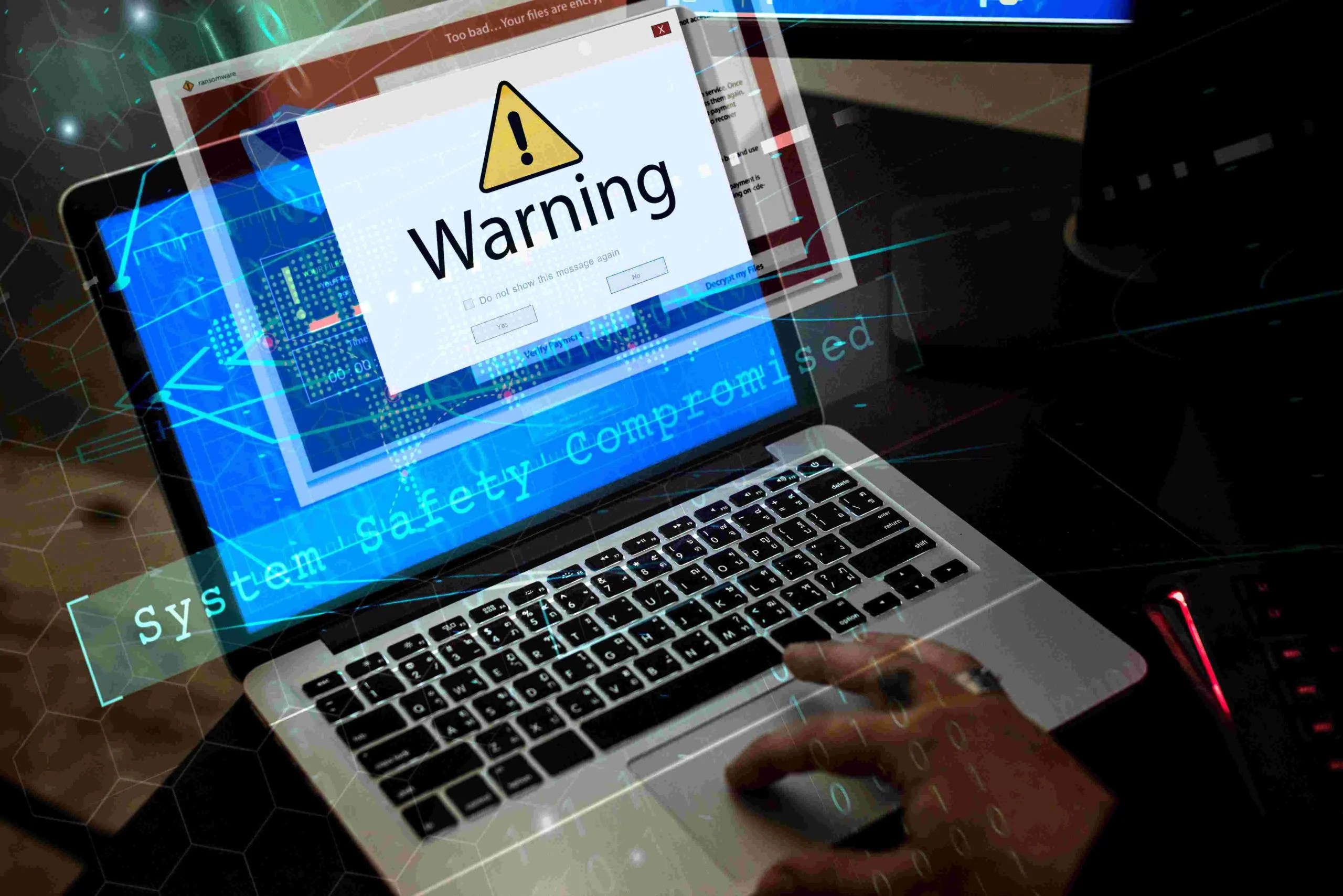
A fatal error blocking wp-admin is one of the more stressful WordPress problems, mostly because it feels total: you can’t log in, can’t deactivate the thing that broke it through the normal interface, and the page just shows a blank screen or a scary-looking error message. It’s almost always recoverable in minutes once you know where to look, and the fix rarely requires a developer.
The panic response is usually to restore from a backup immediately. Resist that for a moment. The isolation steps below fix the overwhelming majority of these situations faster than a restore, without losing any content created since the last backup.
Read the Actual Error Message First
Before touching anything, look closely at what’s on screen. WordPress has shipped a feature called Fatal Error Protection since version 5.2 (released in 2019), which catches most fatal errors and shows a readable message instead of a completely blank white screen, along with an option to email the site administrator a special Recovery Mode link.
Check the email inbox tied to your WordPress admin account first. If Fatal Error Protection caught the error, there should be an email with a Recovery Mode link that lets you log into wp-admin in a special safe mode, with the problematic plugin or theme automatically flagged, without needing any file access at all. This is the single easiest fix available and it’s frequently overlooked because people assume a fatal error means immediate FTP surgery.
If there’s no email and the page is genuinely blank (a classic White Screen of Death with zero text), that usually means Fatal Error Protection itself didn’t catch it, often because the failure happened too early in WordPress’s loading process for the protection mechanism to engage. That’s when you move to the manual methods below.
Identify the Error Type, It Changes the Fix
Different fatal error messages point to genuinely different root causes, and matching the fix to the actual error saves a lot of guessing.
“Allowed memory size exhausted” means PHP hit its memory limit, usually from a plugin or theme doing something memory-intensive, or a hosting environment with a very low default limit. “Call to undefined function” or “Class not found” almost always means a plugin update went wrong, a required file is missing, or two plugins conflict over a shared function name. “Maximum execution time exceeded” points to a script running too long, often a plugin doing a large database operation or an external API call that’s timing out.
Enable WP_DEBUG to get more detail if the current error message is too vague to act on. Access the site’s files through your host’s File Manager or an FTP client, open wp-config.php in the root directory, and set:
define(‘WP_DEBUG’, true);
define(‘WP_DEBUG_LOG’, true);
define(‘WP_DEBUG_DISPLAY’, false);
This logs detailed errors to wp-content/debug.log without displaying them publicly on the site, which matters since a fully public error display can leak file paths and plugin names to anyone who happens to load the broken page while you’re troubleshooting.
The Fastest Manual Fix: Rename the Plugins Folder
If a plugin is the likely cause (the most common single cause of fatal errors after a plugin update), this is the quickest recovery path without needing to identify which specific plugin is at fault first.
Connect via FTP or your host’s File Manager, navigate to wp-content, and rename the plugins folder to plugins-disabled. This deactivates every plugin at once, since WordPress can no longer find any of them. Try logging into wp-admin. If it loads, the culprit is one of your plugins.
Rename the folder back to plugins, then rename each plugin’s individual subfolder one at a time (or use WP-CLI’s wp plugin deactivate –all followed by activating them one by one if you have shell access), reloading the site after each one, until the fatal error reappears. Whichever plugin’s reactivation triggers it is your answer.
If You Have WP-CLI Access, Use It
WP-CLI bypasses the broken admin interface entirely and talks directly to WordPress through the command line, which makes this kind of recovery considerably faster if your host provides SSH access.
wp plugin deactivate –all
wp plugin activate specific-plugin-name
This achieves the same result as the folder-renaming method above without needing an FTP client open at all, and it’s the method worth learning if you manage more than one or two WordPress sites, since fatal errors from a bad plugin update are common enough that this becomes a recurring, quick fix rather than a rare emergency.
If It’s the Theme, Not a Plugin
Rule out the theme the same way: rename the current theme’s folder inside wp-content/themes. WordPress automatically falls back to a default theme (Twenty Twenty-Four or similar, whichever default themes are still installed) when its active theme’s files go missing, which restores admin access if the theme was the actual cause.
If reverting to a default theme fixes it, the problem lives in the theme’s functions.php or a template file, often from a manual edit that introduced a PHP syntax error, or a theme update that didn’t survive a customization made directly to the parent theme’s files instead of a child theme.
Memory Limit: A Real Fix, But Often Not the Root Cause
Increasing the memory limit sometimes works, but it’s frequently treated as a default first move when it’s actually masking a plugin that’s using far more memory than it reasonably should. Add this to wp-config.php above the line that says “That’s all, stop editing”:
define(‘WP_MEMORY_LIMIT’, ‘256M’);
If this resolves the error, that’s useful information, but it’s worth still identifying which plugin’s memory usage was pushing against the previous limit, since an underlying inefficient plugin can eventually outgrow even a raised limit as your content or traffic grows.
Database Connection Errors Are a Different Problem Entirely
“Error establishing a database connection” looks similar to a fatal error at a glance but has an entirely separate cause and fix: it means WordPress can’t reach the database at all, not that a plugin crashed. Check wp-config.php’s database credentials (DB_NAME, DB_USER, DB_PASSWORD, DB_HOST) against what your hosting panel shows as the actual current database details, since these can drift out of sync after a migration or a hosting change. If the credentials are correct, the database server itself may be down or the database may have hit a connection limit, both are hosting-side issues to raise directly with your host rather than something fixable through WordPress’s own files.
Using an mu-plugin to Force-Disable a Specific Plugin
If you know exactly which plugin is causing the error but want a more surgical fix than renaming the whole plugins folder, a must-use plugin can force-deactivate a single specific plugin without touching anything else. Must-use plugins load before regular plugins and can’t be deactivated through the normal admin interface, which makes them useful for exactly this kind of override.
Create a file at wp-content/mu-plugins/force-deactivate.php (creating the mu-plugins folder if it doesn’t exist) with:
<?php
add_filter(‘option_active_plugins’, function($plugins) {
return array_diff($plugins, [‘problem-plugin/problem-plugin.php’]);
});
Replace the path with the actual plugin folder and main file name. This filters the problem plugin out of the active plugins list without physically touching its files, which is useful when you want to preserve the plugin’s exact state for later debugging rather than renaming folders around. Delete this mu-plugin file once you’ve resolved the underlying issue, since leaving it in place indefinitely means the plugin will silently stay deactivated even after you think you’ve fixed it.
Checking the Actual Server Error Log, Not Just WordPress’s Own
wp-content/debug.log captures PHP errors WordPress itself catches, but the server’s own PHP error log (a separate file, location varies by host, commonly accessible through cPanel’s “Errors” section or a similar hosting panel tool) sometimes captures fatal errors that happen too early for WordPress’s own logging to engage, the same category of failure that skips the Recovery Mode email entirely.
If wp-content/debug.log is empty or missing despite WP_DEBUG being enabled, check this server-level log next. It often contains the exact file and line number where a syntax error or missing function occurred, which turns a broad “which plugin is it” guessing process into a direct fix once you can see specifically what line of code failed.
A PHP Version Mismatch Can Look Exactly Like a Plugin Bug
Hosting providers periodically update the default PHP version, and a plugin or theme written against an older PHP version can throw fatal errors on a newer one, particularly around deprecated function calls that became hard errors in more recent PHP releases rather than just warnings.
Check your hosting panel for the current active PHP version, and check the plugin or theme’s own documentation or changelog for its stated minimum and tested-up-to PHP compatibility. If your host recently bumped the PHP version around the same time the fatal error appeared, temporarily reverting to the previous PHP version (most hosts allow switching this from a dropdown in the control panel) is a fast way to confirm whether version mismatch, not a plugin conflict, is the actual cause.
A Real Troubleshooting Scenario: White Screen Right After a WooCommerce Extension Update
A store owner updates a shipping extension during a routine plugin refresh. Ten minutes later, wp-admin is a blank white page, and so is the storefront. No error text anywhere, no Recovery Mode email either, which already narrows things down: a completely blank screen with no core-level protection kicking in usually points to a failure early enough in the loading sequence that WordPress’s own error catching never got the chance to engage.
Renaming the plugins folder is the right first move here, but on a live store, deactivating every plugin at once also kills the payment gateway and any active checkout sessions, not something to do casually during business hours if it can be avoided. A more surgical first step: rename just the one plugin folder that was updated right before the crash, since that’s the far more likely culprit than the nine other plugins that didn’t change today. If the site loads with that one plugin’s folder renamed, the timing already told you almost everything, no full plugin-by-plugin elimination process needed.
Pull up the server’s raw PHP error log next, not just wp-content/debug.log, since a failure this early sometimes never reaches WordPress’s own logging at all. Look for a line referencing the shipping extension’s file path and a specific function name. A common real-world cause behind exactly this pattern: the extension’s latest version raised its own minimum PHP requirement, and the store’s hosting is still one version behind, so a function the new code expects to exist simply isn’t available yet on that server’s PHP build. Confirming the PHP version in the hosting panel against the extension’s stated requirement, listed on its own product page or changelog, usually confirms this within a minute once you know to check it.
The actual fix in this specific scenario isn’t reinstalling the extension or downgrading it blindly. It’s either updating the site’s PHP version to match what the extension now requires, after checking that every other active plugin also supports that version, or holding the extension back at its previous release until the hosting can be upgraded on its own schedule. Reactivate the extension only once one of those two is confirmed, then watch the order log closely for the next few checkouts to confirm shipping calculations are actually working again, not just that the admin screen loads without a fatal error.
Common Mistakes Worth Naming Directly
Jumping straight to increasing the memory limit without checking whether a specific plugin is the actual root cause, which just delays the same problem recurring later.
Deleting a plugin folder entirely (instead of renaming it) to deactivate it, which can also delete that plugin’s stored settings and data permanently, not just deactivate its code.
Skipping the email inbox check for a Recovery Mode link, then spending an hour on manual FTP troubleshooting for a problem WordPress core already flagged and offered a direct fix for.
Restoring from an old backup as the first response, without first trying the much faster plugin or theme isolation steps, and losing legitimate content or orders created since that backup was taken.
What to Do Once Admin Access Is Back
Getting back into wp-admin is the emergency fix, not the full resolution. Once you’ve identified the specific plugin or theme responsible, decide whether to update it (if a newer version exists that fixes the conflict), replace it with an alternative, or contact the developer with the specific error message from your debug log, which gives them something concrete to act on rather than a vague “my site broke” report.
Turn WP_DEBUG back off (or at minimum set WP_DEBUG_DISPLAY to false) once you’re done troubleshooting, if it wasn’t already set that way. Leaving verbose debug output enabled on a live site is its own, smaller security consideration, since it can expose file paths and plugin versions that are more useful to an attacker than to a normal visitor.
Building a Recovery Plan Before the Next Fatal Error
The fastest recovery from a fatal error happens when you’re not improvising for the first time under pressure. A few things worth having ready before this happens again: know where your host’s File Manager or FTP credentials live and that you can access them quickly, confirm WP-CLI is available if your hosting supports it, and know where your host’s own PHP error log lives specifically, not just WordPress’s.
Keep a recent backup, obviously, but treat it as the last resort rather than the first response, since restoring a backup can lose legitimate content, orders, or comments created since that backup point. The plugin and theme isolation methods above resolve the large majority of fatal errors without needing to roll back anything at all.
FAQ
Will renaming the plugins folder delete my plugin settings?
No, renaming preserves everything. Deleting a plugin’s files (or uninstalling it through the admin, which some plugins tie to a cleanup routine) is what risks losing saved settings, not a simple rename.
I don’t have FTP access. Can I still fix this?
Most hosting control panels (cPanel, Plesk, or a host’s custom dashboard) include a File Manager that works the same way without needing a separate FTP client installed. If your host offers phpMyAdmin or database access, some database-level fixes are also possible from there directly.
Why didn’t I get a Recovery Mode email?
Fatal Error Protection needs to actually catch the error to trigger the email, and very early startup failures (a broken wp-config.php, for instance) can happen before that protection mechanism loads. Also check whether the site’s outgoing email is functioning at all, a separate common WordPress issue that can silently block this notification along with password resets and other transactional email.
How do I prevent this from happening again?
Test plugin and theme updates on a staging site before applying them to the live site, if your host offers staging. At minimum, update one plugin at a time rather than all of them simultaneously, so a fatal error immediately points to the single most recent change rather than leaving you guessing among five updates applied at once.
Can a fatal error corrupt my database?
Generally no. A PHP fatal error stops code execution, it doesn’t typically write bad data to the database on its own. The exception is if the error interrupted a write operation mid-process (a plugin update that was mid-migration, for instance), which is a separate and rarer scenario worth checking your database tables for specifically if the error occurred during an update rather than during normal page loading.
Is it safe to just wait and see if the error resolves itself?
No. A fatal error blocking admin access doesn’t self-resolve, and every hour it sits unresolved is an hour visitors may also be seeing a broken frontend, not just a blocked admin area, depending on where in WordPress’s loading sequence the error occurs.
Where This Leaves You
Check your email for a Recovery Mode link first, that’s the fastest and safest fix WordPress core already built for exactly this situation.
If that’s not there, rename the plugins folder to isolate the cause, then narrow down to the specific plugin or theme responsible.
Save memory limit increases, core file reuploads, and a full backup restore for after the isolation step, not before it. Most fatal errors trace back to one plugin or theme, and the isolation process above finds it in minutes, not hours, no developer required.
















