How to Enhance Functionality and Flexibility of Content in Buddypress Website ?
BuddyPress ships with fixed activity, member, and group pages. Shortcodes for BuddyPress Pro breaks that data out of the default templates so you can place a filtered activity feed, member grid, or group directory on any page or post, including inside Elementor.

Most BuddyPress sites end up looking the same. An activity page here, a members directory there, a groups page tucked under a menu item nobody clicks. The theme templates that ship with BuddyPress are functional, but they were never designed to let you drop a slice of community content into an arbitrary page or post. That gap is exactly what Shortcodes for BuddyPress Pro was built to close.
The plugin gives you a set of shortcodes that pull BuddyPress data - activity streams, member listings, group listings - out of their default templates and let you place them wherever you want. A homepage. A landing page built in Elementor. A sidebar widget area. Anywhere the WordPress editor or a page builder can render a shortcode, you can render a piece of your community.

Why a plugin like this exists in the first place
BuddyPress was designed around a fixed set of component pages. Members get a directory page. Groups get a directory page. Activity gets a stream page. That structure works fine if your community is the entire site. It breaks down the moment you want a hybrid site - a WooCommerce store with a members-only forum bolted on, a course platform where the community is one section among several, or a homepage that needs to show “what’s happening right now” without sending visitors away to a separate activity page.
Shortcodes solve that by decoupling the data from the template. Instead of BuddyPress deciding where your activity feed lives, you decide. Instead of forcing every visitor through the default members page to see who is active on your site, you can embed a compact, filtered member list directly on your homepage, in a sidebar, or inside a landing page section that also talks about pricing or onboarding.
Pairing this with a page builder changes the workflow entirely. Rather than editing PHP templates or hiring a developer to hook into BuddyPress template tags, an admin with no coding background can drop a shortcode widget into Elementor, paste in the shortcode, and see the community content render inline with the rest of the page design.
What the shortcodes actually let you do
1. Display Activities. The activity shortcode renders a stream of updates, and you control which types of activity show up in it. A site that only wants to surface new discussions, not every profile update or friendship connection, can trim the feed down to what actually matters to a visitor scanning the page for the first time.
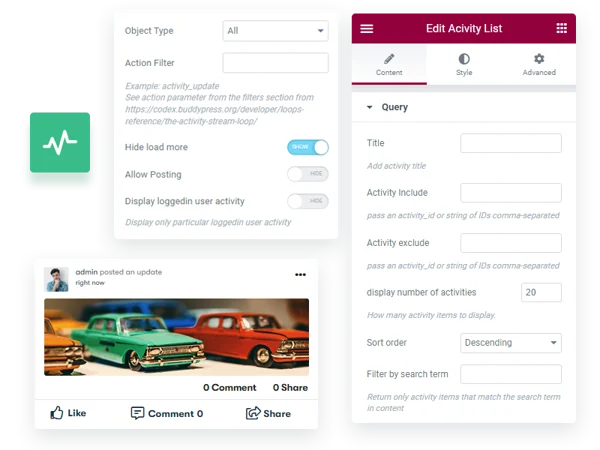
Think about a coaching business running group programs through BuddyPress groups. The owner doesn’t want new visitors landing on a generic activity page full of internal chatter between existing clients. An embedded activity shortcode, scoped to public updates only, gives prospective clients a taste of the community’s energy without exposing the private conversations happening inside paid groups.
2. Member Directory and Group Directory. Both directories can be rendered with simplified display options, which matters more than it sounds. The default BuddyPress directory pages come loaded with search bars, filter dropdowns, and pagination controls built for someone actively browsing hundreds of members. Drop that same interface into a homepage section meant to showcase “a few of our top members” and it looks cluttered and out of place. The simplified shortcode version strips the interface down to a clean grid or list that fits a marketing page instead of a directory page.
3. What’s New option. This adds the status update composer directly to the page or post where the shortcode sits, meaning a member doesn’t have to navigate away to the activity page just to post something. On a course dashboard, for instance, embedding this next to the lesson content keeps the “post a question” action one click away instead of three.
4. Comments and Likes. Reaction and comment functionality can sit on the same page as the activity display, so the whole interaction loop - see an update, react to it, reply to it - happens without a page reload or a redirect to a separate URL. That matters for engagement more than most site owners realize. Every extra click between “I have a thought” and “I posted my thought” is a chance for the member to close the tab instead.
5. Display Logged-in Member-Specific Activities. Rather than a generic firehose of everyone’s updates, this scopes the feed to the current visitor - their own posts, their friends’ posts, or activity from groups they belong to. It’s the difference between a public bulletin board and a personalized dashboard, and it’s the setting that makes a BuddyPress-powered homepage feel like a real application rather than a static page with some plugin bolted on.
6. Display Specific Member Types. If your site uses BuddyPress member types to separate, say, mentors from mentees, or free members from paid members, the shortcode can filter the directory down to just one type. A membership site with three tiers doesn’t need a single undifferentiated wall of every member; a “meet our verified experts” section on the homepage can pull exclusively from the mentor member type while a separate “our community” section shows everyone.
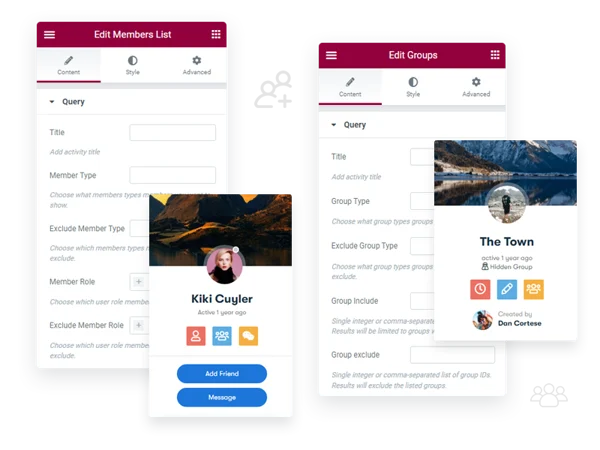
7. Include/Exclude User Roles. This works at the WordPress role level rather than the BuddyPress member-type level, which is a distinction worth sitting with for a second. Member types are a BuddyPress concept you define yourself. Roles are the underlying WordPress permission system, ranging from subscriber up through administrator. Filtering by role means you can, for example, quietly exclude every account with an administrator or editor role from a public-facing member showcase, so your site’s staff accounts don’t clutter a section meant to highlight actual community members.
8. Display Specific Number of Members. A homepage teaser doesn’t need to show your full roster. Capping the count keeps a preview section visually balanced - three or six members in a neat row instead of forty crammed into a scrollable box that undermines the rest of the page’s design.
9. Reorder Member Directory. Control over display order means the members you want seen first - the most active, the most recently joined, or a hand-picked set of featured accounts - actually show up first, instead of leaving that to whatever default sort BuddyPress applies.
A practical setup walkthrough
Getting from “installed plugin” to “working section on my homepage” usually goes like this. First, decide which shortcode you need based on what you’re trying to show - activity, members, or groups. Second, decide where it should live: if you’re using the block editor, that’s a Shortcode block; if you’re using Elementor, that’s the Shortcode widget dragged into whatever section of the layout you want it in.
Third, and this is the step people skip, decide on scope before you decide on styling. It’s tempting to drop a shortcode in and immediately start fiddling with column widths and spacing. But if the activity feed is showing every single update site-wide instead of the filtered set you actually wanted, no amount of CSS tweaking fixes that. Get the content right first, then make it look good.
Fourth, test as a logged-out visitor. A common mistake is building and reviewing a homepage section while logged in as an administrator, where visibility settings behave differently than they do for an anonymous visitor. What looks like a fully populated members grid in your own dashboard view might render as a mostly empty section for someone who has never logged in, especially if visibility is tied to logged-in-only activity.
Common mistakes worth avoiding
The single biggest mistake is treating the homepage activity feed exactly like the internal one. A prospective member scanning your site for the first time doesn’t have context for inside jokes, ongoing project threads, or half-finished conversations between regulars. Scope public-facing shortcodes to content that makes sense without prior context - announcements, new member introductions, public discussions - rather than mirroring the raw internal feed.
Another one: forgetting that shortcodes still respect the underlying BuddyPress privacy and visibility settings. If a group is private, its activity won’t leak into a public shortcode feed just because you embedded it on a public page, but it’s still worth double-checking after any privacy setting change, since privacy bugs are the kind of thing that erode member trust fast when they go unnoticed.
A third mistake is over-stuffing a single page with every shortcode available. An activity feed, a member grid, a group directory, and the status composer all crammed onto one landing page usually reads as busy rather than impressive. Pick the one or two elements that actually support what that specific page is trying to accomplish, and leave the rest for pages built for browsing.
Where this fits with Elementor specifically

Elementor’s widget system means a shortcode dropped into a page can sit next to columns, spacers, or background images that have nothing to do with BuddyPress at all. That’s the real value here. You’re not building a “community page.” You’re building whatever page your site needs - a pricing page, an onboarding page, a homepage hero section - and borrowing a live slice of your community to reinforce it.
A membership site selling annual plans, for instance, might place a filtered member directory shortcode directly below the pricing table, showing real, currently active members rather than stock photos. That single placement does more to build trust than another paragraph of marketing copy ever could, because it’s proof the community is actually alive rather than a promise that it will be, eventually.
Use cases beyond the obvious community page
Coaching and mastermind sites tend to use the shortcodes differently than a hobbyist forum would. A mastermind program running through BuddyPress groups often wants a “success stories” section built from real member activity rather than curated testimonials, because unfiltered proof reads as more credible than anything the site owner writes themselves. The activity shortcode, scoped to a specific group and filtered to exclude routine chatter, becomes that section.
Online course platforms lean on the member-specific activity display more than any other feature. A student logging into their dashboard wants to see what’s relevant to them - their cohort’s discussion, their own recent posts - not a global feed mixing in students from a completely different course. Scoping the shortcode to logged-in, friend-and-group-relevant content turns a generic activity stream into something that feels tailored, even though the underlying mechanism is the same shortcode every other site is using.
Local business directories and niche marketplaces built on BuddyPress tend to lean on the member directory shortcode heavily, usually paired with member type filtering. A directory listing vetted service providers separately from general site members needs that distinction enforced everywhere the directory appears, not just on the default BuddyPress members page, and the shortcode’s role-and-type filtering is what makes that consistent across the whole site.
Nonprofit and association sites often go the opposite direction from a typical membership business: instead of showcasing a curated few, they want the entire roster visible as a show of scale. For that use case, the reordering option paired with a higher display count does the job - newest members first, so the page visibly grows every time someone signs up, which itself becomes a small piece of social proof.
Troubleshooting the situations that actually come up
Shortcode renders blank. Nine times out of ten this traces back to visibility scope - the shortcode is configured to show logged-in-only content and you’re previewing as a logged-out visitor, or vice versa. Before assuming something is broken, check the page in an incognito window and compare it against the logged-in view.
Directory shows members you didn’t expect. This is almost always a role or member-type filter that either wasn’t set or was set to the wrong value. Since WordPress roles and BuddyPress member types are separate systems, it’s easy to filter by one and assume you’ve also filtered by the other. Double-check which system the specific shortcode instance is actually filtering against.
Styling looks broken inside a page builder section. Page builders apply their own container widths, and a shortcode built to render a full-width directory grid can look cramped or oddly wrapped inside a narrow Elementor column. Widening the column, or moving the shortcode into its own full-width section, usually resolves this faster than trying to override styles with custom CSS.
Frequently asked questions
Does this replace the standard BuddyPress activity and member pages?
No. The default pages still exist and still work the way they always have. The shortcodes give you an additional, flexible way to surface the same data elsewhere; they don’t remove or replace the core BuddyPress templates.
Do I need Elementor to use these shortcodes?
No, though the plugin is designed to integrate cleanly with Elementor widgets. Any shortcode can be dropped into the standard WordPress block editor using a Shortcode block, or into a classic editor post, without Elementor installed at all.
Will filtering by member type slow down the page?
Filtered queries are generally lighter than unfiltered ones, since you’re asking the database for a narrower result set. The bigger performance factor on any BuddyPress site is usually the total number of members and activity items being queried, not the presence of a filter itself.
Can I use more than one shortcode on the same page?
Yes, though restraint pays off here. Two well-chosen shortcodes - a compact member grid plus a filtered activity feed, say - tend to read better than four competing for the same visitor’s attention. If a page genuinely needs more, breaking it into distinct sections with clear headings between each shortcode keeps the layout from feeling like a dumped-together dashboard.
What happens if I deactivate the plugin later?
Any shortcode left sitting in a page or post will simply stop rendering and display as plain text once the plugin that powers it is deactivated. It won’t delete your BuddyPress data or break the rest of the page, but it will leave a visible gap where the shortcode used to render, so it’s worth removing or replacing shortcode instances before deactivating rather than after.
Does the plugin work the same way across different themes?
The shortcode output itself is theme-independent since it’s rendered through the plugin rather than the theme’s template files. Visual presentation - spacing, fonts, colors - will inherit from whatever theme is active, which is why pairing it with a community-focused theme built for BuddyPress tends to produce a more polished result than dropping it into a generic theme never designed with activity feeds or member grids in mind.
Planning content around what the shortcodes make possible
It helps to think about shortcode placement the same way you’d think about any other conversion element on a page. A pricing page benefits from proof of an active community. An onboarding page benefits from a warm, personalized activity feed rather than a generic one. A homepage benefits from a taste of what’s happening without giving away the entire experience before someone signs up.
None of that requires custom development work once the shortcodes are in place. It requires deciding, page by page, what a visitor at that specific point in their journey actually needs to see - and then configuring the corresponding shortcode’s visibility and filtering settings, along with how many results it shows, to match. The plugin handles the mechanics. The site owner still has to do the thinking about what belongs where.
That’s really the shift this kind of tool represents. BuddyPress by itself gives you a community. Shortcodes for BuddyPress Pro gives you the freedom to decide where and how much of that community shows up across the rest of your site, without every page ending up looking like a copy of the default activity template.
If your site’s growth plan includes leaning harder on community content to drive conversions - trust signals on a pricing page, live proof of engagement on a homepage - this is the layer that makes that possible without touching a single template file.