5 of the Best Local WordPress Development Tools Compared for 2026
Local WordPress development tools make everything easier for a WordPress developer, letting you test themes, plugins, and site changes without touching a live server. The trouble is there are dozens of options to choose from, and picking the right one can be tricky. Here are five of the best to compare.
WordPress development tools
Here are five of the best local development tools you can use for your WordPress site.
1. Desktop Server
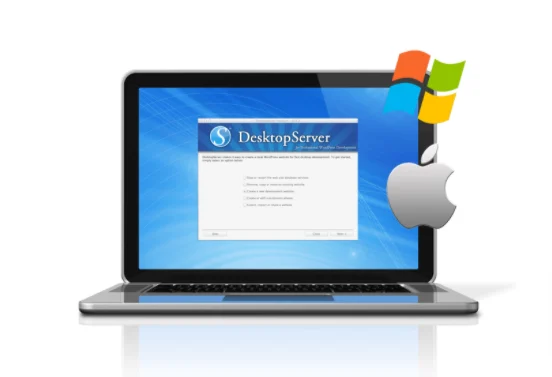
Desktop Server is a Windows and macOS tool for creating multiple local WordPress websites, and it’s one of the easiest options for beginners. The first time you run it, Desktop Server installs everything it needs to power WordPress locally. After that, you can launch it whenever you want to create or delete a local WordPress site, choosing the WordPress version and assigning a domain name each time. There’s a free version, though you do need to register to download it.
A premium version is also available, starting at $99.50. It adds multisite support, WordPress blueprints, the ability to export and archive your test setups, and more.
The premium license also lets you use Desktop Server on multiple devices and run unlimited updates throughout the year.
Key Features:
- Includes a step-by-step wizard to help you set up new local WordPress websites.
- Allows you to map domains on your local websites.
- Duplicate or delete your sites at any time.
- The free version allows you to manage up to 3 local WordPress websites.
- Supports MySQL, Apache, and PHP 5.5.
2. XAMPP
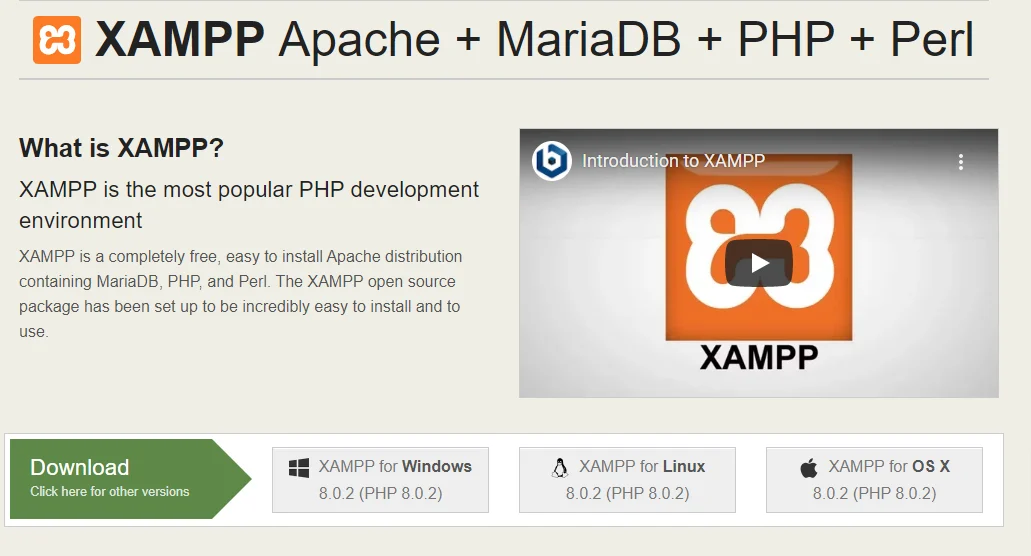
XAMPP is a local development tool that bundles all the software you need to run WordPress. The name is an acronym for Apache, MariaDB, PHP, and Perl. It comes in two versions: regular XAMPP, which installs everything in a directory on your device, and XAMPP-VM, which sets everything up on a Linux virtual machine. The regular version runs on Windows, macOS, and Linux; XAMPP-VM is macOS only.
To install WordPress with XAMPP, you set up the stack, confirm the services are running, create a database, download WordPress, and configure a few files manually. XAMPP is completely open source, with no costs involved.
There’s no premium version with hidden features, so you’re free to use it however you like.
Key Features:
- Ability to set up a software stack that includes Apache, MariaDB, PHP, and Perl.
- Option to choose from multiple versions, based on which PHP release you want to use.
- Contains a simple dashboard tool to manage all new services.
- Enables you to set up WordPress manually, or use a standalone installer if required.
3. MAMP
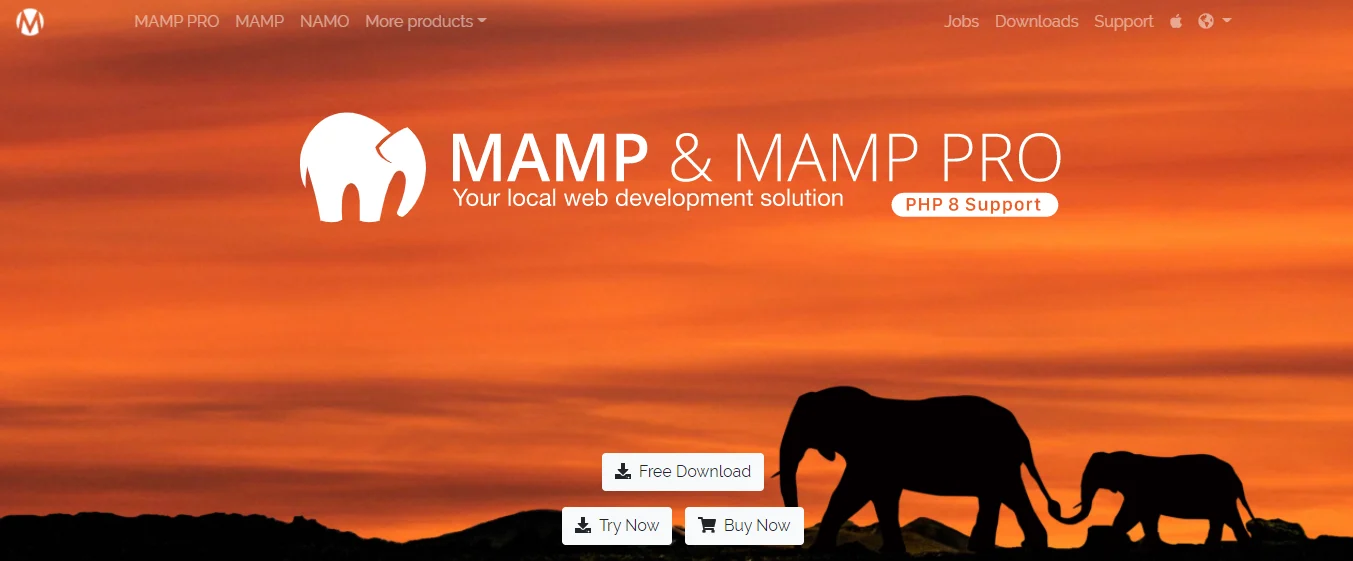
MAMP stands for My Apache, MySQL, PHP, and it’s similar to XAMPP in most respects. Setup follows the same pattern: set up the stack, create a database, then configure WordPress manually. MAMP only runs on Windows and macOS, but it does bundle extra software like Python and Perl.
There’s a free version and a premium version, the latter starting at $59. The premium tier adds Nginx server setup, a built-in editor, a mobile editing tool, and more.
Read More: WordPress Themes for Freelancers
Key Features:
- Ability to set up a software stack that includes MyApache, MySQL, and PHP.
- Option to choose from different versions of the software, based on which PHP release you want to set up.
- Supports additional languages.
- Enables you to set up local WordPress websites manually.
4. Vagrant
Vagrant works differently from the tools above. It lets you run multiple virtual machines on your device and use them as environments for your projects. Setup is easy: install the software and download one of the pre-configured boxes. With several boxes to choose from, you can build exactly the environment your project needs, and because each one runs separately, you can have multiple servers running at once.
For example, you could run Nginx on one Vagrant machine and Apache on another without any conflict. It’s also a free, open-source project with no premium tier.
Key Features:
- Allows you to set up multiple virtual machines for your local development needs.
- Allows you to configure each VM to your specifications.
- Option to download pre-configured boxes.
- Easy to manage all your VMs using the command line.
- Enables you to keep your test environments separated.
5. Local by Flywheel
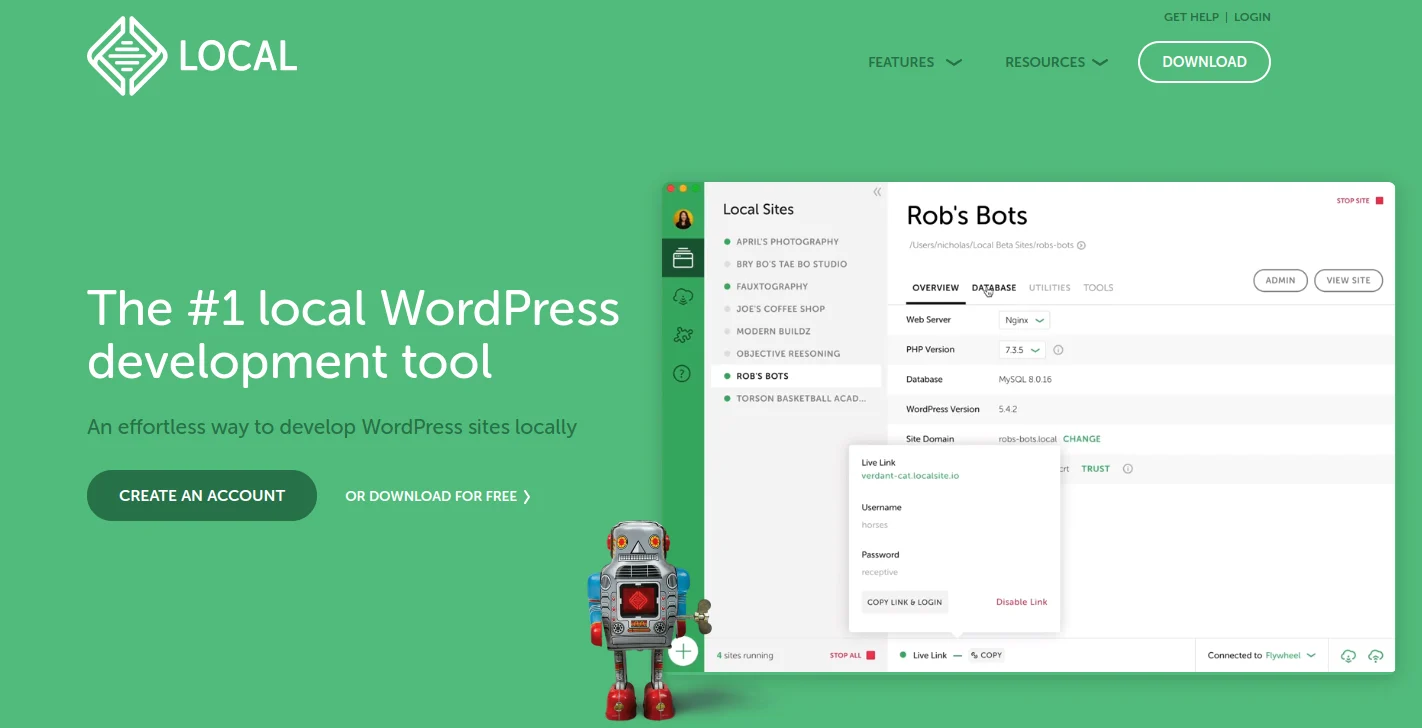
Local is a highly user-friendly tool developed by Flywheel. Its interface makes setup easy for beginners, and creating a website is basically a matter of clicking a button and choosing a few basic settings. During setup, you can choose between Nginx, Apache, PHP 5, and PHP 7, depending on what you need. It’s available for Windows and macOS, and it’s entirely free, which makes it an easy starting point for beginners on a minimal budget.
Key Features:
- Extremely user-friendly.
- Enables you to set up local WordPress websites with just a few clicks.
- Allows you to monitor the status of your existing sites from a list.
- Option to access your sites’ databases, dashboards, and local directories with just a click.
- Option to create live links and share access to other local projects.
Also Read: Using Hashtags on Social Media
To Conclude
These are five of the best local WordPress development tools available today. Have you used any of them before? Let us know your experience in the comments.
Interesting Reads:
How To Show Upcoming Birthdays On Your BuddyPress Social Network?
Top Social Media Trends To Watch
















