Your forum is growing. You cannot moderate every space yourself. You need help. The obvious move is to make trusted members moderators. But WordPress moderation typically means giving someone the Administrator or Editor role, which grants access to your entire site, not just the forum.
That is too much power for a community volunteer. A photography club moderator does not need access to your site settings, plugin management, or other forum spaces. They need the ability to manage discussions in their specific area.
Space-level moderation solves this. Each forum space has its own moderators who can manage content within that space without any WordPress admin access whatsoever.
How Space Moderation Works
Jetonomy’s permission system has three layers that stack together:
- WordPress Capabilities, Site-wide admin roles (Administrator, Editor, etc.)
- Space Roles, Per-space owner, moderator, and member assignments
- Trust Levels, Earned abilities based on participation history
Space moderators operate at Layer 2. They do not need any WordPress admin capabilities. Their moderation powers are scoped entirely to the spaces they are assigned to.
What Space Moderators Can Do
- Pin and unpin topics in their space
- Close discussions that have run their course
- Move topics to a different space (with confirmation)
- Edit topic titles and content for clarity
- Approve or reject flagged content
- Temporarily mute disruptive users within the space
- Mark answers as accepted in Q&A spaces
What Space Moderators Cannot Do
- Access the WordPress admin dashboard
- Modify forum settings or configuration
- Create or delete spaces
- Ban users site-wide
- View or moderate other spaces they are not assigned to
- Install plugins or change themes
This separation means you can confidently assign moderation to community volunteers without worrying about them accidentally breaking your site.
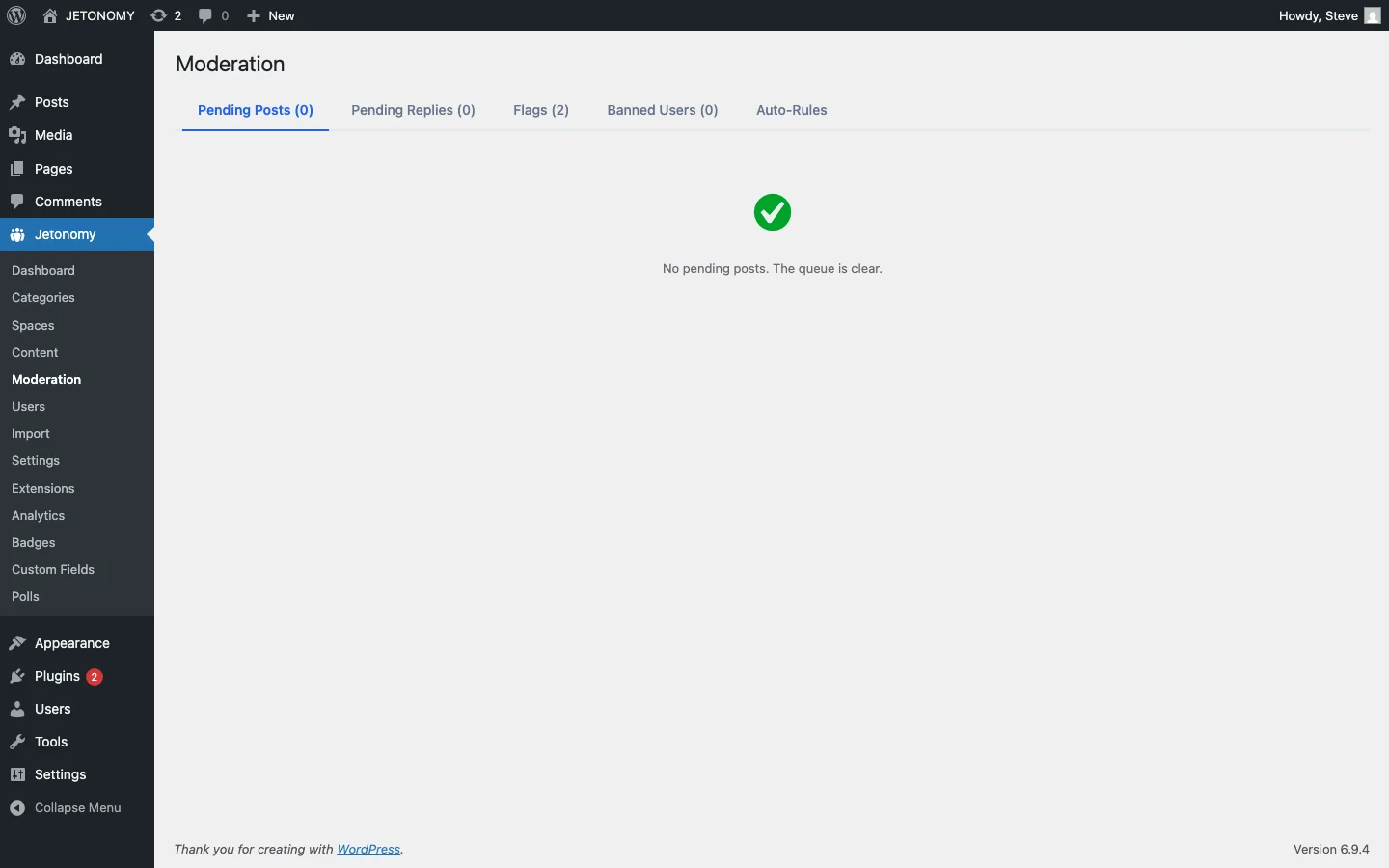
Assigning Space Moderators
Method 1: Manual Assignment
Go to the space settings and add moderators from the Members tab. Search for the username and assign the Moderator role. The member is immediately notified and their space-specific abilities activate.
Method 2: Trust Level Auto-Assignment
Members who reach Trust Level 4 (manually granted) receive moderation abilities. You can assign Level 4 to specific members and designate which spaces they moderate. See our trust levels guide for how manual promotion works.
Method 3: BuddyPress Group Admin Sync
If your spaces are linked to BuddyPress groups, the group admin is automatically assigned as the space moderator. This is the zero-configuration approach, whoever manages the group manages its forum. See our BuddyPress group forums guide.
Choosing the Right Moderators
Not every active member makes a good moderator. Look for members who:
- Are already helping. They answer questions, flag problems, and welcome newcomers without being asked. They are natural moderators already, the role just makes it official.
- Understand community norms. They model the behavior you want. Their posts are helpful, respectful, and on-topic.
- Are consistently active. A moderator who disappears for weeks at a time creates gaps in coverage.
- Can handle conflict. Moderation sometimes means telling someone their post violates the rules. This requires diplomacy and thick skin.
Start with 1–2 moderators per space. Add more as the space grows. A space with 50 active members needs 1–2 moderators. A space with 500 might need 3–5.
Moderator Guidelines
Give your moderators clear guidelines:
- Warn before acting. For borderline content, reply with a friendly reminder about community guidelines before closing or removing.
- Explain actions. When you close a topic or move a post, add a brief comment explaining why: “Closing as duplicate, see [link] for the active discussion.”
- Do not engage in arguments. If a member challenges your moderation decision, do not debate in the thread. Direct them to a private message or escalate to a site admin.
- Flag up, do not act down. If a situation requires a site-wide ban or involves sensitive issues, escalate to site admins rather than trying to handle it at the space level.
The Moderation Escalation Path
| Issue | Handled By | Action |
|---|---|---|
| Off-topic post | Space moderator | Move to correct space |
| Duplicate topic | Space moderator or Level 3 member | Close with link to original |
| Borderline content | Space moderator | Warning, then mute if repeated |
| Spam | Auto-moderation + community flags | Auto-hidden, moderator confirms |
| Harassment | Escalate to site admin | Site-wide ban, content removal |
| Legal issues | Escalate to site admin | Content removal, legal review |
This layered approach means space moderators handle routine issues while site admins handle serious ones. For the complete moderation system, read our auto-moderation guide and spam prevention guide.
Recognizing Moderators
Moderators are volunteers donating their time. Recognize them:
- Trust Level 4 badge appears next to their name on every post
- Custom “Moderator” badge (via Custom Badges extension) for additional visibility
- Mention in announcements when introducing new moderators
- Private perks like beta access, advisory board membership, or product discounts
Getting Started
- Identify 1–2 trusted members who are already helping in each active space
- Assign them as space moderators in the space settings
- Share the moderator guidelines above with them privately
- Announce the moderator appointments publicly to give them legitimacy
- Check in monthly to see if they need support or additional moderators
For the base forum setup, follow our WordPress forum guide. Space moderators are the scaling mechanism that lets your community grow without growing your admin team.
Moderation layers worth planning before the community grows
How to Set Up Space Moderators Without Giving Admin Access fits into the broader forums category through trust systems, moderation controls, and abuse prevention. That matters because the technical setup is only one part of success. The way you structure spaces, roles, onboarding, and follow-up is what determines whether the forum becomes a searchable asset or just another neglected section of the site.
- Use progressive permissions so new members can participate without immediately gaining the ability to flood spaces, mass-mention users, or post risky links.
- Document moderator actions such as warnings, post hiding, suspensions, and appeal handling so your team applies rules consistently.
- Combine rate limits, keyword filters, and role-based visibility rules to reduce spam pressure without making legitimate members fight the interface.
Why teams evaluating this setup should look at Jetonomy Pro
Jetonomy Pro is especially relevant when moderation matters, because it gives you trust-level controls, space moderators, gated participation, and practical community-management features without handing broad WordPress admin access to every helper. If you want to know more and try Jetonomy, take a closer look at Jetonomy Pro. It is the most direct next step for teams that want to move from theory to an actual working WordPress community experience.
For articles like this one, the practical question is not only whether the approach works in theory. It is whether your chosen forum stack gives you the moderation depth, user experience, and extensibility to keep the system useful six months after launch. That is where a more complete product decision starts to matter.