How to Add Forums to BuddyPress Groups
BuddyPress groups need discussion forums. bbPress used to be the default answer, but modern alternatives offer voting, Q&A, trust levels, and per-group moderation. Here is how to connect forums to BuddyPress groups with automatic member sync.

BuddyPress groups are where communities organize. Photography clubs, coding study groups, book clubs, professional networks, groups give members a shared space around a shared interest. But out of the box, BuddyPress groups only have an activity feed and member list. No forums. No Q&A. No structured discussions.
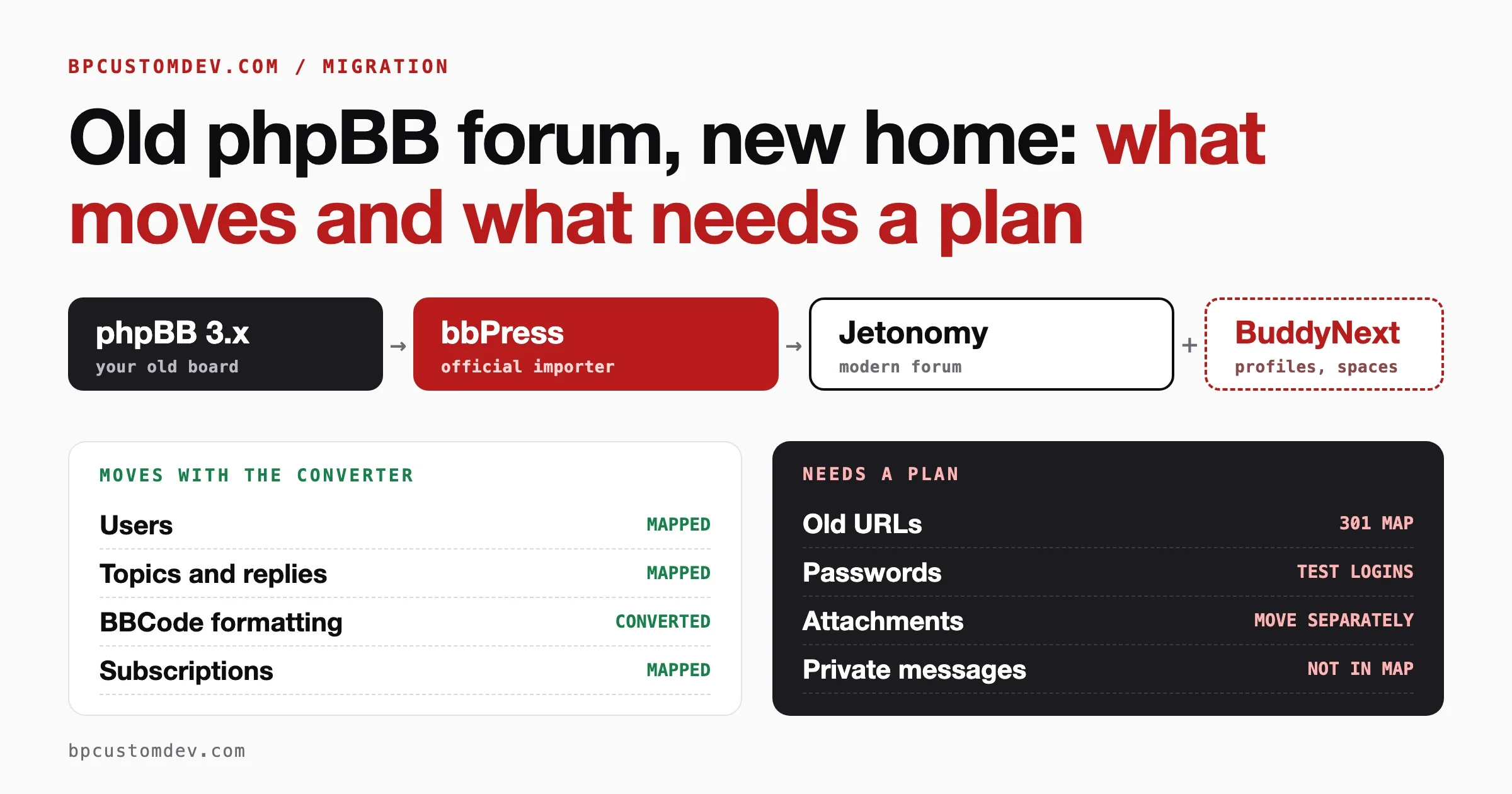
For years, the answer was bbPress. Install it, enable the BuddyPress integration, and each group gets a basic forum tab. But bbPress’s limitations, no voting, no accepted answers, no trust levels, and scaling problems with wp_posts storage, have pushed community builders to look for modern alternatives.
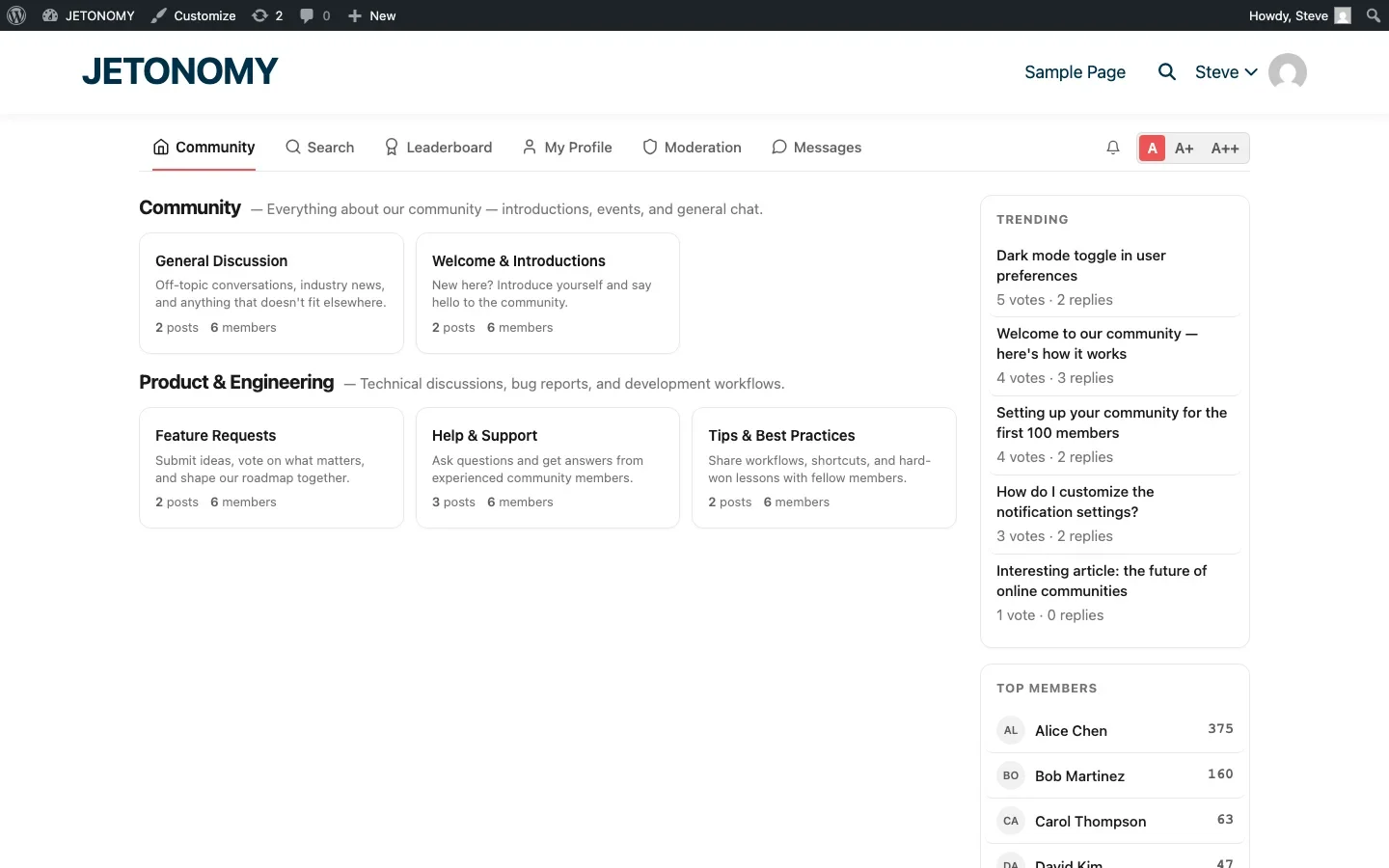
Jetonomy integrates with BuddyPress groups natively, adding a Forum tab to each group with automatic member sync. Here is how to set it up.
How the Integration Works
Jetonomy’s BuddyPress integration connects groups to forum spaces through three mechanisms:
1. Automatic Member Sync
When a user joins a BuddyPress group, they are automatically added to the linked forum space. When they leave the group, they are removed from the space. No manual management, group membership is the source of truth.
2. Forum Tab in Group Pages
Each BuddyPress group with a linked forum gets a “Forum” tab in the group navigation. Clicking it shows the group’s topics, reply counts, and a New Topic button. Members can browse, search, and post directly from the group page.
3. Group Admin as Space Moderator
The BuddyPress group admin is automatically assigned as the forum space moderator. They can manage topics, pin announcements, and moderate discussions within their group without needing site-wide admin access.
Setting Up Group Forums
Step 1: Enable BuddyPress Integration
The BuddyPress integration is built into Jetonomy’s free version. When BuddyPress is detected, the integration options appear in Jetonomy → Settings.
Step 2: Link Groups to Spaces
There are two approaches:
Manual Linking
Go to Jetonomy → Spaces and create a space for each group. Then link the space to the BuddyPress group in the space settings. This gives you full control over space names, types, and configurations.
Automatic Space Creation
Enable auto-creation so that when a new BuddyPress group is created, a corresponding forum space is automatically created and linked. The space inherits the group name and description. The group creator becomes the space admin.
Step 3: Configure Space Type Per Group
Different groups may need different discussion formats. A coding study group might need Q&A format (questions with votable answers). A book club might need Forum format (open discussion). An ideas committee might need Ideas format (proposals with voting).
Set the space type per group based on its purpose. For guidance on choosing the right type, see our community types guide.
Group Forum Features vs. bbPress
Feature | bbPress Group Forums | Jetonomy Group Forums |
|---|---|---|
Voting on answers | No | Yes |
Accepted answers | No | Yes (Q&A spaces) |
Trust levels | No | Yes (0–5) |
Reputation system | No | Yes |
Ideas/feature voting | No | Yes (Ideas spaces) |
Polls | No | Yes (Pro) |
Reactions | No | Yes (Pro) |
Full-text search | Basic | FULLTEXT indexes across all content |
Performance at scale | Degrades (wp_posts) | Fast (custom tables) |
Member sync | Yes | Yes |
For the full comparison of forum plugins, see our wpForo vs bbPress vs Jetonomy comparison. If you are migrating from bbPress, our migration guide covers the process.
Group Privacy and Forum Access
BuddyPress groups have three privacy levels. Forum access respects these:
Group Privacy | Forum Visibility | Who Can Post |
|---|---|---|
Public | Anyone can read | Group members only |
Private | Members only | Group members only |
Hidden | Members only (group not listed) | Group members only |
Private and hidden group forums are fully gated. Non-members cannot see the content through search, direct URLs, or the REST API.
BuddyPress Activity Integration
Forum activity flows into the BuddyPress activity stream. When a member creates a new topic or posts a reply in a group forum, an activity item appears in:
- The group’s activity feed
- The member’s personal activity stream
- The site-wide activity feed (for public groups)
This cross-pollination means group discussions are visible in the activity stream, driving more members to discover and participate in forum threads they might not have found otherwise.
Group Creation Wizard Integration
When BuddyPress integration is enabled, the group creation wizard includes a “Discussion Forum” settings step. Group creators can:
- Enable or disable the forum for their group
- Choose the discussion type (Forum, Q&A, Ideas)
- Set initial moderation preferences
The group manage screen also includes these settings, so group admins can change the configuration after creation.
Moderation at the Group Level
Group admins moderate their own forums independently. This is essential for scaling, you cannot moderate every group’s discussions yourself. Group admins can:
- Pin and unpin topics
- Close discussions
- Move topics between groups (with site admin approval)
- Moderate replies (approve, hide, delete)
- Assign additional moderators from group members
For the trust level system that automates much of this moderation, see our guide on building a self-moderating forum with trust levels.
Use Cases for Group Forums
Group Type | Forum Type | Example |
|---|---|---|
Study group | Q&A | “Python Study Group”, Q&A about code exercises |
Interest group | Forum | “Photography Club”, sharing work, discussing techniques |
Project team | Forum | “Website Redesign”, collaboration and updates |
Advisory board | Ideas | “Product Advisory”, voting on proposals |
Support group | Q&A | “Plugin Users”, help each other with configuration |
Getting Started
- Install Jetonomy alongside BuddyPress (setup guide)
- Enable BuddyPress integration in Jetonomy Settings
- Enable auto-creation or manually link existing groups to spaces
- Set space types per group based on the group’s purpose
- Test member sync by joining/leaving a group and verifying forum access
Your BuddyPress groups already have engaged members. Adding forums gives them a structured place to discuss, ask questions, share knowledge, and build the connections that keep communities alive. For the full BuddyPress community strategy, see our employee intranet guide and our 2026 platform comparison.
Pick a Sensible Default Before You Turn On Auto-Creation
Once auto-creation is on, most new groups will get whatever default space type you configure, few group creators change it during setup. Set that default to plain Forum format unless the vast majority of your groups are clearly Q&A or Ideas-driven, and let individual group admins upgrade the type later once they see how their group actually behaves. Reconfiguring a handful of groups after the fact is far less disruptive than migrating hundreds of misconfigured spaces.
- Reserve Q&A format for groups explicitly built around answering member questions, study groups, support groups, not general discussion communities.
- Give group admins visibility into the moderation tools available to them (pin, close, assign moderators) during onboarding, not buried in a settings screen they find weeks later.
- Watch which groups generate the most activity-stream noise in the first month, that is usually a sign the space type or notification settings need adjusting.
Where Jetonomy Pro Fits Once Groups Are Live
The free integration covers everything above: linking, sync, per-group moderation, and space types. Jetonomy Pro becomes worth adding once individual groups want more than threaded discussion, private messaging between members who met in a group, polls for quick group decisions, and reactions for lightweight engagement without another reply. None of that changes how groups and spaces are linked; it layers on top of the same structure. See the Jetonomy Pro page for the full feature list.