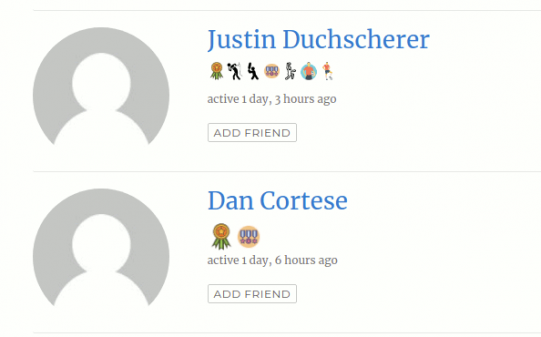
BuddyPress User Badges expands what a BuddyPress-based group can do by adding a badge system on top of it. The plugin lets you create as many custom badges as you want and assign them to users, either manually or automatically, and those badges show up on both the member list and each user’s profile.
Badges are a simple way to show members you notice them. They add a sense of distinction and belonging, and you can hand them out to make standout members feel recognized. A few common uses: top performers, best athletes in a given sport, top students, favorite teachers, whatever fits your community. It’s really just limited by your imagination.
BuddyPress needs to be active on your site for the plugin to work.
Installation of BuddyPress User Badges Plugin
Installation is simple. Here’s how:
- Download the BuddyPress User Badges plugin from your BuddyDev account.
- Extract the
buddypress-user-badges.zipfile into your WordPress plugins folder, or - Go to Plugins > Add New in your WordPress Dashboard, select Upload Plugin, and choose
buddypress-user-badges.zipto install it. - Click Activate Plugin on the install screen, or
- Go to WordPress Dashboard > Plugins and activate it from there.
Setting Up BuddyPress User Badges Plugin
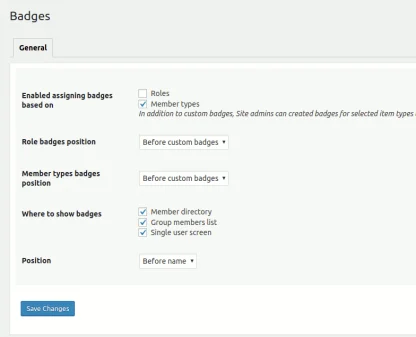
Setup is just as simple:
Also Read: Best WordPress BuddyPress Events Plugins
- Go to WordPress Dashboard > Settings > Badge Settings to change the badge settings.
- Make your changes and click Save Changes.
- To create or edit custom badges, role badges, and member-type badges, go to WordPress Dashboard > Users > Badges and click Save.
Features of BuddyPress User Badges Plugin
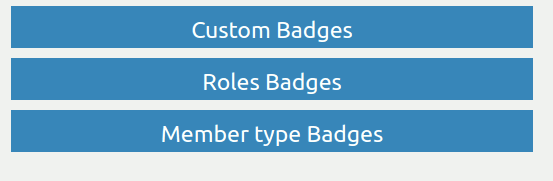
- Custom Badges: Design your own badges and assign them to users, for example, a bat icon badge for baseball fans.
- Sortable Badges: Drag and drop to reorder custom badges. As the site admin, you control the order badges appear in on a user’s profile, and that order is reflected in the front-end listing too.
- Multiple Badges: Create as many badges as you need and assign several to the same user.
- Badges for Member Types: If you’re using member types, badges can be tied to a specific type and issued automatically to everyone in it. Badges can be enabled or disabled per member type.
- Badges for WordPress Roles: Badges can be assigned by WordPress role instead, issued to everyone with that role, and enabled or disabled per role.
- Enable/Disable a Badge: Turn any individual badge on or off whenever you need to.
- Badge Placement: Choose whether role- and member-type badges appear before or after the custom badges.
- Display Control: Choose where badges show up, the members directory, group member listings, or single profile pages.
- Badge Position: Choose whether badges display before or after a user’s name.
- Custom Icons: Upload a PNG, JPG, or SVG for each badge icon. The default size is 32px, adjustable with CSS.
Advantages and Benefits
Also Read: Best WooCommerce Dropshipping Plugins
- It’s a straightforward way to turn recognition and achievement into a visible part of any BuddyPress community.
- There’s a growing set of add-ons that build advanced features on top of the core plugin.
- It’s built to be extensible, so you can use badges to mark and celebrate just about anything.
- APIs and developer documentation are available if you want to build your own add-ons and share them.
Should You Use It
BuddyPress User Badges turns your community into a light achievement-tracking system: members earn digital badges by hitting milestones, showing off skills, or completing whatever criteria you set. You control the criteria, combine evaluation options however you like, and decide exactly what each badge should represent. Badges are compatible with the Mozilla Open Badges standard and can be shared via the plugin’s Social Sharing add-on. Overall, it’s a lightweight, flexible way to add recognition to any BuddyPress community.
Interesting Reads: