How to Build a Community Site with BuddyPress Profiles and Jetonomy Forums
BuddyPress handles social networking — profiles, groups, activity streams, connections. Jetonomy handles knowledge — forums, Q&A, voting, reputation. Together, they create a complete community platform. Here is the full integration walkthrough.

Building a community site on WordPress means choosing how to handle two fundamentally different needs: social networking (who people are and how they connect) and knowledge sharing (what people discuss and how information is organized).
BuddyPress excels at the social side: rich member profiles, friend connections, groups, activity streams, and notifications. Jetonomy excels at the knowledge side: structured forums, Q&A with voting, Ideas boards, trust levels, and reputation. Neither plugin tries to do everything. Together, they create a community platform that handles both dimensions well.
This guide is the complete walkthrough for building a community site that combines both.
The Architecture
Layer | Plugin | What It Handles |
|---|---|---|
Member Identity | BuddyPress | Profiles, avatars, cover images, extended profile fields |
Social Connections | BuddyPress | Friend requests, followers, connections |
Groups | BuddyPress | Group creation, membership, privacy levels |
Activity Feed | BuddyPress | Site-wide and per-group activity streams |
Discussion Forums | Jetonomy | Forum, Q&A, Ideas, Social feed spaces |
Knowledge Base | Jetonomy | Searchable Q&A with voting and accepted answers |
Reputation | Jetonomy | Trust levels, points, leaderboard, badges |
Private Messaging | BuddyPress or Jetonomy Pro | Direct and group conversations |
Notifications | Both | BuddyPress social + Jetonomy forum notifications |
Step-by-Step Setup
Step 1: Install the Foundation
- WordPress (latest version)
- BuddyPress (activate desired components: Extended Profiles, Groups, Activity, Notifications, Friends/Followers)
- A compatible theme (BuddyX, flavor, flavor child theme, or any theme that supports BuddyPress)
- Jetonomy (free version from WordPress.org)
- Jetonomy Pro (optional, for premium extensions)
Step 2: Configure BuddyPress
Set up BuddyPress with the components your community needs:
- Extended Profiles, Custom profile fields for member bios, skills, location
- Groups, Interest-based or project-based groups
- Activity, Social activity stream
- Notifications, Alert system for social events
Step 3: Configure Jetonomy
Run the Jetonomy setup wizard (setup guide). Create your community structure:
Category | Space | Type |
|---|---|---|
Community | General Discussion | Forum |
Community | Welcome & Introductions | Forum |
Support | Help & Support | Q&A |
Support | Feature Requests | Ideas |
Resources | Tips & Tutorials | Forum |
Resources | News & Links | Social |
Step 4: Enable BuddyPress Integration
In Jetonomy → Settings, enable the BuddyPress integration. This activates:
- Forum tabs on BuddyPress member profiles (profile integration guide)
- Group-to-space linking with member sync (group forums guide)
- Forum activity in BuddyPress activity streams
- Forum tab in group creation wizard
Step 5: Link Groups to Forum Spaces
For each BuddyPress group that needs a discussion forum, link it to a Jetonomy space. You can do this manually or enable auto-creation so new groups get spaces automatically.
Step 6: Configure the Navigation
Your community navigation should include both BuddyPress and Jetonomy elements:
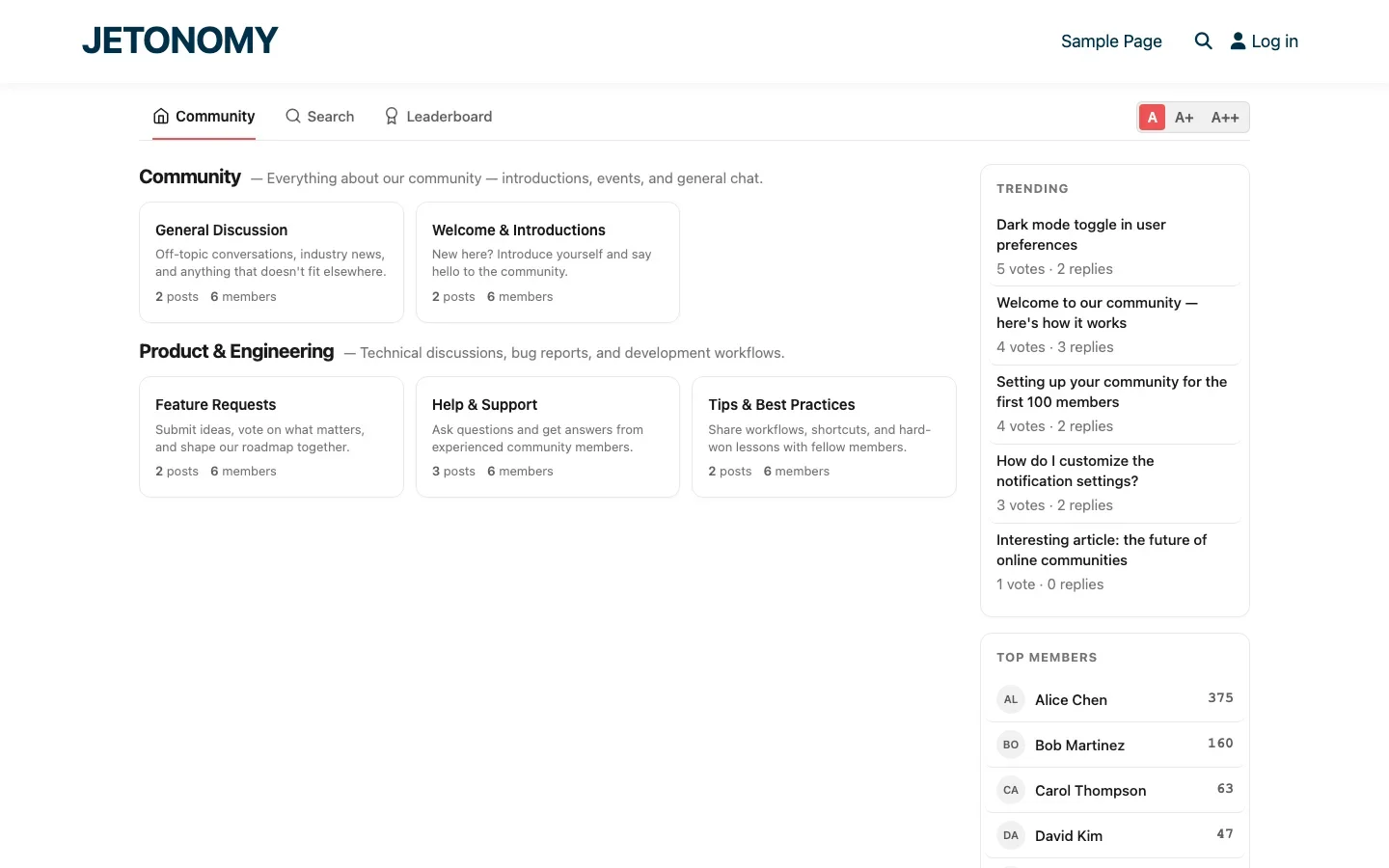
- Community (Jetonomy home), Forum spaces, trending topics
- Members (BuddyPress), Member directory
- Groups (BuddyPress), Group directory
- Activity (BuddyPress), Social activity stream
- Leaderboard (Jetonomy), Top forum contributors
- Search (Jetonomy), Full-text forum search
The Member Journey
Here is what the experience looks like for a new member:
- Registers and creates a BuddyPress profile with avatar, bio, and extended fields
- Joins groups based on interests, automatically gets access to group forum spaces
- Browses the forum, reads topics, discovers the community’s culture
- Posts their first topic, earns the “First Post” badge, starts building reputation
- Answers a question, their answer gets upvoted, they earn Trust Level 1
- Reaches the leaderboard, visible recognition motivates continued participation
- Connects with members, sends friend requests in BuddyPress, private messages in the forum
- Earns Trust Level 2, unlocks editing and flagging abilities, deepening their community role
Each step combines BuddyPress social features with Jetonomy knowledge features. The member builds both a social identity (profile, friends, groups) and a knowledge identity (reputation, badges, trust level).
Pro Extensions That Enhance the Stack
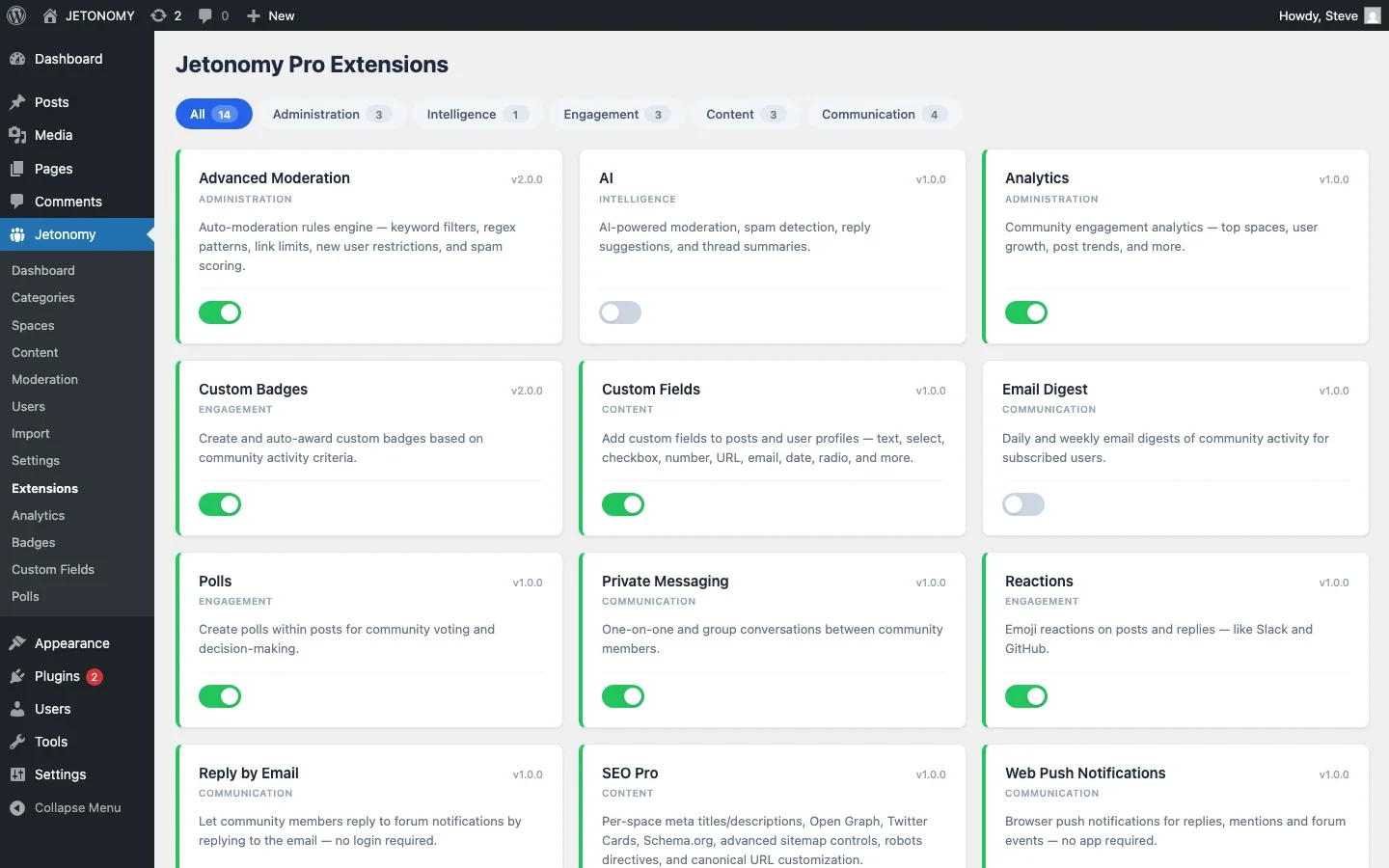
If you add Jetonomy Pro, these extensions complement the BuddyPress + Jetonomy foundation:
- Private Messaging, Forum-integrated conversations with trust level gating
- Polls & Reactions, Engagement tools for forum spaces
- Custom Badges, Achievement recognition beyond trust levels
- Analytics, Community health metrics and engagement tracking
- Email Digests, Weekly community summary emails
- Advanced Moderation, Keyword filters, rate limits, user score gates
Real-World Examples
Here are community types that benefit from the BuddyPress + Jetonomy combination:
Community Type | BuddyPress Provides | Jetonomy Provides |
|---|---|---|
Professional network | Member profiles, connections, groups | Industry Q&A, knowledge sharing |
Online school | Student profiles, cohort groups | Course Q&A, peer support |
Product community | User profiles, user groups | Support Q&A, feature requests, docs |
Nonprofit | Volunteer profiles, chapter groups | Discussions, resource sharing |
Employee intranet | Staff profiles, department groups | Internal Q&A, knowledge base |
For the employee intranet use case, see our detailed intranet guide.
Getting Started
- Install BuddyPress + Jetonomy
- Choose your theme (must support BuddyPress)
- Configure BuddyPress components (profiles, groups, activity)
- Set up forum structure (choose the right community types)
- Enable BuddyPress integration in Jetonomy Settings
- Link groups to spaces
- Seed with content and invite your first members
BuddyPress gives your members a social home. Jetonomy gives them a knowledge home. Together, they create the kind of community platform that keeps people coming back, not just to scroll, but to contribute, learn, and connect.
Integration choices that keep BuddyPress and forums coherent
How to Build a Community Site with BuddyPress Profiles and Jetonomy Forums fits into the broader forums category through profiles, groups, activity, and social-community alignment. That matters because the technical setup is only one part of success. The way you structure spaces, roles, onboarding, and follow-up is what determines whether the forum becomes a searchable asset or just another neglected section of the site.
- Decide early whether groups own their own discussions or whether forums remain global and are only surfaced through group and profile views.
- Keep identity signals consistent across profiles, spaces, and activity feeds so members do not feel like they are moving between disconnected products.
- Plan which events should appear in activity streams, notifications, and profile tabs so community actions stay visible without becoming noisy.
Why teams evaluating this setup should look at Jetonomy Pro
Jetonomy Pro makes more sense here when you want the forum layer to feel native to a social community, because it gives you modern forum features while still fitting into BuddyPress member journeys and group-driven workflows. If you want to know more and try Jetonomy, take a closer look at Jetonomy Pro. It is the most direct next step for teams that want to move from theory to an actual working WordPress community experience.
For articles like this one, the practical question is not only whether the approach works in theory. It is whether your chosen forum stack gives you the moderation depth, user experience, and extensibility to keep the system useful six months after launch. That is where a more complete product decision starts to matter.