How to Build a Private Group Chat for Your Online Course Students (2026 Guide)

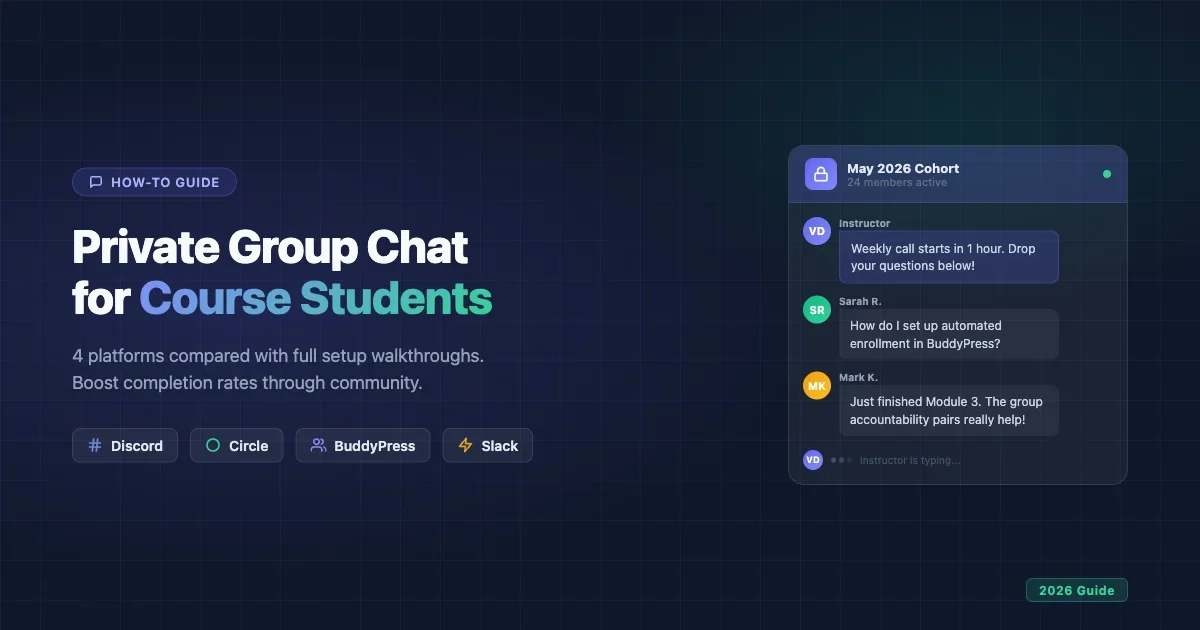
Students drop out of online courses when they feel isolated. A private group chat flips that dynamic: it turns a solo learning experience into a shared one, gives students a place to ask questions without fear of judgment, and builds the social accountability that keeps people showing up week after week. This guide walks through four practical approaches for setting up private group chat for your online course students in 2026, with setup walkthroughs, moderation tactics, and advice on integrating your weekly calls.
Updated September 2026.
In this guide
- Why Private Group Chat Drives Completion Rates
- Approach 1: Discord Private Server
- Approach 2: Circle with Course Integration
- Approach 3: BuddyPress Private Groups on Your WordPress Site
- Approach 4: Slack Free Tier
- Moderation Strategies for Student Group Chats
- Integrating Your Weekly Call with the Group Chat
- What Students Actually Want From a Course Chat
- Choosing the Right Approach for Your Course
- Common Setup Mistakes to Avoid
- Scaling from One Cohort to Many
- Measuring Chat Engagement
- Running a Chat Across Time Zones
- Async-First: Designing for Students Who Cannot Show Up Live
- Next Steps
Key takeaways
- Four viable approaches for private course chat: Discord (free, fast, less polished), Circle (paid, all-in-one), BuddyPress (self-hosted, full data ownership), and Slack (best for B2B professional cohorts).
- Social connection is the single strongest lever on completion rates, students who can reach peers quickly work through obstacles instead of quietly quitting.
- A short community agreement and a designated cohort leader matter more than which platform you pick.
- Pair the chat with your weekly call using a pre-call question thread and a post-call summary thread.
- Chat solves where students talk to each other. Selling and grading the course itself is a separate job, see the Learnomy section below.
Why Private Group Chat Drives Completion Rates
Course completion data consistently points to one factor above all others: social connection. When students can reach peers and instructors quickly, they work through obstacles instead of quietly quitting. A private chat space does three things that open forums or public Discord servers cannot:
- Reduces friction on asking questions. Students in a bounded, cohort-only space feel safe asking “basic” questions they would never post publicly.
- Creates real-time feedback loops. A student stuck on a lesson at 10 PM can get an answer from a classmate rather than waiting for the next live call.
- Builds identity as a group. Cohort nicknames, shared jokes, and running threads create a community that members want to stay part of.
The four approaches below cover different hosting models, tech stacks, and budget levels. Pick the one that fits your course platform and student profile.
Selling the Course, Not Just Hosting the Chat
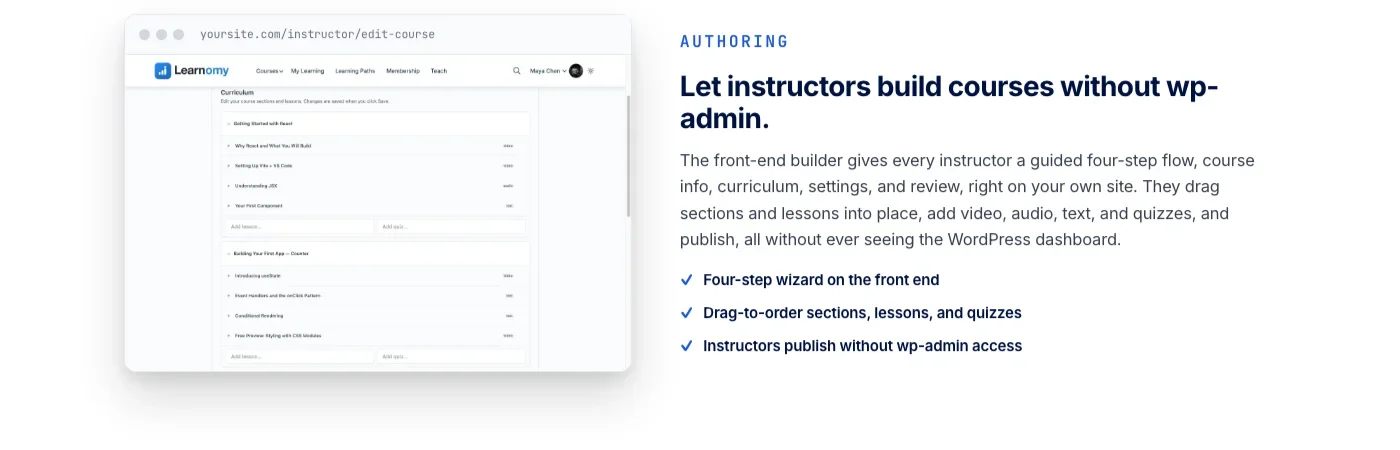
Everything in this guide assumes the course itself, the videos, the quizzes, the payment page, already exists somewhere. If you are still choosing what that “somewhere” is, it is worth knowing that Learnomy is a complete learning platform with a front-end course builder, direct Stripe and PayPal checkout, and certificates students can verify, so the course you are about to build a chat around does not depend on a separate SaaS subscription.
Approach 1: Discord Private Server
Why instructors pick Discord
Discord is free, students already have accounts, and the channel structure maps naturally to course modules. You can create a server with channels like #general, #module-1-questions, #wins, and #resources in under 20 minutes.
Setup walkthrough
- Create a new server. Click the plus icon in Discord’s left sidebar and choose “Create My Own” then “For a club or community.” Name it after your course, not your brand. Students connect with the course identity.
- Set the server to private by default. Go to Server Settings > Roles > @everyone and disable “View Channels.” This means new joiners land in a holding area until verified.
- Create an invite link with expiry. Under Invite > Advanced Settings, set an expiry of 7 days and a max use count equal to your cohort size. Share this link via your course platform only.
- Build your channel structure. Recommended channels:
#announcements(instructor-only post),#introductions,#module-[n]-questionsper module,#off-topic,#wins-and-progress. - Add bots for automation. MEE6 or Carl-bot can send welcome DMs, assign roles when students react to a message, and post automated reminders before weekly calls.
Discord limitations to plan for
The free tier caps file uploads at 10 MB, has no native video hosting, and Discord’s moderation tools are basic compared to purpose-built platforms. Notifications also compete with every other Discord server your students are in. For cohorts above 100 students, Discord channels can become noisy fast without strict channel hygiene.
Best for
Tech-forward audiences, gaming or creator niches, cohorts where students are already Discord users, budgets of zero.
Approach 2: Circle with Course Integration
Why instructors pick Circle
Circle is built specifically for online communities attached to courses and memberships. It offers Spaces (equivalent to Discord channels), direct messaging, live rooms, and native course delivery under one roof. The design feels professional and calm compared to Discord’s gamer aesthetic.
Setup walkthrough
- Create a new Community. Sign up at circle.so, give your community a name, and choose “Private” during setup. Private communities require an invitation or an approved request to join.
- Create a Members Space for chat. Inside your community, click “New Space” and select “Chat” as the type. Name it something student-facing like “Student Lounge” or the name of your cohort.
- Set up Groups or Spaces per module. Circle’s Groups feature lets you segment students into cohorts. Create a Group per intake, then assign module-specific Spaces visible only to that Group.
- Connect your course platform. Circle has direct integrations with Teachable, Kajabi, Thinkific, and Podia via Zapier or native webhooks. When a student purchases your course, they get automatically invited to the Circle community. Set this up in your course platform’s automation settings and point the webhook at Circle’s SSO or invitation API endpoint.
- Configure notifications. Under Community Settings > Notifications, enable digest emails for inactive members. Students who have not opened the app in 3 days get a summary of what they missed.
Circle limitations to plan for
Circle starts at $89/month for the Basic plan as of 2026. At the Basic tier you get one community; the Business plan ($199/month) unlocks multiple communities, custom domains, and white-labeling. The chat experience is real-time but slightly behind Discord in speed. If your course is on a platform Circle does not natively integrate with, you will need Zapier or a developer to wire up enrollment automation.
Best for
Professional development courses, coaching programs, creators who want everything in one place, instructors willing to invest in a polished student experience.
Approach 3: BuddyPress Private Groups on Your WordPress Site
Why instructors pick BuddyPress
BuddyPress runs on your own WordPress site, which means you own the data, control the design, and pay no per-seat SaaS fees. The Groups component creates private or hidden groups where students can post in an activity feed, exchange messages, share files, and participate in discussions. Combined with a messaging plugin, it becomes a capable private chat environment.
For course operators who are already running WordPress with a learning management system like LearnDash or LifterLMS, BuddyPress avoids sending students to a third-party platform. Everything lives at your domain. See our guide to private messaging for BuddyPress communities for a deeper look at the messaging layer.
Setup walkthrough
- Install BuddyPress. Add BuddyPress from the WordPress plugin directory. During setup, activate the Groups, Activity, and Messages components at minimum. Private group chat requires Groups and Messages.
- Create a Hidden Group for each cohort. Go to Groups > Add New. Set Privacy to “Hidden” (this means the group does not appear in the group directory and only invited members can see it). Name the group after your course cohort (e.g. “Content Marketing Bootcamp, May 2026”).
- Add a real-time messaging layer. BuddyPress’s built-in private messages are asynchronous. For real-time group chat, install BP Better Messages (free on WordPress.org). It adds a chat interface to BuddyPress Groups with typing indicators, read receipts, and emoji support. Once activated, a “Chat” tab appears in each group.
- Automate enrollment via your LMS. LearnDash and LifterLMS both have BuddyPress integration add-ons that auto-enroll students in specified BuddyPress groups when they purchase a course, the same enrollment-based access control pattern used to gate discussion forums by course purchase. In LearnDash, go to LearnDash > Groups and link a LearnDash Group to a BuddyPress Group. When a student joins the LearnDash course, they land in the BuddyPress group automatically.
- Add the group messaging widget to your dashboard. Use a BuddyX or BuddyBoss-compatible theme that exposes the BP Better Messages chat panel in a slide-out sidebar. Students can access chat from any page on your site without navigating away from course content.
BuddyPress limitations to plan for
Real-time messaging requires websocket support (most managed WordPress hosts support this, but verify with your host). Scaling above 500 concurrent users requires object caching (Redis or Memcached). The admin interface for managing groups is functional but less polished than Circle or Discord. Mobile UX depends heavily on your theme; a responsive BuddyX or Reign theme makes a significant difference.
If you are starting a course community from scratch rather than retrofitting an existing WordPress site, it is worth knowing that BuddyPress is not the only self-hosted option anymore. BuddyNext is a free, standalone community platform built as its own modern architecture rather than on top of BuddyPress, with an activity feed, member profiles, and Spaces (its version of groups) designed for exactly this kind of cohort-based chat, and its Pro tier adds native Stripe memberships if you decide to charge for community access directly.
Best for
WordPress-first operators, instructors who want full data ownership, communities where the course and the chat live at the same URL, teams with a developer on staff.
Approach 4: Slack Free Tier
Why instructors pick Slack
Slack is the default workplace communication tool for much of the professional world. If you teach B2B skills like marketing, project management, product development, or finance, your students likely use Slack at work. That familiarity lowers the barrier to participation significantly. A private Slack workspace for your course cohort feels immediately natural for that audience.
Setup walkthrough
- Create a free workspace. Go to slack.com, click “Create a new workspace,” and name it after your course. Choose a URL like
yourcourseacademy.slack.com. - Invite via email only. Under Settings > Permissions > Invitations, restrict invitations to admins only. Send individual email invitations to students from your course platform’s enrollment list. Do not create a public invite link.
- Build your channel structure. Mirror your module structure:
#module-1,#module-2, etc. Add#general,#wins,#off-topic, and a private channel for each small accountability group if your course uses them. - Set channel posting permissions. In
#announcements, go to Channel Settings > Posting Permissions and allow only admins to post. This prevents announcement channels from becoming cluttered. - Automate onboarding with a Slackbot welcome message. Go to Settings > Slackbot > Customize responses. Add an automatic welcome message that fires when a new member joins, pointing them to
#start-herewith your community guidelines and a quick orientation video link.
Slack free tier limitations to plan for
Slack’s free plan limits message history to 90 days and allows only one active Huddle at a time. If your course runs longer than three months, students lose access to early module discussions. File storage is capped at 5 GB across the workspace. For cohorts above 50 people, the free tier is workable but tight. Slack Pro costs $7.25/user/month (billed annually as of 2026), which becomes expensive fast at scale. Slack also lacks native course content embedding, so it functions purely as the chat layer, not the course hub.
Best for
B2B skill courses, professional audiences, short courses under three months, instructors who want zero learning curve for students.
Moderation Strategies for Student Group Chats
Any private chat space for students needs ground rules, even among adults in a paid course. The stakes feel lower than a public community, but destructive dynamics can still tank the experience for everyone.
Write a community agreement, not a rulebook
A list of prohibited behaviors reads like a legal document. A community agreement reads like a shared commitment. Frame it as: “We are here to learn together. Here is how we show up for each other.” Include specifics on: response time expectations, how to handle disagreements, what belongs in the chat versus in a direct message to the instructor, and what kind of self-promotion is welcome (if any).
Designate a cohort leader or TA for each intake
An instructor cannot monitor a chat channel in real time across multiple cohorts. Assign a teaching assistant or a community manager who checks the channel at set times each day. Alternatively, identify an engaged student from each cohort as a peer leader and give them a moderator role. Peer-led moderation scales better than instructor-led moderation.
Use pinned messages aggressively
Every platform covered above supports pinned or bookmarked messages. Pin the community agreement, the weekly call link, the course resource folder, and the current week’s focus question. Students who re-join after a gap immediately know where to orient themselves.
Create a thread or channel for wins only
A dedicated space for student achievements (completed modules, client wins, project launches) does two things: it keeps celebrations from being buried in general discussion, and it provides social proof that the course works. Instructors can screenshot these for testimonials (with permission).
Handle conflict in DMs, not in public
If a student posts something problematic, do not address it in the channel. Move the conversation to a private message first. This preserves the person’s dignity, prevents the group from splitting into camps, and keeps the public channel focused on learning.
Integrating Your Weekly Call with the Group Chat
The weekly call and the group chat are two halves of the same engagement system. Chat builds the between-session connection that makes the live call feel like a reunion rather than a lecture. Here is how to wire them together:
Pre-call thread: gather questions 48 hours early
Post a standing prompt every week in your main channel: “What question do you want answered on this week’s call? Drop it below by [date/time].” This does two things: students who cannot attend live still get their questions answered, and you arrive at the call with a prepared agenda rather than dead air while people think of questions.
Post-call thread: keep the momentum
Within one hour of ending the call, post a summary thread in the chat: key points covered, action items for the week, and a link to the recording. Tag students who had their questions answered. This rewards those who participated and ensures absent students are not left behind.
Set a call reminder bot
All four platforms support automated reminders. Schedule a message to post 24 hours and 1 hour before each call. Include the Zoom or Google Meet link in the reminder. Reduce the friction between “I should join” and “I just joined.”
Use the chat channel during the call
Encourage students to post questions and reactions in the chat while the call is running. This is especially effective for participants joining on mobile who cannot easily use the raise-hand feature. A co-host or TA monitors the channel and surfaces questions to the instructor in real time. See our guide to integrating live classes and webinars into your community platform for the full setup on synchronizing live sessions with your community tools.
What Students Actually Want From a Course Chat
It helps to separate what instructors think students want from a group chat and what students actually use it for once it exists. Instructors tend to imagine deep, sustained discussion threads about course concepts. In practice, the highest-traffic channels in most course communities are the ones with the lowest barrier to posting: a wins channel, an introductions thread, a quick-question channel where a one-line reply is a complete, acceptable answer. The deep conceptual discussion happens, but it happens less often and usually starts from a simple prompt rather than a cold open.
This has a practical implication for setup: do not lead with a channel structure built around your syllabus. Lead with channels built around the small, easy actions a nervous new student can take in their first five minutes, saying hello, posting a quick win, asking a question they are half-embarrassed to ask. The syllabus-aligned discussion channels matter, but they fill in naturally once students already feel comfortable posting anything at all. Communities that open with ten module-specific channels and no low-stakes entry point tend to sit quiet for the first two weeks while students wait for someone else to post first.
Choosing the Right Approach for Your Course
The “best” platform is the one your specific students will actually use. Here is a quick decision framework:
If you are… | Use this approach |
|---|---|
Running a free or low-ticket course with a tech-savvy audience | Discord (free tier) |
Selling a premium course and want a polished all-in-one experience | Circle ($89+/month) |
Already running WordPress and want data ownership | BuddyPress + BP Better Messages |
Teaching B2B professionals in a cohort under 50 people | Slack free tier |
Scaling to 200+ students per cohort with multiple intakes | Circle or BuddyPress (depending on your stack) |
If you are unsure, start with Discord. It costs nothing, ships in a day, and you will learn what your students actually want from a chat space before committing to a paid platform. Once you identify the patterns (are students mainly sharing resources? asking questions? forming accountability pairs?), migrate to the platform that handles those patterns best.
Common Setup Mistakes to Avoid
Too many channels
Starting with 15 channels for a cohort of 25 students fragments conversation. People do not know where to post, so they post nowhere. Start with three to five channels and add more only when a specific type of conversation is clearly missing a home.
No dedicated introduction ritual
When students join, they need a clear first action. Create an #introductions channel with a pinned prompt: “Introduce yourself in three sentences: who you are, what you do, and one thing you want to get out of this course.” This immediately signals that the space is active and sets a tone of openness.
Instructor-only engagement
If the only person posting in the channel is the instructor, students read it as a broadcast channel and stop checking. Pose questions specifically for students: “What’s the trickiest part of Module 2 so far? Tag someone who helped you figure it out.” Structure participation into the habit of the group, not just the instructor’s habit.
Forgetting mobile
A large share of your students will check the group chat on a phone, especially between work hours. Test your chosen platform on mobile before launch. Discord, Circle, and Slack all have solid mobile apps. BuddyPress on mobile depends on your WordPress theme. Use a tested responsive theme and verify the BP Better Messages panel is accessible from a 390px viewport. Mobile-friendly chat only solves half the problem, though: if the lessons themselves still assume students are sitting at a laptop, you lose the same people the chat was supposed to keep around.
No offboarding plan
What happens to the chat space after the course ends? Students form bonds and do not want the community to disappear. Have a plan: either close the private cohort space and invite graduates to a public alumni community, or keep it active as part of an ongoing membership. Communicating this clearly before the course ends reduces the emotional impact of “losing” the group.
Scaling from One Cohort to Many
If your course runs multiple times per year, you will eventually manage several concurrent cohorts. This is where platform choice matters most.
Discord handles this poorly at scale: you end up with either one cluttered server for all cohorts or multiple servers students have to join separately. Circle handles this well via its Groups feature: each cohort gets its own Group with its own set of Spaces, and you manage them all from one admin panel. BuddyPress handles this naturally since each intake is a separate Hidden Group, and the LMS integration handles enrollment automatically.
Slack requires a separate workspace per cohort, or a complex channel-naming scheme, neither of which is scalable past two or three cohorts.
Measuring Chat Engagement
Private group chat is not just a student support tool. It is a signal of course health. Track these metrics by cohort:
- 7-day active users / total enrolled: If fewer than 40% of students post or react in any 7-day window, the community is at risk of going quiet. Intervene early with a prompt or icebreaker.
- Time to first response on questions: Students who wait more than 4 hours for a reply on a question are likely to give up and not post again. Consider a TA monitor schedule if response time is slipping.
- Message volume in weeks 2-4 vs week 1: Week 1 is always high-energy. If message volume drops more than 60% by week 3, the course has an engagement gap that is not being bridged between sessions.
- Completion rate correlation: After your first two cohorts, compare completion rates for students who posted at least 5 messages in the chat versus those who did not. In most courses, this gap is 20-30 percentage points. These are cohort-level averages, though; pairing them with course-side data on which individual students are quietly falling behind lets you intervene before someone drops out silently, not just after the fact. Use that data to justify the time investment in managing the community.
Running a Chat Across Time Zones
The moment your course sells to more than one country, the group chat stops being a single-timezone conversation and becomes something closer to a relay. A student in Manila posts a question while your US-based cohort is asleep, and by the time anyone in the same waking hours sees it, the moment has passed and they have moved on to something else.
Left unmanaged, this quietly splits your community into two groups who never actually talk to each other: the ones active during your working hours and the ones active on the other side of the clock.
A few adjustments fix most of this without adding tooling. Post your recurring prompts (the weekly wins thread, the pre-call question gathering) at a time that rotates through the week rather than always landing in the same six-hour window. Pin a note in the introductions channel asking students to add their timezone next to their name, so a classmate replying at 2 AM their time knows they are not shouting into the void. And treat the async thread, not the live call, as the primary artifact of your course. If the live call is where the real value lives, students on the wrong side of the planet are permanently second-class members of your own community.
Async-First: Designing for Students Who Cannot Show Up Live
Even inside a single timezone, a meaningful share of paying students will never attend a live call. Work schedules, caregiving, or simply preferring to learn on their own time means the live session cannot be the backbone of your engagement strategy if you want the whole cohort participating, not just the subset who happen to be free on Thursday at noon.
Design the chat so a student who never joins a single live call still gets the full value of the course community. That means the pre-call question thread has to produce a usable answer even for people who never watch the call itself, not just a prompt that only pays off live.
It means the post-call summary is detailed enough to stand alone: key points, not just “great call today,” and a direct link to the recording timestamped by topic if your platform supports chapters. It means wins and breakthroughs get celebrated in the async channel with the same energy as they would get called out live, so async-only students do not feel like they are watching the community from behind glass.
Track this as its own metric. Pull the percentage of your paying students who have never posted and never attended a live call. If that number creeps above 20-25%, the course experience for a meaningful slice of your customers is effectively just recorded video, no community at all, and that is the group most likely to churn or ask for a refund because the thing they paid for (the group, the accountability, the access) never actually reached them.
Coaches and Creators: The Chat Is Only Half the Platform
Everything above solves where your students talk to each other. It does not solve where they take the course, pay you, or get graded. If you are a coach or content creator building a paid community around both pieces on your own site, Learnomy is a complete learning platform built for exactly that job: unlimited courses with a drag-and-drop builder, six quiz types with anti-cheat tab-switch tracking, cryptographically signed certificates with a public QR verification page, and direct Stripe and PayPal checkout with no platform fees on what students pay you. A front-end course builder and setup wizard mean you can go from install to taking student payments without a developer.
Best for: Independent coaches, consultants, and creators launching their first course or moving an existing program off a hosted SaaS platform.
- Front-end builder so you create and edit courses without opening wp-admin
- Built-in Stripe and PayPal checkout, memberships with trials, and instructor revenue sharing if your school grows beyond just you
- Certificates students can actually verify, plus a migration wizard if you are moving off LearnDash, Tutor LMS, or LifterLMS
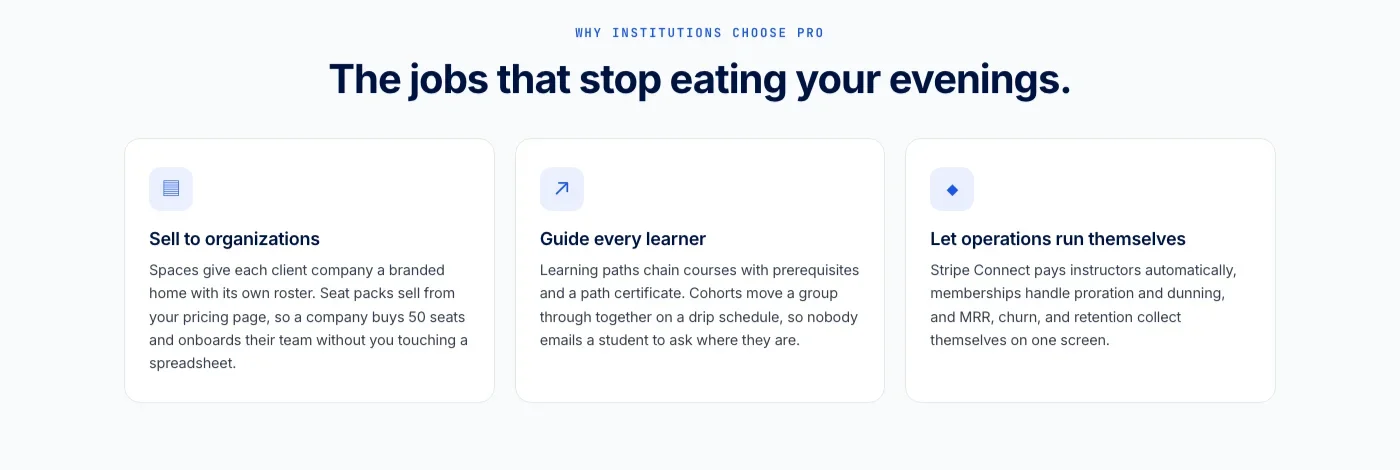
It does not stop at courses either: a learning community around your school, discussion boards and Q&A alongside your lessons, gamified progress with points and badges, even a job board for your graduates, all from the same team, on a site you own.
Next Steps
Private group chat is one component of a larger course community strategy. Once your chat layer is running smoothly, the natural next additions are a structured Q&A forum for evergreen questions, a peer accountability pairing system, and a way to recognize top contributors. If you are building this on BuddyPress, the BuddyPress community stack guide covers the full range of components you can layer on top of core BuddyPress to build a complete course community platform, and our guide on why every online course needs a discussion forum covers the async, searchable layer that chat alone cannot provide.
Start with chat. Keep it private and cohort-specific. Run it alongside your weekly calls. Measure what changes in completion rates after two cohorts and you will have the data to justify investing more deeply in the community layer of your course.