Tutor LMS + Forum: How to Create Course Discussion Boards
Tutor LMS has built-in Q&A per lesson, but it is limited. Here is how to add a full discussion forum to your Tutor LMS courses — with voting, accepted answers, reputation, and enrollment-based access.

Tutor LMS includes a basic Q&A feature on lesson pages. Students can ask questions, and instructors can reply. It works for simple back-and-forth, but it lacks the features that make student discussions genuinely valuable: voting, accepted answers, search across all course questions, reputation tracking, and community engagement tools.
Adding a dedicated discussion forum alongside Tutor LMS transforms the student experience. Instead of isolated Q&A threads buried on individual lesson pages, you get a searchable, votable knowledge base that grows with every cohort.
Why Tutor LMS Needs a Separate Forum
Tutor LMS’s built-in Q&A has three limitations that a forum solves:
1. Questions Are Isolated Per Lesson
Each lesson has its own Q&A thread. A student looking for help cannot search across all lessons at once. If someone asked the same question on a different lesson page, the student has no way to find it. A forum with full-text search indexes all questions across the entire course.
2. No Voting or Quality Signals
In Tutor LMS Q&A, all answers look equal. There is no way to identify which answer is best. In a Q&A forum with voting, the most helpful answer rises to the top. Accepted answers get pinned with a green badge. Students instantly know which response to trust.
3. No Community Features
Tutor LMS Q&A is transactional: ask, answer, done. A forum adds community: reputation points, leaderboards, badges, reactions, and peer networking. These features create the social learning environment that drives course completion.
The Integration: Tutor LMS + Jetonomy
Jetonomy Pro includes a Tutor LMS adapter that connects forum access to course enrollment.
How It Works
- Enable the adapter in Jetonomy → Settings → Integrations
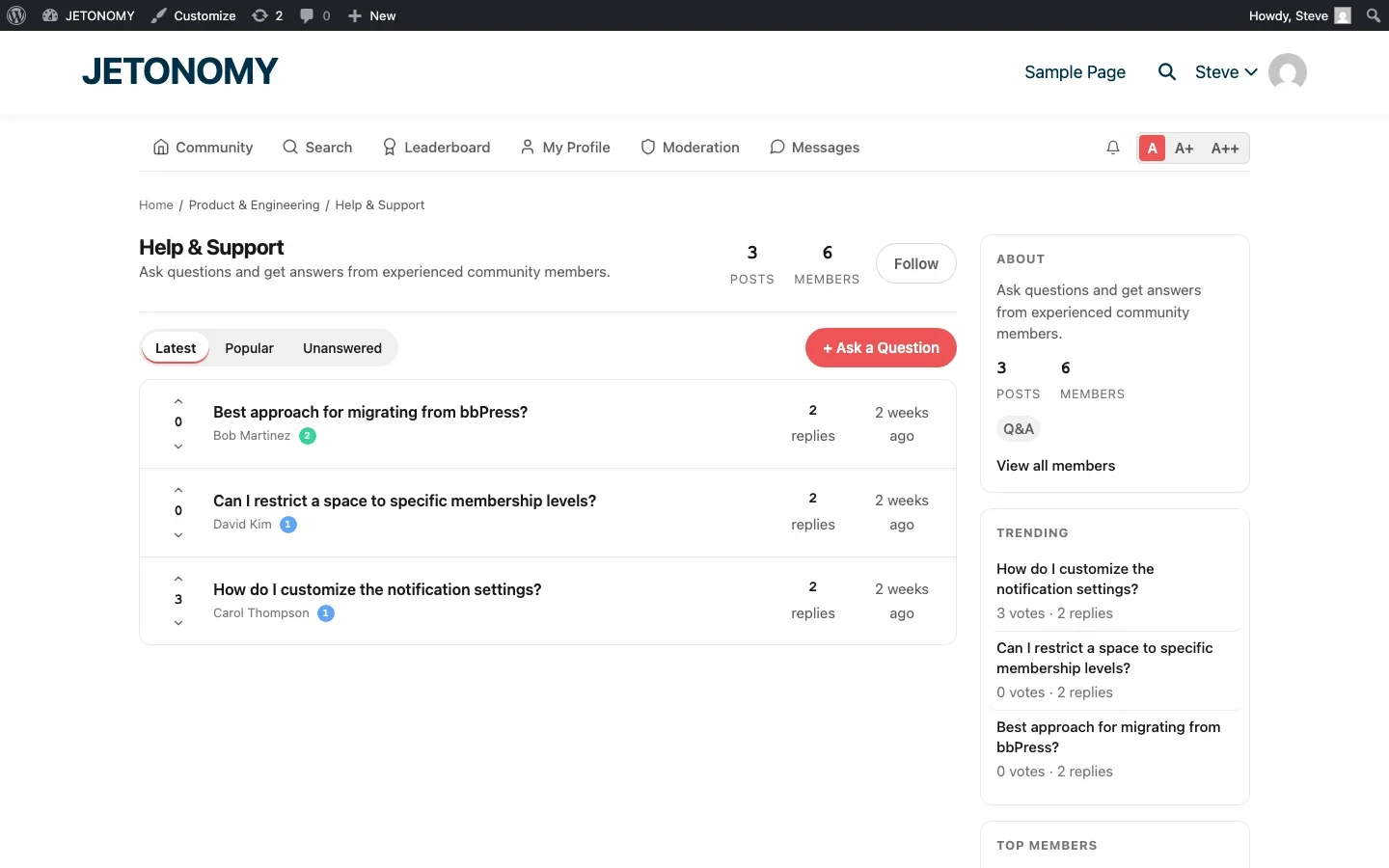
- Create a Q&A space for each course with Invite Only join policy
- Map the space to the Tutor LMS course
- Students who enroll are automatically added to the forum space
- Students who unenroll lose access automatically
The instructor is assigned as space moderator. They can pin announcements, accept answers, and manage discussions without needing WordPress admin access.
Recommended Forum Structure for Tutor LMS
Space | Type | Purpose |
|---|---|---|
[Course Name] Q&A | Q&A | Questions about course material with voting |
[Course Name] Projects | Social | Students share work for feedback |
[Course Name] Discussion | Forum | Open discussion and networking |
For smaller courses, a single Q&A space is sufficient. For larger courses with 100+ students, the three-space structure provides better organization.
Setting Up Step by Step
Step 1: Install the Plugins
Install Jetonomy (free) and Jetonomy Pro alongside your existing Tutor LMS installation. Follow our WordPress forum setup guide for the base configuration.
Step 2: Enable the Tutor LMS Adapter
Navigate to Jetonomy → Settings → Integrations. The Tutor LMS adapter appears automatically if Tutor LMS is installed. Toggle it on.
Step 3: Create Course Spaces
Go to Jetonomy → Spaces and create a space for each course. Set the type to Q&A and the join policy to Invite Only. Map it to the corresponding Tutor LMS course.
Step 4: Seed Content
Before announcing the forum to students, seed each course space with:
- A pinned welcome post explaining how to use the forum
- 5–10 common questions from your email inbox or Tutor LMS Q&A, reposted with detailed answers
- A discussion prompt tied to the first module
Step 5: Announce to Students
Send an email to enrolled students announcing the new discussion forum. Include a direct link to their course space. Explain the benefits: searchable Q&A, peer answers, voting, and community.
Migrating Existing Tutor LMS Q&A Content
If you have valuable Q&A content in Tutor LMS’s built-in feature, you can manually migrate the best questions and answers to the new forum spaces. Focus on:
- Questions that come up repeatedly (these become your FAQ)
- Questions with detailed, high-quality answers
- Questions that highlight common pain points in the course
You do not need to migrate everything. Cherry-pick the best content and let the forum generate new discussions organically.
Keeping Both Systems or Switching Fully
You have two options:
Option A: Run Both (Transitional)
Keep Tutor LMS Q&A active for quick per-lesson questions. Use the Jetonomy forum for broader course discussions, community building, and searchable Q&A. This works during the transition period.
Option B: Disable Tutor Q&A (Recommended Long-Term)
Once the forum is established, disable the built-in Q&A on lesson pages and direct all questions to the forum. This prevents content fragmentation and ensures all knowledge accumulates in one searchable place.
Add a note on each lesson page: “Have a question? Ask in our Course Discussion Forum where you will get answers from both the instructor and fellow students.”
Engagement Features for Tutor LMS Communities
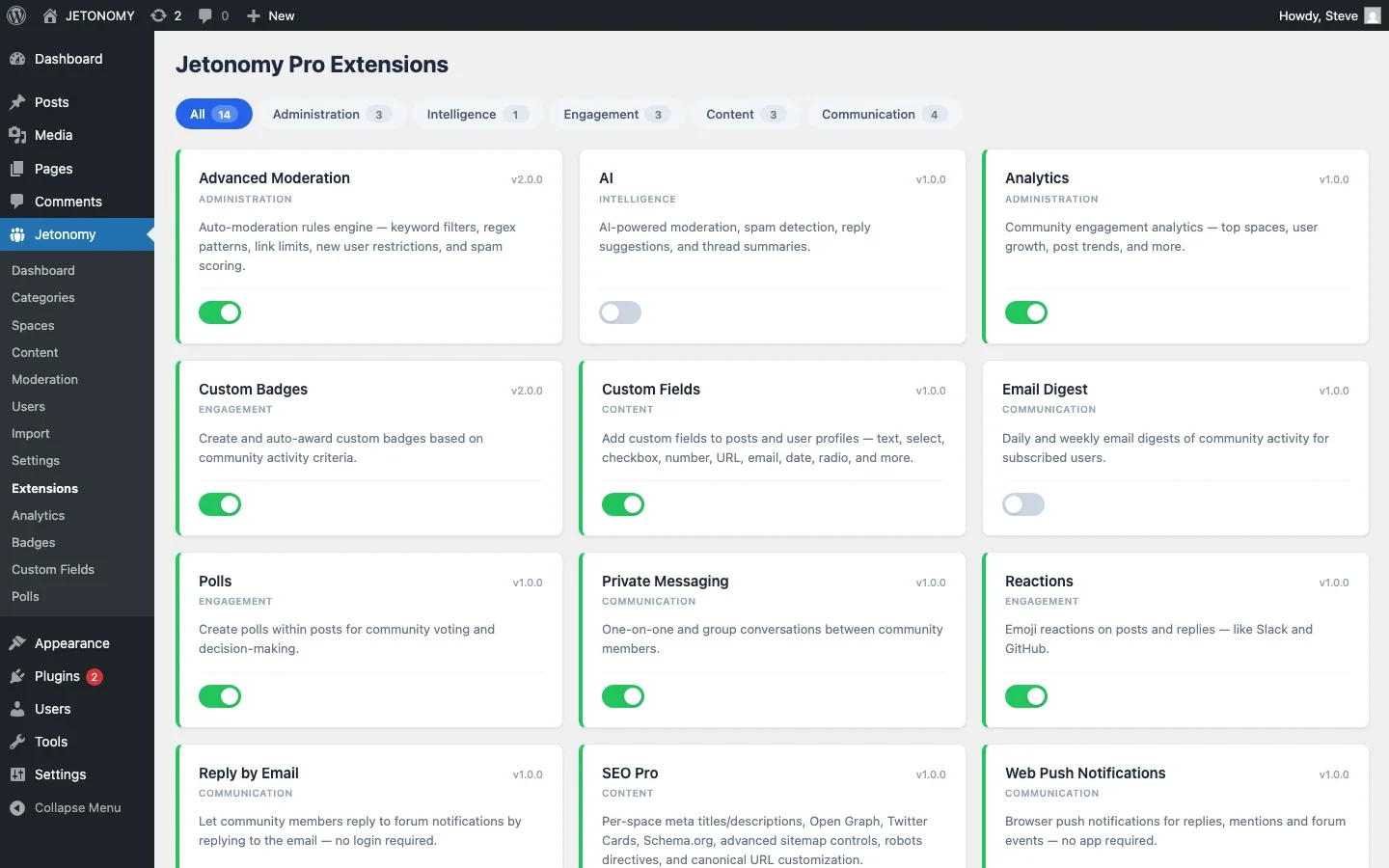
Combine the forum with engagement tools to maximize student participation:
- Polls for weekly check-ins and feedback on course content
- Reactions for students to acknowledge helpful answers without cluttering the thread
- Badges for course milestones (“Completed Module 1”, “Helped 10 Classmates”)
- Leaderboard showing the most helpful students in each course
- Weekly digest emails highlighting the best course discussions
For the full gamification setup in a course context, see our guide on building a course community with completion badges.
Other LMS Platforms
The same approach works with other LMS platforms. Jetonomy Pro includes adapters for:
- LearnDash, See our dedicated LearnDash forum guide
- LifterLMS, Course + membership enrollment gating
- Sensei LMS, Course enrollment status gating
- MasterStudy LMS, Course enrollment gating
Getting Started
- Install Jetonomy and Jetonomy Pro
- Enable the Tutor LMS adapter
- Create a Q&A space for your most popular course
- Seed with 5–10 questions from your existing Q&A
- Announce to enrolled students
- Respond to every question within 24 hours for the first month
Your students already have questions. Give them a forum where those questions become searchable answers, peer support becomes visible, and the community becomes a reason to stay enrolled. For the broader student community strategy, read our guide on building a student community around your online course.
On a Multi-Instructor Site, Scope Moderation Per Course
Tutor LMS is common on course marketplaces where several instructors each run their own catalog. The automatic instructor-as-moderator assignment matters more here than on a single-instructor site: confirm each instructor’s moderation tools are scoped to their own course space only, not a dashboard view into every course’s Q&A on the site.
- Test moderator permissions with two instructor accounts before launch, an instructor should not be able to pin, close, or delete in another instructor’s space.
- Decide whether cross-course discovery (students browsing other instructors’ Q&A) is a feature or a privacy concern for your marketplace.
- If instructors are independent contractors rather than staff, treat their course space as their support queue, not yours, and set response-time expectations accordingly.
Letting Instructors Build Without wp-admin Access
The moderation question above usually comes up because a marketplace has multiple instructors who are not technical staff. Handing every instructor wp-admin credentials to manage their own course is its own risk. Learnomy includes a front-end course builder, so instructors create and edit lessons from the public site and never see the WordPress dashboard at all.
- Drag-and-drop builder on the front end, no wp-admin access required
- Autosave and draft support so instructors never lose work mid-session
- Distraction-free lesson player keeps students focused on the content
The front-end builder ships free in Learnomy, and Learnomy Pro adds Stripe Connect so you can split revenue with those instructors automatically.
Where Jetonomy Pro Fits for Tutor LMS Specifically
The Tutor LMS adapter itself, course-to-space mapping, enrollment sync, and instructor-as-moderator assignment, is a Jetonomy Pro feature. Layer polls, reactions, and badges on top once the base Q&A space is running and you want to see which instructors and students are actually driving engagement. Details are on the Jetonomy Pro page.