
Building a community site on WordPress means choosing how to handle two fundamentally different needs: social networking (who people are and how they connect) and knowledge sharing (what people discuss and how information is organized).
BuddyPress excels at the social side: rich member profiles, friend connections, groups, activity streams, and notifications. Jetonomy excels at the knowledge side: structured forums, Q&A with voting, Ideas boards, trust levels, and reputation. Neither plugin tries to do everything. Together, they create a community platform that handles both dimensions well.
This guide is the complete walkthrough for building a community site that combines both.
The Architecture
| Layer | Plugin | What It Handles |
|---|---|---|
| Member Identity | BuddyPress | Profiles, avatars, cover images, extended profile fields |
| Social Connections | BuddyPress | Friend requests, followers, connections |
| Groups | BuddyPress | Group creation, membership, privacy levels |
| Activity Feed | BuddyPress | Site-wide and per-group activity streams |
| Discussion Forums | Jetonomy | Forum, Q&A, Ideas, Social feed spaces |
| Knowledge Base | Jetonomy | Searchable Q&A with voting and accepted answers |
| Reputation | Jetonomy | Trust levels, points, leaderboard, badges |
| Private Messaging | BuddyPress or Jetonomy Pro | Direct and group conversations |
| Notifications | Both | BuddyPress social + Jetonomy forum notifications |
Step-by-Step Setup
Step 1: Install the Foundation
- WordPress (latest version)
- BuddyPress (activate desired components: Extended Profiles, Groups, Activity, Notifications, Friends/Followers)
- A compatible theme (BuddyX, flavor, flavor child theme, or any theme that supports BuddyPress)
- Jetonomy (free version from WordPress.org)
- Jetonomy Pro (optional, for premium extensions)
Step 2: Configure BuddyPress
Set up BuddyPress with the components your community needs:
- Extended Profiles, Custom profile fields for member bios, skills, location
- Groups, Interest-based or project-based groups
- Activity, Social activity stream
- Notifications, Alert system for social events
Step 3: Configure Jetonomy
Run the Jetonomy setup wizard (setup guide). Create your community structure:
| Category | Space | Type |
|---|---|---|
| Community | General Discussion | Forum |
| Community | Welcome & Introductions | Forum |
| Support | Help & Support | Q&A |
| Support | Feature Requests | Ideas |
| Resources | Tips & Tutorials | Forum |
| Resources | News & Links | Social |
Step 4: Enable BuddyPress Integration
In Jetonomy → Settings, enable the BuddyPress integration. This activates:
- Forum tabs on BuddyPress member profiles (profile integration guide)
- Group-to-space linking with member sync (group forums guide)
- Forum activity in BuddyPress activity streams
- Forum tab in group creation wizard
Step 5: Link Groups to Forum Spaces
For each BuddyPress group that needs a discussion forum, link it to a Jetonomy space. You can do this manually or enable auto-creation so new groups get spaces automatically.
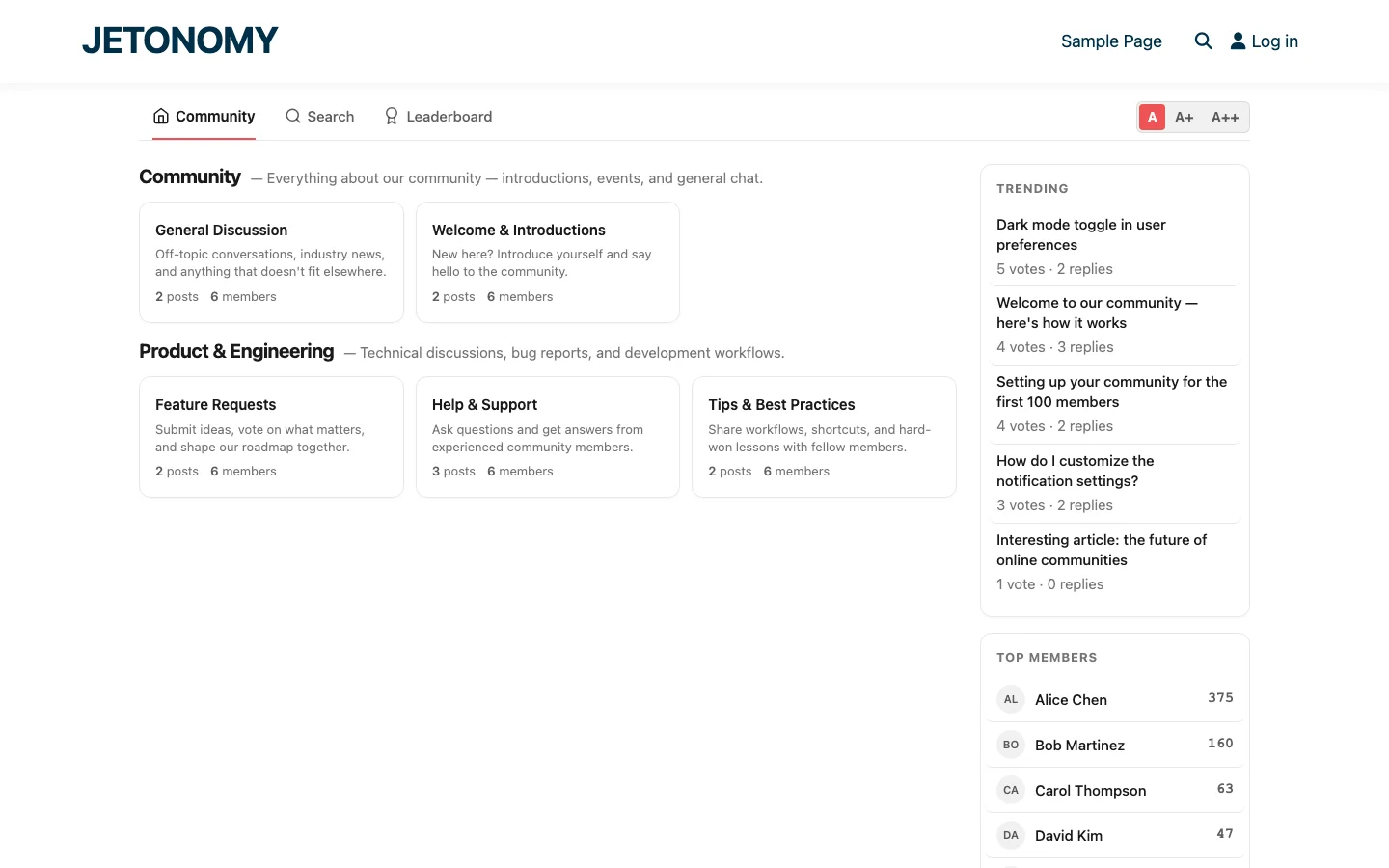
Step 6: Configure the Navigation
Your community navigation should include both BuddyPress and Jetonomy elements:
- Community (Jetonomy home), Forum spaces, trending topics
- Members (BuddyPress), Member directory
- Groups (BuddyPress), Group directory
- Activity (BuddyPress), Social activity stream
- Leaderboard (Jetonomy), Top forum contributors
- Search (Jetonomy), Full-text forum search
The Member Journey
Here is what the experience looks like for a new member:
- Registers and creates a BuddyPress profile with avatar, bio, and extended fields
- Joins groups based on interests, automatically gets access to group forum spaces
- Browses the forum, reads topics, discovers the community’s culture
- Posts their first topic, earns the “First Post” badge, starts building reputation
- Answers a question, their answer gets upvoted, they earn Trust Level 1
- Reaches the leaderboard, visible recognition motivates continued participation
- Connects with members, sends friend requests in BuddyPress, private messages in the forum
- Earns Trust Level 2, unlocks editing and flagging abilities, deepening their community role
Each step combines BuddyPress social features with Jetonomy knowledge features. The member builds both a social identity (profile, friends, groups) and a knowledge identity (reputation, badges, trust level).
Pro Extensions That Enhance the Stack
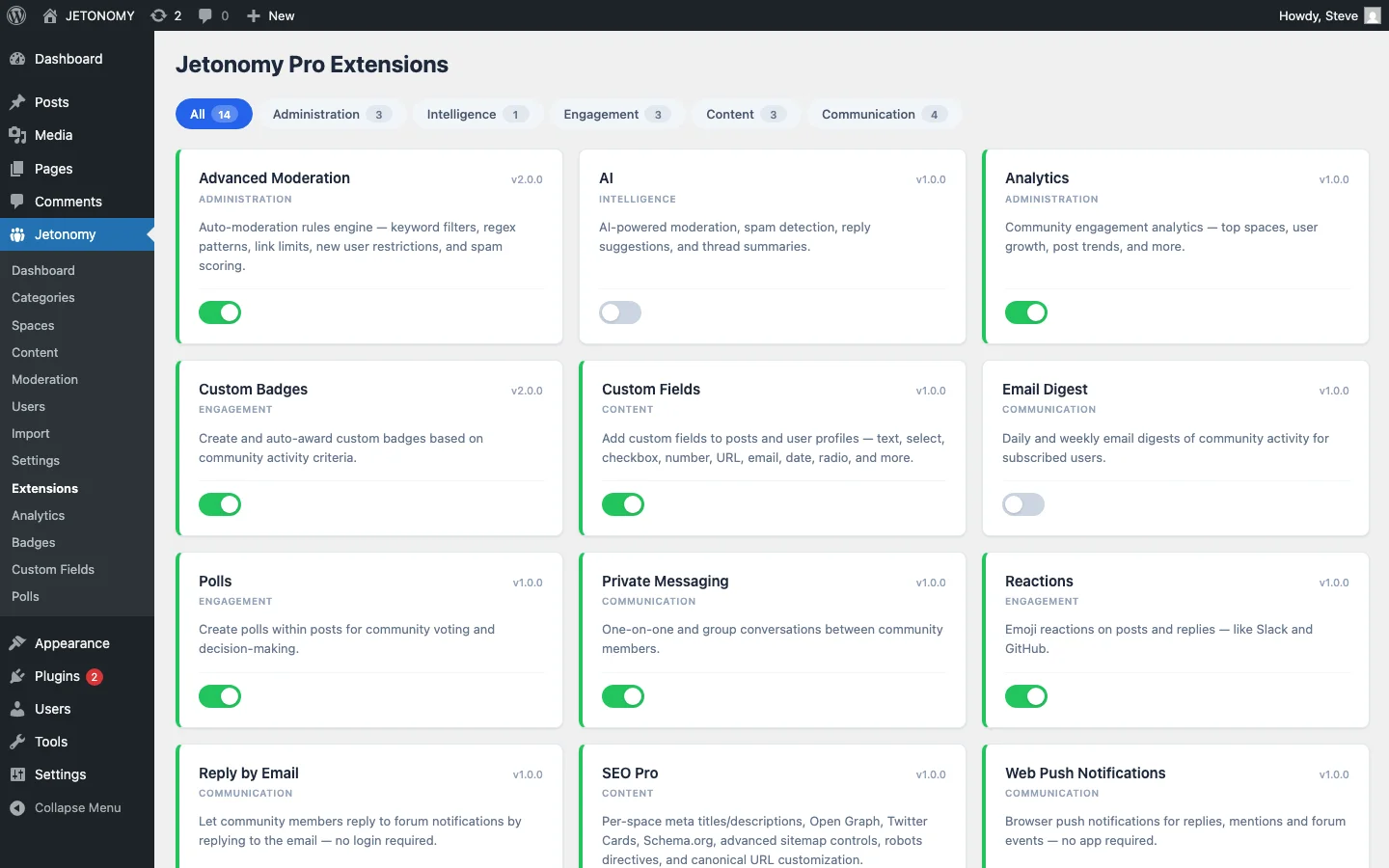
If you add Jetonomy Pro, these extensions complement the BuddyPress + Jetonomy foundation:
- Private Messaging, Forum-integrated conversations with trust level gating
- Polls & Reactions, Engagement tools for forum spaces
- Custom Badges, Achievement recognition beyond trust levels
- Analytics, Community health metrics and engagement tracking
- Email Digests, Weekly community summary emails
- Advanced Moderation, Keyword filters, rate limits, user score gates
Real-World Examples
Here are community types that benefit from the BuddyPress + Jetonomy combination:
| Community Type | BuddyPress Provides | Jetonomy Provides |
|---|---|---|
| Professional network | Member profiles, connections, groups | Industry Q&A, knowledge sharing |
| Online school | Student profiles, cohort groups | Course Q&A, peer support |
| Product community | User profiles, user groups | Support Q&A, feature requests, docs |
| Nonprofit | Volunteer profiles, chapter groups | Discussions, resource sharing |
| Employee intranet | Staff profiles, department groups | Internal Q&A, knowledge base |
For the employee intranet use case, see our detailed intranet guide.
Getting Started
- Install BuddyPress + Jetonomy
- Choose your theme (must support BuddyPress)
- Configure BuddyPress components (profiles, groups, activity)
- Set up forum structure (choose the right community types)
- Enable BuddyPress integration in Jetonomy Settings
- Link groups to spaces
- Seed with content and invite your first members
BuddyPress gives your members a social home. Jetonomy gives them a knowledge home. Together, they create the kind of community platform that keeps people coming back, not just to scroll, but to contribute, learn, and connect.