BuddyPress Update Broke Your Site? Fixing Empty Member Pages and Broken Links, and How to Update Safely
Blank member pages or 404s after a BuddyPress update? The fixes that work for BuddyPress 12 URL changes, BP Classic, rollback, and a staging routine for safe updates.

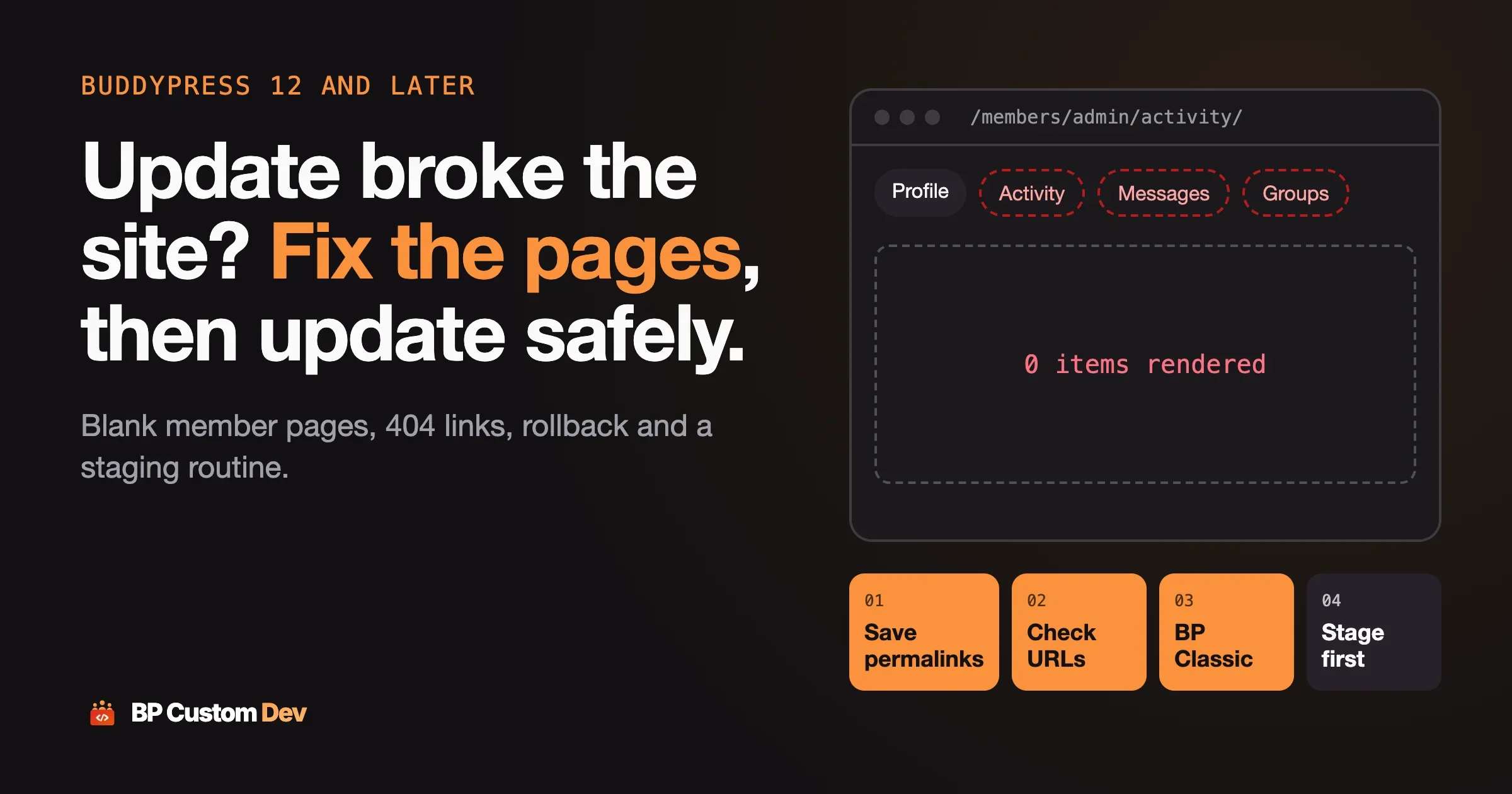
If a BuddyPress update left your member pages blank or your community links returning 404, work in this order. Restore from backup if the whole site is down. If it is only the community pages, save Settings, Permalinks to rebuild the rewrite rules, then open Settings, BuddyPress, URLs and check every directory slug. If a theme or add-on is older than the update, switch on the BP Classic add-on until it catches up. Most empty member pages after BuddyPress 12 come from URL routing, not from lost data, and your members, groups and activity are usually still sitting in the database.
That is the quick version. The rest of this guide covers why it happens, a symptom table so you can find your case fast, a rollback that does not corrupt anything, and an update routine that stops the next breakage from reaching your members. At the end we cover when a move to BuddyNext makes sense for owners who are tired of the cycle. Everything factual was read on 29 November 2026 and is dated.
Why did my BuddyPress pages go blank after the update?
The biggest cause of blank member pages in recent years is one release. BuddyPress 12.0.0, published on 11 December 2023, replaced the way the plugin turns a URL into a page. The release announcement calls the new BP Rewrites API “one of the largest shifts we have made since BuddyPress was born 15 years ago”. Instead of BuddyPress parsing the address itself, it now registers rules with the WordPress Rewrite API, the same system that handles posts and categories.
The gain is real. Site owners can change every BuddyPress slug from one screen, plain permalinks work, and routing is faster and easier to test. The cost is that anything built for the old parser can stop working. The team named two limits they could not work around: WordPress analyses a URL later in the load process than the old BuddyPress parser did, and supporting plain permalinks and custom slugs meant rethinking how every URL is built.
The project also shipped a safety net. In the same announcement the team wrote that if you use third-party BuddyPress plugins that have not been updated for the last four months, or you still run the old BP Default theme, they “strongly advise” you to download and activate BP Classic before upgrading. A site that skipped that advice often lands on the symptoms below.
We want to be fair here. Volunteers shipped a hard change with a documented bridge, and most sites came through. But a bridge only helps if you know it exists, and the owners in the support forums often did not. Our review of wordpress.org support threads on 29 November 2026 found about 17 in this family, such as “Member pages are empty after upgrading to version 12”, “Update to v12.0 DESTROYS SITE” and “Loading of activities compromised after last update”. They are older threads, not a new wave, but the pattern comes back after every major release, so the fixes are worth knowing before you need them.
What should I check first when a BuddyPress update breaks the site?
Match what you see to the table, then follow the fix in the section named in the last column. Change one thing at a time and reload after each step, so you know which change worked.
What you see | Most likely cause | First check | Section |
|---|---|---|---|
White screen or HTTP 500 on every page | A fatal PHP error from BuddyPress or an add-on | debug.log, then rename the plugin folder | Rollback |
Profile, Activity, Messages tabs empty; member page renders but with no content | Stale rewrite rules or an add-on using the old URL system | Save permalinks, then BP Classic | Empty member pages |
Members, Groups or Activity directories return 404 | Directory slug or page association changed | Settings, BuddyPress, URLs | Broken links |
403 Forbidden on the Members page | A server or firewall rule, or a slug clash with a normal page | Host error log and your security plugin | Broken links |
Activity feed spins or stays empty | Cache, a JavaScript error, or a template override from an older version | Browser console and a cache purge | Activity and forms |
Registration or group creation form reloads with no error | A conflicting add-on or a template override | Default theme and one add-on at a time | Activity and forms |
Layout broken, buttons misplaced | Child theme templates copied from an older BuddyPress | Compare your overrides with the plugin | Template overrides |
Before any of it, take a fresh backup of the files and the database, even of the broken state. If a fix goes sideways you want a point to return to, and the broken state is useful evidence. Our BuddyPress hosting guide covers where backups and snapshots live on a typical host.
How do I fix empty member pages after a BuddyPress update?
Work through these steps in order. Most sites are fixed by step one or two.
Step 1: Flush the rewrite rules
Go to Settings, Permalinks and press Save Changes without changing anything. That rebuilds the rules WordPress uses to route requests. It sounds too simple, but the 12.0.0 notes themselves record it: ticket 9020 says permalinks must be updated after a component with a directory is first activated, and ticket 9018 fixed a case where the rules were not created at all on a first install. If you have shell access, the same job is one command:
wp rewrite flush
wp bp component list
The second command lists which BuddyPress components are active. If Members, Activity or Groups show as inactive after the update, switch them on again under Settings, BuddyPress, Components. The WP-CLI reference for rewrite flush explains the command in full.
Step 2: Open the new URLs screen
BuddyPress 12 replaced the old Pages tab with a URLs screen. Open Settings, BuddyPress, URLs and look at the slug for each component: members, activity, groups, register, activate and the rest. Each one should show the address you expect. If a slug is blank or points somewhere strange, set it and save. The 12.0.0 notes also mention an improved tool to reset all BuddyPress URL slugs (ticket 8934) and a notice that tells admins which URL parser is currently in use (ticket 9027). If your site reports the legacy parser, an add-on or theme asked BuddyPress to stay in compatibility mode, which leads to step 3.
Check for a slug clash while you are there. If an ordinary WordPress page called “Members” exists with the same slug as the BuddyPress members directory, one of them will win and the other will 404 or render empty. Rename the plain page, save permalinks again, and test.
Step 3: Find the add-on or theme that still uses the old system
Switch to a default theme such as Twenty Twenty-Four on a staging copy, then deactivate every add-on except BuddyPress. If member pages fill with content, reactivate add-ons one at a time until they go blank again. The last one you activated is the cause. That is slow, and it is the only method that gives a certain answer.
For a faster first guess, search your theme and plugin code for the things the 12.0.0 notes say changed:
grep -rn "bp_nav\|bp_options_nav" wp-content/themes wp-content/plugins
grep -rn "home_url( *['\"]/members" wp-content/themes wp-content/plugins
The notes list the bp_nav and bp_options_nav globals as fully deprecated in 12.0.0, and ticket 8937 describes links built with home_url() that were missed during the move to the new system. Any hit in code you did not write is a reason to contact that author, and any hit in your own child theme is a task for your developer.
Step 4: Activate BP Classic as a bridge
If step 3 points to an add-on you cannot change today, install BP Classic from the plugin directory and activate it. We explain how it works in the next section. Then save permalinks again.
Step 5: Rule out the server
One of the forum threads above reports a “403 Forbidden” on the Members page, along with empty profile tabs, after installing BP Classic did not help. A 403 is not something BuddyPress sends. It comes from the web server or a firewall. Check your host’s error log, the rules in your security plugin, and any ModSecurity or WAF block for the members path. We cannot tell you which cause that particular site had, because the thread does not say, but a 403 means the request never reached WordPress routing, so no amount of BuddyPress settings will fix it.
Step 6: Purge every cache
Clear the page cache, object cache and CDN. A cached copy of the empty page will keep showing after the real fix. If you use a persistent object cache such as Redis, flush it too, then test while logged in and in a private window.
What is BP Classic and when do I need it?
BP Classic is a free add-on from the BuddyPress team. It keeps the older behaviour available for sites whose third-party plugins or themes are not yet ready for the BP Rewrites API. On 29 November 2026 the WordPress.org page shows version 1.4.1, updated 26 July 2026, with 6,000+ active installations, and it requires BuddyPress 12.0.0 or newer to do anything.
The plugin page lists what it restores:
- Backward compatibility for add-ons that expect the old URL system.
- The legacy widgets, which moved into the add-on in 12.0.0.
- The BP Default theme, deprecated in BuddyPress 12.0.0.
- The legacy navigation globals
buddypress()->bp_navandbuddypress()->bp_options_nav.
It also has a sleep mode: you can activate it before you upgrade to BuddyPress 12, and it stays dormant until the upgrade happens. That is how the BuddyPress team intended it to be used, as insurance installed first. Doing it afterwards works too, but expect to save permalinks once more.
Two honest limits. First, BP Classic is a bridge, not a home. It is a second plugin to keep updated, and it exists so you can move add-ons to the new system on your own schedule. Second, it does not fix every problem. In the forum thread titled “Member pages are empty after upgrading to version 12”, the owner installed BP Classic and still saw empty pages, which is why the other steps in this guide matter. On the wordpress.org page the plugin has no reviews yet and 1 of 1 support issues resolved in the last two months, so treat it as a small, volunteer-run tool and test it on staging first.
Why are my BuddyPress links broken or returning 404?
After step 1 and step 2 above, three things remain that produce 404s on community links.
Hard-coded addresses. Menu items, widgets, buttons and page-builder blocks that point to a literal path like /members/admin/ break the moment a slug changes. Replace them with menu items that use BuddyPress’s own navigation, or with the BuddyPress functions that build the URL for you. In 12.0.0, ticket 8971 fixed the logged-in and logged-out Members menu items in WordPress menus, so make sure you are on a current release before rebuilding menus by hand.
Changed slugs after translation or a custom setup. The new URLs screen lets you localise slugs. If someone changed them during the update, old shared links will 404. Add redirects from the old paths to the new ones, at the server or with a redirect plugin, and keep them for at least a year.
Plain permalinks. BuddyPress 12 supports plain permalinks, which is new. If your site was moved to a pretty structure recently, flush again. Whichever you use, test a member profile, a group page and the activity directory in a private window after every change.
Our guide on BuddyPress not generating default pages covers the related case where directory pages are missing from the Pages list. Since BuddyPress 12, directories no longer need a matching WordPress page by default, and BP Classic is the route if you want real Pages back.
What about activity loading, registration and group forms?
These are the silent failures: no error, the form just reloads or the feed never fills. The forum thread “Loading of activities compromised after last update” shows the typical story. The owner suspected the theme, switched themes, and the problem stayed. That points away from the theme and toward a script, a cache or an add-on.
Use this order:
- Open the browser console on the broken page. A red JavaScript error is the best clue you will get, and it usually names the file.
- Open the network tab and reload. A failing request to the activity or REST endpoint, with a 403, 404 or 500 status, tells you where to look next.
- Turn off any minify, defer or combine setting in your optimisation plugin and purge the cache. Optimisation plugins often reorder scripts that BuddyPress expects in a set order.
- Test with only BuddyPress and a default theme. If the form works, add things back until it fails.
BuddyPress itself shipped fixes in this area in 12.0.0, for example the Activity Heartbeat failing under the rewrites parser (ticket 8954), so a site on an early 12.x build should simply update to the current release before debugging further.
Could my child theme templates be the problem?
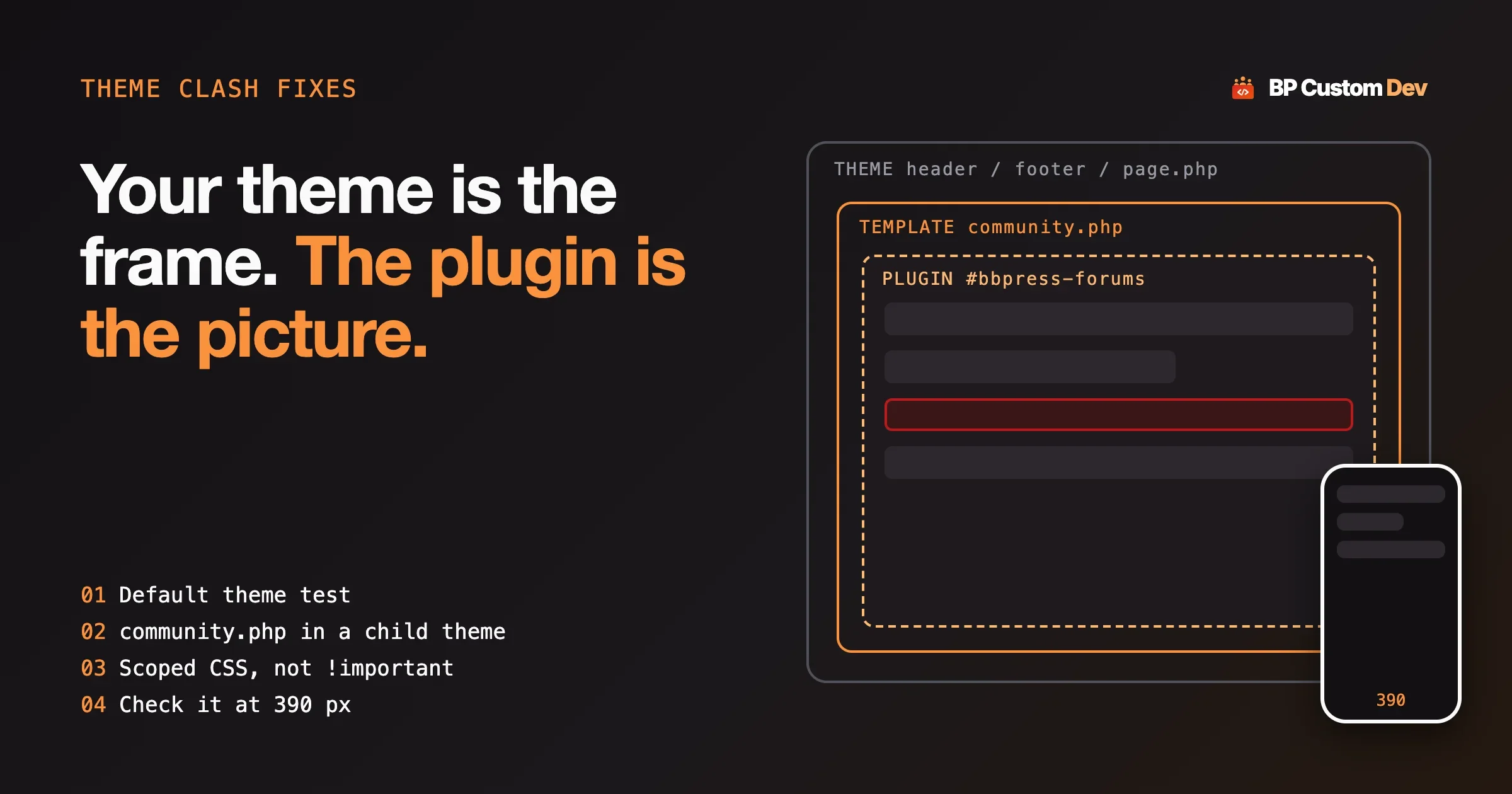
Yes, and this is the cause most guides skip. BuddyPress lets a theme override its templates by placing copies in a folder named buddypress (or community) in the theme. The project codex describes it: BuddyPress looks in the child theme first, then the parent, and uses the first match. That is a good system, with one trap. A copied template is frozen at the version you copied it from. When BuddyPress changes the markup or the script hooks, your old copy keeps producing the old markup, and the new scripts no longer match it.
Check it like this:
diff -rq wp-content/plugins/buddypress/bp-templates/bp-nouveau/buddypress \
  wp-content/themes/your-child-theme/buddypress
Every file that appears on both sides is an override. Open each one against the current plugin version and look for changed markup, new template parts and renamed hooks. If you did not intentionally customise a file, delete your copy and let the plugin version run. The fewer overrides you carry, the fewer things an update can break, which is the main idea behind everything in the update routine below.
The same codex pages list the base templates BuddyPress looks for in order: plugin-buddypress.php, buddypress.php, community.php, generic.php, page.php and then the standard fallbacks. A stray community.php left in a theme by a previous developer can quietly take over every community page, so check for one.
How do I roll back a bad BuddyPress update?
Use the lightest option that works, and know what each one costs.
Option | When to use it | The catch |
|---|---|---|
Deactivate BuddyPress by renaming its folder | The site shows a fatal error and you cannot reach wp-admin | Community pages vanish while it is off, but nothing is deleted |
Deactivate one add-on | debug.log names that add-on | Its features go with it |
Restore files and database from backup | Data looks damaged, or several things broke at once | You lose everything posted since the backup |
Reinstall the previous BuddyPress version | As a last resort, with a fresh backup of the current state | Database changes from the upgrade are not undone |
To get back into wp-admin when a plugin is crashing the site, rename the folder over SFTP, for example wp-content/plugins/buddypress to buddypress-off. WordPress then deactivates it. Rename it back when you have a fix. If you prefer the command line:
wp plugin deactivate buddypress
wp plugin install buddypress --version=14.5.6 --force
Read the second command as an example of the syntax, not as advice to run it. The WP-CLI plugin install reference documents the --version flag. Reinstalling an older plugin version replaces the files but not the database. A major upgrade may have changed stored options and tables, so after a major release the safe rollback is the paired one, files and database restored together from the same backup.
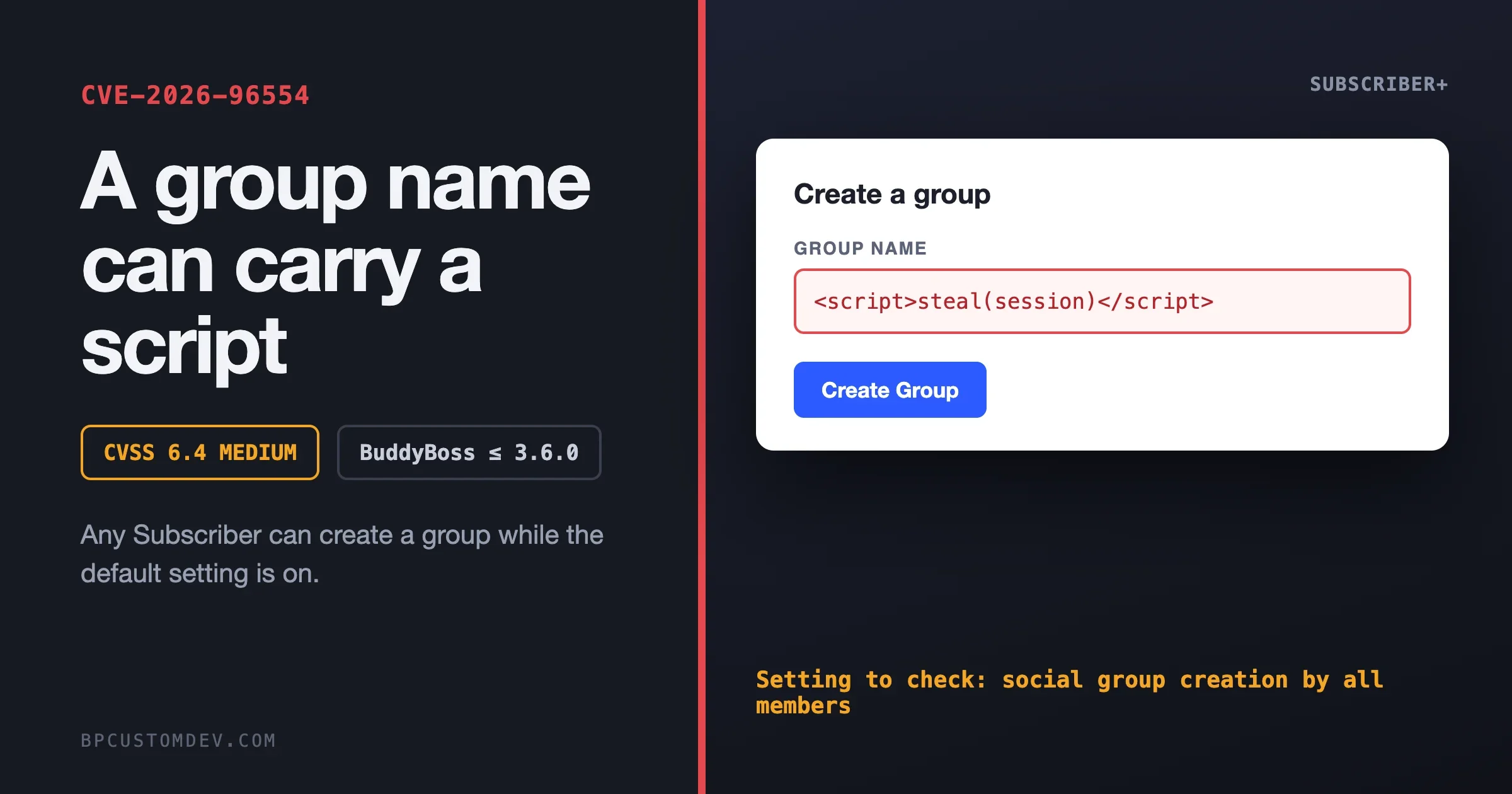
Two warnings from the field. A rollback can also remove security fixes. BuddyPress 14.5.7, released on 25 November 2026, is a security maintenance release that fixes how nested query relations are validated in the Activity and XProfile components, and it shipped alongside 11.6.5 and 12.7.5 for older branches. Staying on an old build to avoid a conflict means staying exposed. Fix the conflict instead, and keep the community on a patched version. Our checklist for WordPress security updates on a community site shows how to schedule that.
Turn on logging first, so the next failure leaves a trail. In wp-config.php:
define( 'WP_DEBUG', true );
define( 'WP_DEBUG_LOG', true );
define( 'WP_DEBUG_DISPLAY', false );
That writes errors to wp-content/debug.log without printing them to visitors. The WordPress developer handbook page on debugging in WordPress explains each setting. Turn it off again when you are done, and delete old logs, since they can contain file paths and other details.
How do I update BuddyPress safely from now on?
The owner in the thread who wrote that the update “completely destroyed my community” also wrote that they had tested it first on a cloned test site and could restore the previous night’s backup. That habit is what kept the damage small. This routine is the formal version of it. It takes one to two hours for a small site and is the single best protection you have.
Before the update
- Read the release notes. The codex lists every release at codex.buddypress.org/releases. Look for the words “major”, “database”, “deprecated” and “requires”. A security release like 14.5.7 is a small change. A major release such as 12.0.0 needs a plan.
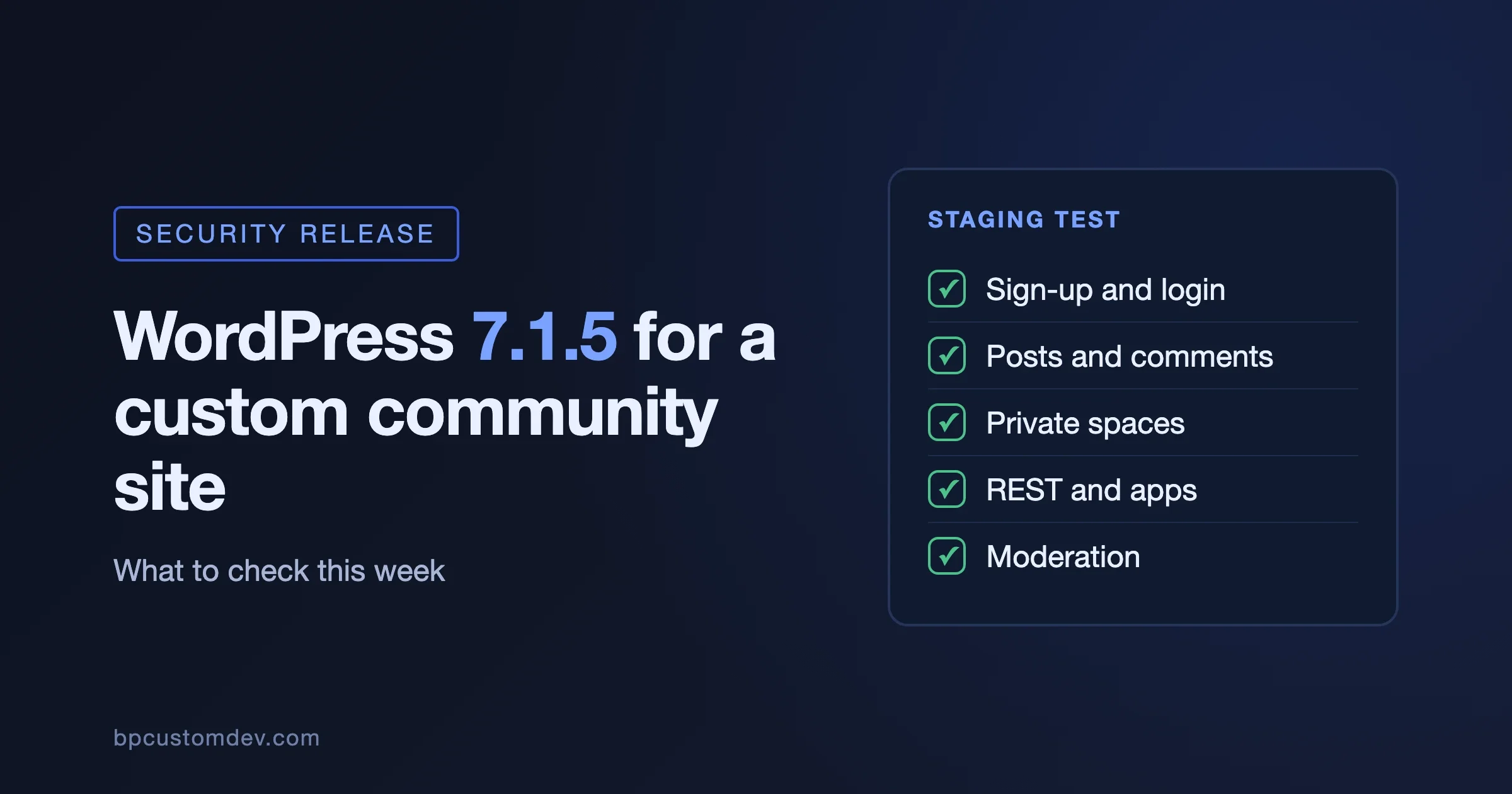
- Check requirements. On 29 November 2026 the BuddyPress plugin page shows version 14.5.7, tested up to WordPress 7.1.5, requiring WordPress 6.1, with 90,000+ active installations. Our post on the tested up to label explains what that field does and does not promise.
- Take a backup you have tested. Files and database together, stored off the server. Restore it once on a spare environment so you know it works. The WordPress documentation on backups covers the basics.
- Clone to staging. Use a copy with real data, or at least a few hundred members, groups and activity items. Many hosts offer one-click staging. A staging site with five test users hides the problems that real data triggers.
- Change one thing at a time. Do not update PHP, WordPress core, your theme and BuddyPress in one afternoon. If something breaks you will not know which change did it.
On staging
- Update BuddyPress first, then its add-ons, then the theme. Add-ons often need the new core in place before their own updates make sense.
- Save permalinks and open Settings, BuddyPress, URLs.
- Run the test list below with a normal member account, not only as admin. Permission bugs show up for members and hide from admins.
- Watch
debug.logwhile you click. A notice that nobody sees today often becomes a fatal error in the next PHP release. - Test at a phone width of 390 pixels and at desktop width.
Area | Test |
|---|---|
Registration | Register a new user, receive the email, activate the account, log in |
Profile | Open your profile, edit fields, upload an avatar and a cover image |
Member directory | Search, filter and open another member |
Activity | Post an update, comment, favourite, delete your own post, load more items |
Groups | Create a group, join a public group, request a private one, post inside it |
Messages | Send a private message, reply, check the unread count |
Notifications | Trigger one, mark it read, check the email version |
Menus and links | Every community link in the header, footer and widgets |
Logged out | Open the community in a private window and check what a visitor sees |
Add-ons | Anything that adds fields, payments, badges or forum links |
On the live site
- Announce a short maintenance window if the community is active, and pick the quietest hour you know of from your own analytics.
- Take a fresh backup, apply the same updates in the same order, save permalinks, purge caches.
- Run a shortened test list within ten minutes: log in, view a profile, post an update, open a group.
- Keep the backup for two weeks. Problems with email, cron and edge cases often appear a day later.
Stay on a rhythm
Do not let updates pile up for a year and then apply them together. Small and frequent updates are easier to test than a giant jump, and security releases cannot wait. A workable cadence for most communities is a weekly look at available updates, a staging test within a few days for ordinary releases, and same-day action for a security release. Turn off automatic updates for BuddyPress and its add-ons, so nothing reaches the live site before it has run on staging, and put the weekly check on a calendar so it actually happens.
Last, reduce what an update can touch. Remove add-ons you do not use, delete template overrides you do not need, and keep a short written list of every customisation in your child theme and what it does. Our one-hour platform evaluation script is a good model for the kind of test list you can keep on file and rerun.
Why does this keep happening with BuddyPress updates?
Three structural reasons, none of them a scandal.
First, BuddyPress sits at the centre of a large add-on and theme ecosystem that it does not control. When core changes a deep system such as URL routing, every add-on that touched that system has to follow. Authors who stopped maintaining their plugin do not follow, and the owner finds out on update day. BuddyPress moderators have told owners in forum threads that third-party plugins are not theirs, so the author must be contacted.
Second, the project is volunteer-run. The BP Classic page says it is built by an international community of volunteers, none of whom is paid by the BuddyPress project for contributions. That model delivered a 100-change major release and a compatibility add-on, and it also means support threads can wait. That is the worry behind one-star reviews such as “Total Lack of Communication” and “Unusable. looks like abandoned.”. We found about 22 reviews in that family on 29 November 2026. Some of them concern bbPress, the forum plugin, and they are older reviews, so read each for the version it describes.
Third, themes. BuddyPress renders inside whatever theme you run, so a theme update can break community pages just as easily as a BuddyPress update. If the breakage appeared after a theme or builder update instead, the same process in this guide applies, with the theme as the suspect.
None of this means BuddyPress is the wrong tool. For deep custom builds that need a developer, it remains a strong base. It does mean the owner carries the update discipline. If you want someone else to carry it, our community maintenance and care plans cover staged updates, testing and rollback for BuddyPress sites.
When should I consider BuddyNext instead?
If you have been through two or three of these update scares, or you are about to rebuild the site anyway, it is fair to ask whether the foundation is right. BuddyNext is the modern alternative from Wbcom Designs, and it was designed so the pain points in this guide have less room to occur.
Here is what BuddyNext is, based on its own site and documentation read on 29 November 2026:
- It is a free, self-hosted community plugin for WordPress. The home page says Free is free forever and covers the essentials: an activity feed and posting, Spaces (groups), members and profiles, messaging, notifications and email, and moderation and trust tools.
- It is a standalone engine, not a fork and not an add-on. The documentation states that it does not need BuddyPress to run and has no dependence on BuddyPress code.
- It is built around a REST API, hooks on every event and Gutenberg blocks. The developer guide lists 19 server-rendered blocks under the
buddynext/*namespace. - It brings its own community interface, so your theme controls the header, footer, fonts and colours around it. The theme guide says it works with any well-built WordPress theme, and that BuddyX, BuddyX Pro and Reign are the themes Wbcom Designs builds and tests it against.
- Requirements: WordPress 6.9 or newer and PHP 8.1 or newer, with pretty permalinks.
Why that matters for update safety: because BuddyNext keeps its own storage and templates instead of routing through an older URL parser and theme-compatibility layer, there is less shared surface for a theme or core change to break. We say less, not none. It is newer, so its track record is shorter than BuddyPress’s fifteen years, and any plugin can regress. The tests in this guide apply to it as well.
What a move involves, honestly
The migration documentation at buddynext.com/docs/migrating-from-buddypress is clear about the limits. They are worth reading before you decide:
- WordPress accounts and roles carry over, because BuddyNext works on top of standard WordPress users. Posts, pages and media are untouched.
- Community data, such as groups, profile fields, friendships and activity, does not appear on its own. The separate free BuddyNext Importer reads your BuddyPress or BuddyBoss tables and writes them into BuddyNext.
- The importer skips a content domain when its destination plugin is inactive. Per the docs, forums need Jetonomy, and albums, media and messages need WPMediaVerse.
- An import cannot be undone inside the plugin. Restoring a tested backup is the only way back.
- Running BuddyNext and BuddyPress together is not supported. You move, you do not layer.
The recommended path is the same as the safe update routine: back up and test a restore, work on a staging copy, keep the old BuddyPress data until you are happy, run the import, check the results as a normal member, then repeat on the live site. Our own write-up of moving from BuddyPress to BuddyNext walks through what moves and what stays in plain English.
Stay on BuddyPress if you rely on add-ons that only exist for it, if heavy custom code is tied to its functions, or if the community is stable and your update routine is working. A move is a project, not a patch. Go to BuddyNext when you are starting new, rebuilding, or tired of paying the update tax.
Need a second pair of hands?
If your community is down now, or you would rather not run these steps alone, bpcustomdev.com does this work for a living: diagnosing broken BuddyPress updates, building a staged update routine, and planning a move to BuddyNext when it makes sense. Start with our contact page, tell us your BuddyPress version, your theme and what you see, and we will say honestly whether it is a quick fix or a bigger job.
Frequently asked questions
Why are my BuddyPress member pages empty after updating to version 12?
Usually because the URL system changed in 12.0.0 and either the rewrite rules are stale or an add-on or theme still expects the old system. Save Settings, Permalinks, check Settings, BuddyPress, URLs, then test with BP Classic active.
Is my community data lost after a failed update?
In most cases no. Members, groups and activity live in database tables that an update does not delete. Confirm by checking the tables or restoring a backup to a test site before you take any drastic action.
Do I need BP Classic forever?
No. It is meant as a bridge until your add-ons and theme support the BuddyPress 12 URL system. Move off it once everything you use has been updated, and test on staging first.
Can I downgrade BuddyPress to the version that worked?
You can reinstall an older version, but the database may have changed during the upgrade, and you give up security fixes. A paired restore of files and database from one backup is safer.
How often should I update BuddyPress?
Check weekly, test ordinary releases on staging within a few days, and apply security releases the same day after a quick staging check.
Will BuddyNext avoid update problems?
It removes the old URL system and theme-compatibility layer from the picture, but no plugin is immune to conflicts. Treat BuddyNext updates with the same staging routine.
Do I have to leave BuddyPress to use BuddyNext?
Yes. The two are not supported side by side. The free BuddyNext Importer moves BuddyPress and BuddyBoss data across, and the documentation recommends rehearsing it on staging first.
Sources and dates
All read on 29 November 2026 unless noted.
- BuddyPress release notes: 12.0.0 and 14.5.7 (published 25 November 2026).
- BuddyPress announcement: BuddyPress 12.0.0 Nonno, 11 December 2023.
- Plugin pages on WordPress.org: BuddyPress and BP Classic.
- Support threads: Member pages are empty after upgrading to version 12, Update to v12.0 DESTROYS SITE, Loading of activities compromised after last update, Total Lack of Communication, Unusable. looks like abandoned.
- BuddyNext: home page, migration documentation and theme guide.
- WordPress developer documentation: debugging, rewrite flush.
Forum threads are individual reports and mostly older than this month. They show a recurring pattern, not the state of your site. Opinions about when to move are ours, and we make and sell BuddyNext, so weigh them accordingly.